
Box Of Synths manualThe browser
Browser: Current
The versions of the sound on screen. See how each was made, and hear, load, rate, mark and tidy them.
The Browser is the block under the header. Its first tab, Current, lists every version of the sound that is on the synth, newest at the top. Use it to go back to an earlier version, to compare two by ear, and to mark the one you are keeping. The other tabs are History, Library and Preview. Click the title Browser to fold the block away, and click it or any tab to open it again.
What a version is
A version is a saved copy of the sound at one moment. Nothing you did before is lost: each version keeps its own settings, and you can go back to any of them.
A new version is made when:
- A design lands. The first sound you ask for is v1.0, however it was made: from words or drawn. Each time you ask for a change in words with Edit in the chat, the designer's answer is added as the next version.
- You tweak by hand. Move a dial, a slider or an envelope, then leave it alone for about five seconds. The new state is kept as a version. If you change something and change it back inside that run, nothing is kept.
Generating a new sound over one that is already designed does not add to this list. It starts a new sound, and the old one is kept in History.
A new sound may arrive as several takes to choose from. Only the take you choose becomes a version. The others are not kept, so they are not in this list. See Takes.
A request that has not produced a sound shows as a row with dimmed words. It has no version number, no stars, thumbs or play key, and it cannot be loaded. A request that fails adds no row.
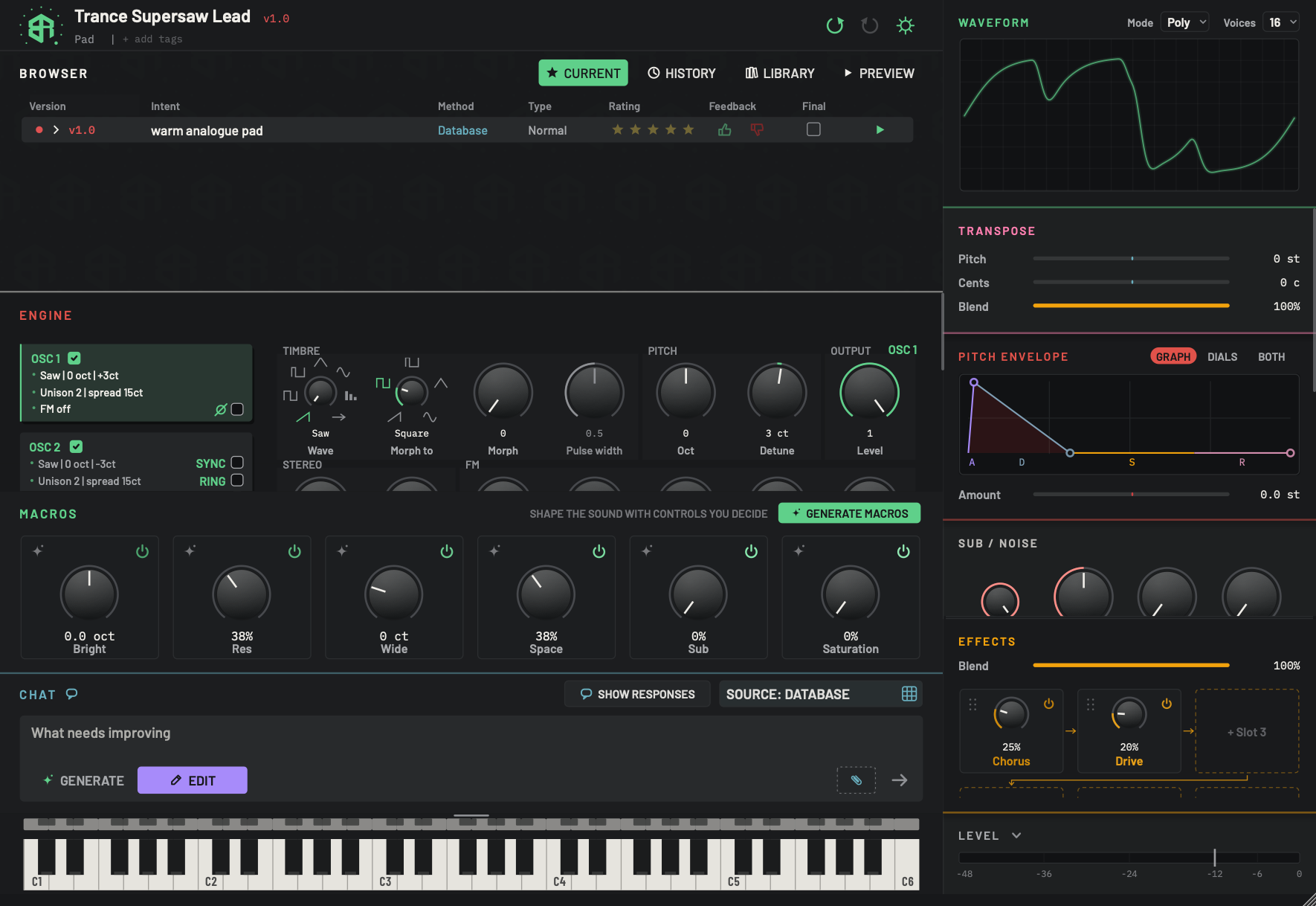
A sound that has just been designed has one version. It is the one on the synth, so its dot is filled.
-
1Version on the synthDisplay
A filled dot means this version is the one on the synth now. Other versions show a ring. The colour belongs to the version's number: major 1 is red, 2 is orange, 3 is gold, then green, cyan, blue and violet, and the cycle repeats.
-
2Version rowTable
One row for v1.0. The raised row is the one on the synth, so a click on its body does nothing. Hover reads On the synth now. Every other row loads when you click it.
The request that made it is in Intent, and Database under Method says the built-in database made it.
Every column is described on Browser: Current.
-
3Space under the rowsArea
Empty space. If a row's details are open, a click here closes them. Before any sound has been designed this area reads Say what the sound should be. Every version lands here.
How version numbers work
Every number has three parts, such as v2.1.2.
| Number | Meaning | Example |
|---|---|---|
| First part | The design. It counts up each time the designer answers: v1, v2, v3. | v2.0 is the second design. |
| Second part | A run of hand edits made from that design. The first run is 1, the next is 2. | v2.1.0 is the first hand edit after v2.0. |
| Third part | Each further edit kept inside the same run. | v2.1.1 and v2.1.2 follow v2.1.0. |
A design shows its second and third parts as zero: v1.0 and v2.0.
A new run starts when you edit after a new design, or after you load an earlier version. The run takes the next second number for that design, so a fresh run after v2.1.2 is v2.2.0. A new design always takes the next first number above every one in the list, so after those runs the next design is v3.0.
The colour of a version follows its first number: 1 is red, 2 orange, 3 gold, 4 green, 5 cyan, 6 blue and 7 violet, then the cycle repeats. Edits within a design take a slightly different shade of the design's colour.
The versions table
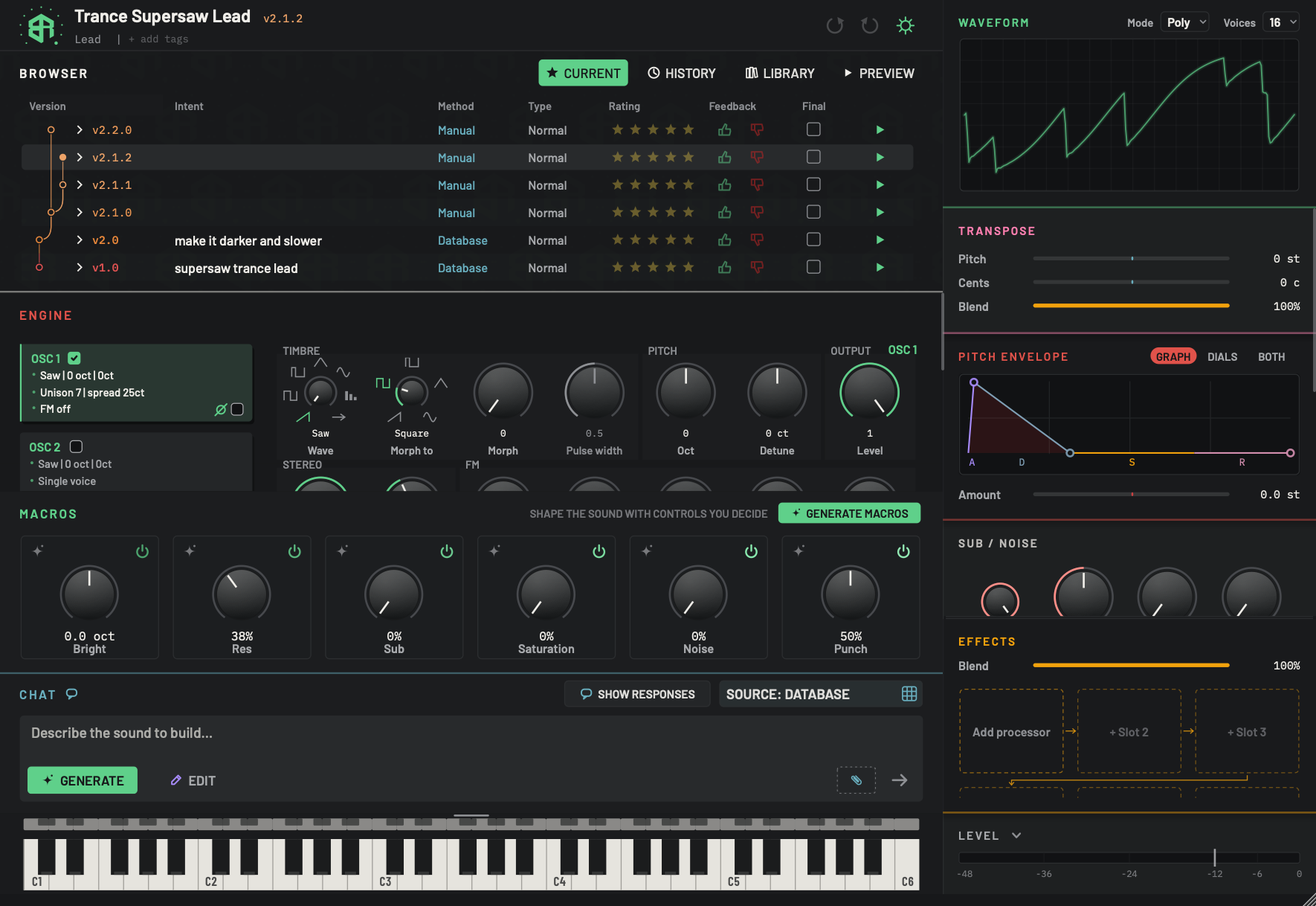
Six versions of one sound. The first two came from words (v1.0 and v2.0). The other four are hand edits kept automatically: v2.1.0, v2.1.1 and v2.1.2 branch off v2.0, and v2.2.0 is a second run of edits.
-
1Browser titleKey
The name of the block. Click it to fold the Browser away and give the room to the blocks below. Click it, or any tab key, to open it again.
-
3Column headersArea
Right-click the header row to open a list of columns with a tick on each one that shows. Click a column to show or hide it. Version and the play key are always there and are not in the list.
Drag a header past another to swap their places. Version stays first and the play key stays last.
- Options
Intent, Method, Type, Date Time, Rating, Final, Feedback, Tokens.
- Starts as
- All shown except Date Time and Tokens. Order: Version, Intent, Method, Type, Rating, Feedback, Final, Date Time.
Date Time reads like
13 Nov 2026 14:05. Tokens is the number of tokens that version cost. Your choices are remembered. -
4Branch linesDisplay
A tree drawn at the left of the rows. Designs sit on the main line. A run of hand edits branches off the design it started from, and the line curves back into that design's dot. The version on the synth is a filled dot. The others are rings.
Each branch has its own colour, so you can follow it at a glance. The dots are not keys.
-
5Disclosure arrowKey
Opens the details of that version underneath its row: the full request and, for some versions, what was sent and received. It points right when closed and down when open. Click it again, or click empty space under the rows, to close the details.
The fields are listed under Version details.
-
6Version labelDisplay
The number of the version. Click the label to open or close its details, like the arrow. Hover to read Show v2.1.0 details.
Click anywhere else on the row, away from the stars, the box, the thumbs and the play key, to load the version onto the synth. Hover to read Click to load v2.1.0. The row already on the synth reads On the synth now.
Right-click a row for the actions menu.
-
7IntentDisplay
The words that asked for the version, as you typed them. Hand edits show a short summary of what you changed instead, and it can be empty. The full text is in the details.
-
8MethodDisplay
How the version was made, in the accent colour.
- Options
Manual: you edited it by hand (also used for automatic saves).
Tokens: our hosted designer, paid in tokens.
Database: the built-in database on this computer.
Online database: the database on our site.
When you design with your own key or a local model the column shows the service and the model name instead.
-
9TypeDisplay
The kind of sound engine in the version.
- Options
Normal: the ordinary synth engine.
Granular: built from a recording of your own.
-
10RatingChoice
Five stars for your own score. Click the third star for three stars. Click the star that matches the current score to clear it. The score is saved with that version.
- Options
0 to 5 stars.
- Starts as
- No stars lit.
-
11FeedbackChoice
A thumb up on the left and a thumb down on the right. Click one to say whether the version worked. Click the same thumb again to clear it. The thumb you chose stays lit.
A thumb up on a version also saves that request and its sound to the built-in database on your computer, so the app learns from it.
After twenty designs with no feedback given, the app shows a reminder once: Help improve the next sound. Click Got it or Not now.
-
12FinalSwitch
Tick the box to mark a version as the one you are keeping. Only one version can be final: ticking another moves the mark. The word FINAL then replaces the box in green, and the other versions step back a little in brightness, so the final one stands out.
- Starts as
- Not ticked.
-
13Play keyKey
The green triangle on each row plays that version so you can hear it without loading it. The synth is not changed. It becomes a red square while it plays. Click it again to stop.
It plays a pattern chosen for the sound's family, with the options set on Preview, and repeats it until you stop it. Only one thing plays at a time.
Branch lines
The tree at the left shows where each version came from. Designs sit on the main line. A run of hand edits branches off its design, and each edit in the run branches off the one before it. The line curves back into the dot it came from. The version on the synth has a filled dot and all the others have rings.
Select and load
Click a row, away from the stars, the box, the thumbs and the play key, to load that version onto the synth. The synth then holds exactly the sound of that version. Loading is one step you can undo with the header's undo.
- Hover to read Click to load v2.1.0. The row that is already on the synth reads On the synth now, and clicking it does nothing.
- If the details of a row are open, a click closes them and does not load.
- Loading an old version does not delete the newer ones. They stay on the list. If you then edit, you start a new run.
- The header names the loaded version, and its dot fills. The raised row is the one on the synth.
Hear a version without loading it
The green triangle at the right of each row plays that version through the synth while leaving the synth as it is. It turns into a red square while it plays, and a second click stops it. The same play is in the actions menu as Play and Stop.
It plays a pattern chosen for the sound's family, using the options on Browser: Preview, and repeats it until you stop. Only one preview plays at a time. Starting a design stops it.
Rate a version
Click a star to give the version that many stars. Click the star that matches the score to clear it. The score is saved with the version and shows in the History list as stars.
Thumbs up and down
The thumb up and the thumb down say whether the version worked. Click a thumb to set it and click it again to clear it. The one you chose stays lit.
A thumb does not put a stamp on the loyalty card. The app stamps the card when you choose a take of a new sound on tokens. See Settings: Account and privacy.
A thumb is saved with the version. A thumb up also saves that request and its sound to the built-in database on your computer, so the app learns from it.
The app reminds you once, after twenty designs with no feedback, with a card titled Help improve the next sound: Use the green and red thumbs in CURRENT to say what worked. Your feedback helps improve the database and future generative results. Sharing still follows your privacy settings. The card has Got it and Not now. Privacy choices are on Settings: Account and privacy.
The Final check
Tick Final on the version you are keeping. Only one version can be final, so ticking another moves the mark. A final row shows the green word FINAL where the box was. Once any version is final, the other rows, apart from the one on the synth, are dimmed a little so the final one stands out. In History the chat shows FINAL too.
Choose the columns
Right-click the header row to open a list of columns. Tick the ones you want to see. Drag a header past another to swap their places. Both choices are remembered. Version and the play key cannot be hidden or moved.
| Column | Shows |
|---|---|
| Version | The number, the disclosure arrow and the branch lines. |
| Intent | The words that asked for the version. For a hand edit, a short summary of what you changed. It can be empty. |
| Method | How the version was made (see below). |
| Type | Normal or Granular. |
| Rating | Your stars. |
| Feedback | Your thumb. |
| Final | The Final check. |
| Date Time | When it was made, like 13 Nov 2026 14:05. Hidden to start with. |
| Tokens | How many tokens the version cost. Hidden to start with. |
The Method column
| Word | Meaning |
|---|---|
| Manual | You edited it by hand. Automatic saves of your edits also read Manual. |
| Tokens | Our hosted designer, paid with tokens. |
| Database | The built-in database on this computer. |
| Online database | The database on our site. |
| A service and a model name | A version designed with your own AI key or a local model. The column shows the service and the model. |
The Type column
Normal is the ordinary synth engine. Granular is a sound built from a recording of your own. See Starting a new sound.
Version details
Click the arrow at the left of a version, or its number, to open its details under the row. The rows below move down to make room. Click the arrow or the number again, or click empty space under the rows, to close them.
The details are three read-only boxes. You can select text in them and copy it, and they scroll sideways.
| Box | What it holds |
|---|---|
| Full intent | The whole request that made the version, not shortened. For a hand edit, the summary of what you changed. |
| Server request body | What was sent to the design service for that version. One block for each exchange, headed Exchange and a number, then the address it went to. |
| Server response body | What came back. Each block shows the exchange, HTTP and a status number, the reply, and any error. |
The two server boxes show for designs made by a service: our hosted designer, the online database, or your own AI key or local model. Your key and other sign-in details are never recorded in them. A design from the database on your computer shows just Full intent, and so does a hand edit or a drawn waveform. An older version made before the app recorded these shows Not recorded. with the line Packet details were not recorded for this historical version. They cannot be reconstructed reliably.
The actions menu
Right-click a row that has a version. Rows without a version have no menu.
| Entry | What it does |
|---|---|
| Play | Plays the version without loading it. Reads Stop while it plays. |
| Load | Loads the version onto the synth, the same as clicking the row. |
| Copy to new synth as v1.0 | Makes a new sound whose first version, v1.0, is this one. The request that made it becomes its intent, or Copied version if there is none. Your old history stays as it was, saved in History. The Browser goes back to Current. One step you can undo. |
| Move to new synth as v1.0 | The same, but the version also leaves the old history. A card asks first: Move this version? It becomes v1.0 in a new synth and leaves this history. Undo restores it. Click Move. |
| Delete from this history | Removes the row. A card asks Delete this version from history? Its saved sound is kept, and Undo restores the history entry. Click Delete. If the version was on the synth or marked final, those marks are cleared. If nothing is left the list is empty and reads Say what the sound should be. Every version lands here. |
| Delete branch | The entry names the branch the row belongs to, for example Delete branch v2.1.0. A card asks Delete branch v2.1.0? and says how many versions go. It removes that version and every version that branches from it. Their saved sounds are kept, and Undo restores the branch. Click Delete branch. Greyed out when the row has no branch. |
| Flatten branch... | Available only on hand edits, such as v2.1.1. It keeps the sound of the row you chose, under the branch's own number (for example v2.1), and removes the other versions in that scope. On a later edit in a run, such as v2.1.1 or v2.1.2, it first asks Flatten which scope? with Subbranch (for example v2.1), Full version (for example v2) and Cancel. Then a card asks Flatten and the branch name, saying how many other versions will be removed. On the first edit of a run, such as v2.1.0, there is no scope question: it flattens the whole design, here v2. Saved sound files are kept. The synth is set to the sound you chose. One step you can undo. |
If the branch changed while a card was open, nothing is deleted or flattened, and you choose the entry again. While a design is still running, flattening does nothing.
Every design and every settled hand edit is a version. Use the Browser to hear them, load one and mark your favourite.
-
1Open Current
Click Current. The versions of this sound are listed, newest at the top.
-
2Hear one without loading it
Click the green triangle on a row. The version plays and the synth is not changed. Click it again to stop.
-
3Read what asked for it
Click the arrow beside a version to open its details under the row. Click it again to close them.
-
4Load it
Click the row, away from the stars and keys. The version goes onto the synth and its dot fills.
-
5Rate it
Click a star to give the version one to five stars. Click the same star again to clear it.
-
6Mark the keeper
Tick Final on the version you are keeping. The word FINAL appears in green and the other rows step back.
The actions menu copies, moves, deletes and flattens versions. Saved sounds are never thrown away, and undo brings back what you remove.
-
1Right-click a version
Right-click a row that has a version. A menu opens with Play, Load, Copy to new synth as v1.0, Move to new synth as v1.0, Delete from this history, Delete branch and Flatten branch...
-
2Branch a new sound from a version
Choose Copy to new synth as v1.0. The sound becomes the first version of a new synth. Your old history stays in History.
-
3Remove one you do not want
Choose Delete from this history. A card asks Delete this version from history? Click Delete. The row goes.
-
4Undo it
Click undo in the header and the row comes back.