
Box Of Synths manualDesigning sounds
Takes: choosing between versions of a new sound
When a new sound comes back as several takes, how to play them, put them in order and choose the one that goes on the synth.
Sometimes a new sound does not go straight onto the synth. A sheet called Choose a take opens first, with up to four versions of the sound side by side. Each version is a take. You play them, listen, and choose the one that fits. This page says when takes appear, what each part of the sheet does, what happens when you choose, and what is sent to us.
A take is not the same as a version in the Browser: only the take you choose becomes a version. See Browser: Current.
When the app offers takes
Takes come with Generate, when you ask for a new sound. They never come with Edit. They are never offered for a sound built around a waveform you drew. If a source gives only one usable sound, you get that sound straight away, as usual.
| Source | Does it happen by itself? | How many takes | When | What it costs |
|---|---|---|---|---|
| Built-in database, offline or online | Yes. There is no switch for this. | Up to four: the sound the database picks first, then up to three other sounds that could fit the same words. | A new sound only, with no drawn waveform, and only when the database finds other sounds that could be meant by your words. Two sounds with the same name count as one. | Free. The sheet says These are free. |
| Box Of Synths (tokens) | Yes. There is no switch for this. | The app asks for four. Our site decides how many come back, and the sheet opens when two or more are usable. | A new sound only, with no attached context, no drawn waveform, and not when recreating a sound from a recording. | One token for the whole set, not one per take. The sheet says One token covers them all. |
| My own AI key | No. It is off until you turn it on with a switch in Settings. | Three requests to your service, so up to three takes from it. The database adds its own sound as a fourth take when Also design from the database (free, instant) is on. | A new sound only, with no attached context, no drawn waveform, and not when recreating a sound from a recording. Not when Generate from the database first (free) gives you a match straight away. | Your service bills all three requests, whichever take you use. The database take is free. The sheet says These used your own key. |
| Local model | There is no switch for this. | See the note below. | See the note below. | See the note below. |
On the own-key row, a request that fails is one take fewer. If only one sound is left, you get it straight away.
For a local model, the switch for takes is not shown on its page. The setting is shared with My own AI key, so if you turned it on while using your own key and then switched to a local model, the local model is asked three times too. Otherwise a local model gives one sound, as usual. The sheet then says These used your own key.
The Choose a take sheet
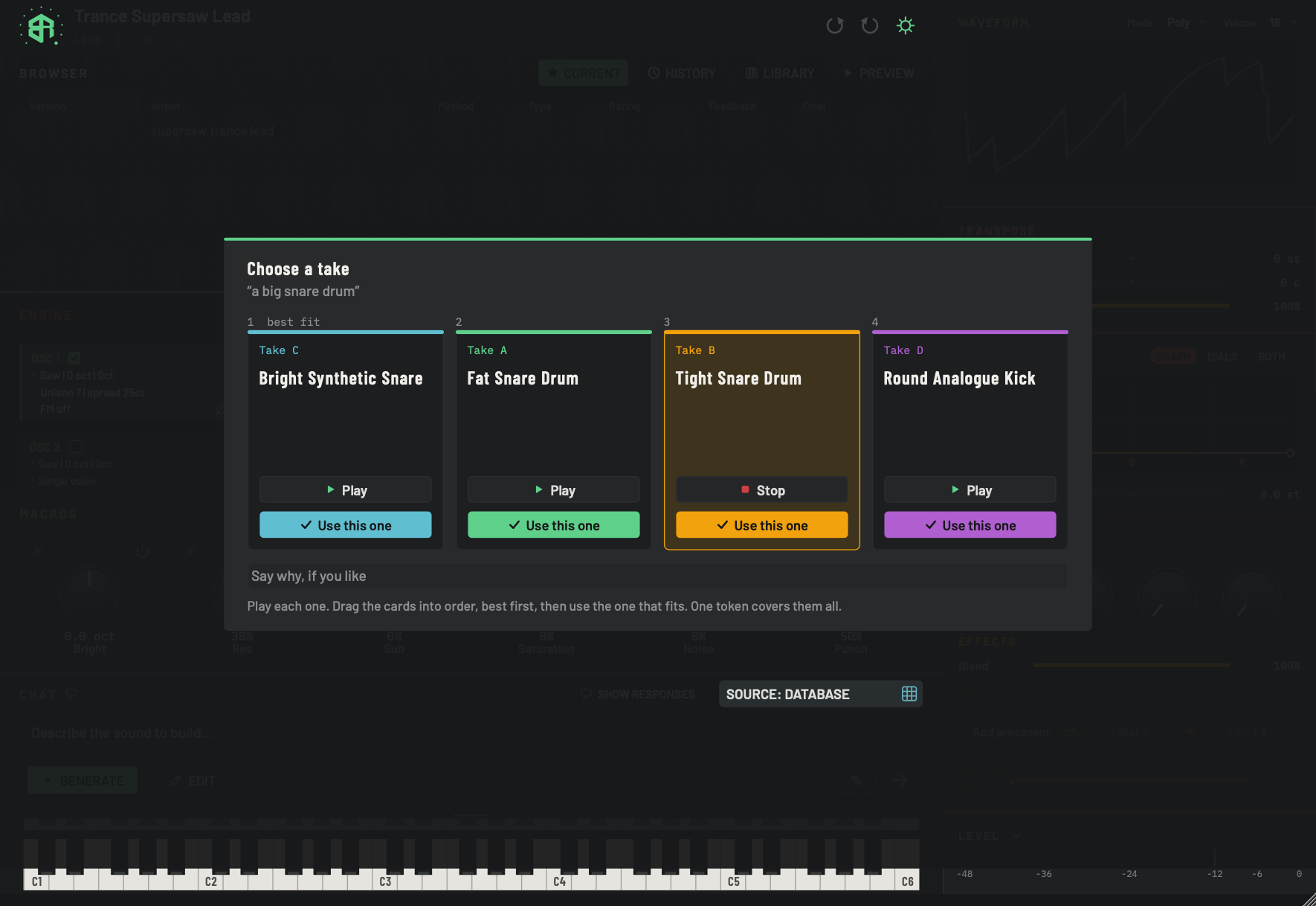
The sheet covers the whole window. Nothing is on the synth yet.
-
1Choose a takeDisplay
The title of the sheet. It opens by itself, over the whole window, when a new sound comes back as several takes. None of the takes is on the synth yet.
-
2Your requestDisplay
Your own words, in quotation marks, so you know which request these takes answer.
-
3Place in the orderDisplay
A number above each card gives its place. The first reads 1 best fit: the card on the left is the one ranked best. The others read 2, 3 and 4, and the numbers stay in place when you drag the cards past them.
The takes start in the order A, B, C, D, from left to right.
-
4The take cardsArea
Up to four cards, one for each take. Drag a card by its body to put it in a new place: the pointer turns into a hand. As the card crosses a neighbour the two swap places, so the order you see is the order you have. Each take keeps its own colour and letter wherever it sits.
Your order is used only on tokens, and only if you moved a card. See What is sent to us.
-
5Take letterDisplay
Take and a letter, A to D, in the colour of that take. The letter and the colour stay with the take, so you can name it by eye. The sheet does not say where a take came from. The picture shows A in green, B in amber, C in blue and D in purple; the colours can differ with your theme.
-
6Take nameDisplay
The name of the sound, on up to two lines. Two takes can have names that sound alike, so listen to them.
-
7Card that is playingArea
The card that is playing is lit: its outline takes the colour of its take and its background glows. Only one take plays at a time.
-
8PlayKey
Plays this take through the synth's own sound engine, as a short pattern that suits the kind of sound. It repeats until you stop it. The sound on the synth does not change. Click Play on another card and that take takes over.
The pattern follows the style set on Browser: Preview.
-
9StopKey
While a take plays, its key reads Stop with a red square. Click it to stop the take. The sound also stops when you use a take.
-
10Use this oneKey
Puts this take on the synth, closes the sheet and lets the other takes go. The chosen take becomes a new version in the Browser. On tokens, your choice goes to our site. See What is sent to us.
The key is in the colour of its take. Nothing reaches the synth until you click one of these.
-
11Say why, if you likeText box
A box for a few words about why you chose, on one line. It is optional.
- Options
Up to 300 characters.
On tokens the words go with your choice. On the database and on your own key they are not used.
-
12Instruction lineDisplay
Tells you what to do, and what the takes cost. This one reads Play each one. Drag the cards into order, best first, then use the one that fits. One token covers them all. On your own key the last words are These used your own key. and on the database These are free.
The sheet has no Close key. Clicking outside it does nothing, and
Escdoes not close it. The only way out is Use this one.
Playing a take
Click Play on a card. You hear the take through the synth's own sound engine, as a short pattern chosen for that kind of sound, and it repeats until you stop it. The pattern uses the style you set on Browser: Preview. The sound on the synth does not change.
While a take plays, its card lights up and its key reads Stop. Click Stop to stop it. Click Play on another card and that take takes over. Only one take plays at a time. The sound also stops when you use a take.
Putting the takes in order
The takes start in order from left to right, as Take A, Take B and so on. The place above each card tells you where it stands: the card on the left reads 1 best fit, and the others read 2, 3 and 4.
Drag a card by its body, not by its keys, and drop it where you want it. As it crosses a neighbour the two swap places. Each take keeps its own letter and colour wherever it sits.
Putting the cards in order is optional. The order only goes anywhere on tokens, and only if you moved a card. See What is sent to us.
Saying why
The box Say why, if you like takes a few words, up to 300 characters, on one line. It is optional. On tokens the words go with your choice. On the database and your own key they are not used.
The line at the foot
The line at the foot of the sheet reads:
- Play each one. Drag the cards into order, best first, then use the one that fits. One token covers them all. on tokens.
- Play each one. Drag the cards into order, best first, then use the one that fits. These used your own key. on your own key, and on a local model.
- Play each one. Drag the cards into order, best first, then use the one that fits. These are free. on the database.
Closing the sheet
The sheet has no Close key. Clicking outside it does nothing, and Esc does not close it. The only way out is Use this one on one of the takes. Nothing reaches the synth, and nothing is added to the Browser, until you do.
Walkthrough
What to do when a new sound arrives as several takes. The picture is of a sound from the built-in database, which gives takes for free.
-
1Ask for a new sound
With Generate lit, type a description such as a big snare drum and press
Return. If the source can give several takes, the sheet Choose a take opens instead of the sound landing on the synth. -
2Read the sheet
Your words show under the title, in quotation marks. Each card is one take, with a letter, a colour and a name. Nothing is on the synth yet.
-
3Play a take
Click Play on a card. You hear a short pattern in that take's sound, repeating, and the synth itself does not change. The card lights up.
-
4Stop it, or play another
The key on the playing card now reads Stop. Click it to stop, or click Play on another card to hear that take instead.
-
5Put the cards in order
If you like, drag cards left or right so the best fit is on the left, under 1 best fit. This is optional, and it only matters on tokens.
-
6Say why
If you like, type a few words in Say why, if you like. On tokens they go to us with your choice. On the database and your own key they are not used.
-
7Use one
Click Use this one on the take you want. The sheet closes, that take is on the synth and in the Browser as a new version, and the other takes are let go.
After you choose
Use this one does four things.
- The take you chose goes onto the synth, and a new version appears in the Browser, exactly as if it had been the only sound. It is numbered like any new design. See Browser: Current.
- The other takes are let go. They do not become versions, and they are not kept on this computer, so you cannot load them later.
- Anything that was playing stops.
- On tokens, your choice goes to our site.
If you later load that version from the Browser, the app tells our site again which take it was, with the take letter only. No order or words go with it.
What is sent to us
This only happens on tokens, and only when you use a take. It goes with the sound you designed on tokens, which we store by agreement. See Agreements and confirmations. The app does not check your privacy setting first.
- Which take you chose. Its letter, A, B, C or D.
- The order. Sent only if you dragged a card. It lists the take you chose first, then the others in the order on screen.
- Your words. What you typed in Say why, if you like, if anything.
- How long you listened. For each take you played, the time in thousandths of a second you spent on it. Takes you did not play are left out.
Nothing else about the sheet is sent to us. On the database and on your own key, no choice, order or words are sent.
Separately, the app counts that a sheet was shown and that a take was chosen. These are anonymous usage counts with no words and no sound in them, and they follow your privacy choice. See Settings: Account and privacy.
Stamps and the loyalty card
Choosing a take on tokens can earn a stamp on your loyalty card. See Settings: Account and privacy.
Turning takes on for your own key
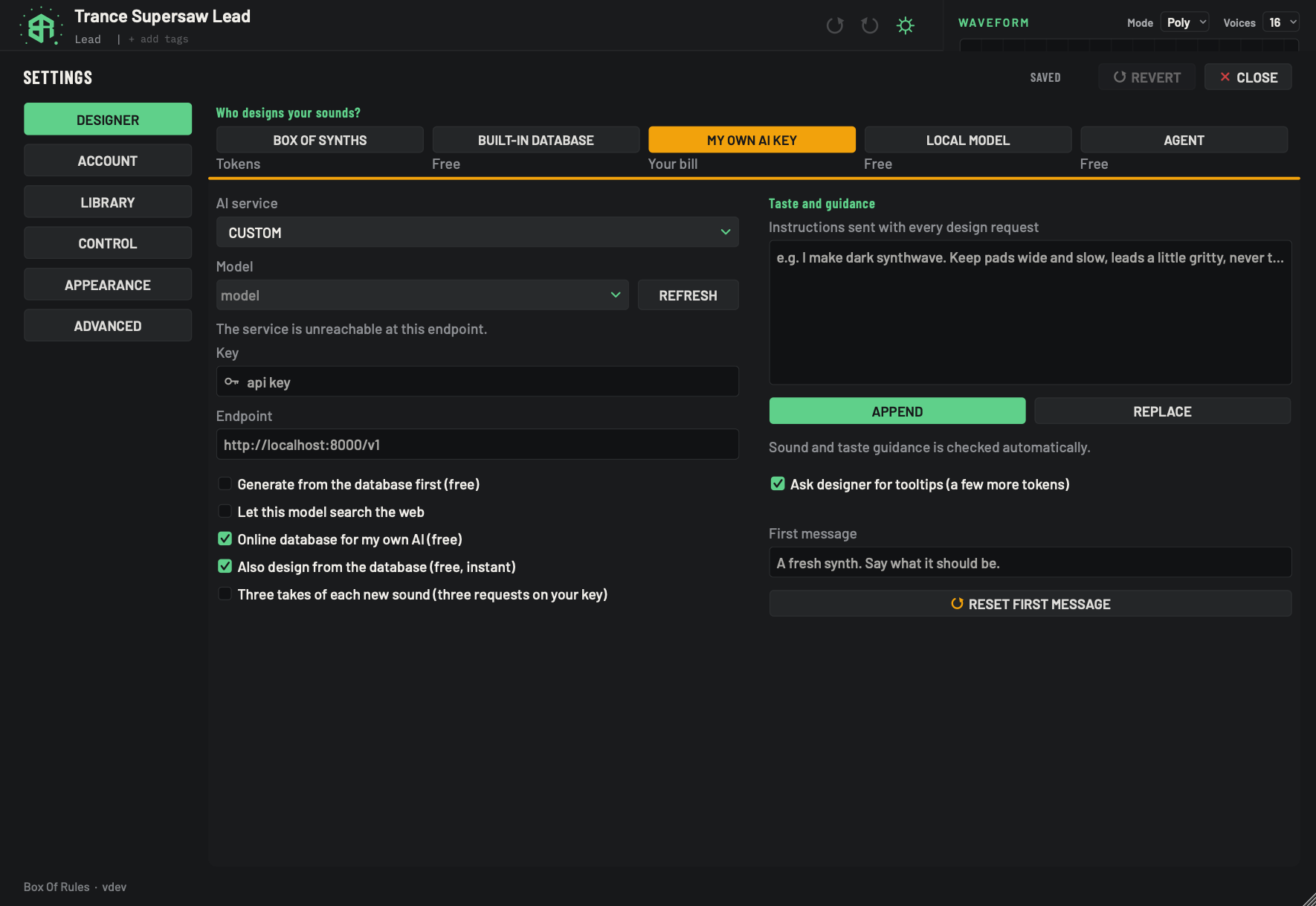
Takes on your own key cost real money, so they are off to start with. The switch is on the Designer tab of Settings, with My own AI key chosen. See Settings: Designer, source by source.
-
1My own AI key keyKey
The amber key means an AI service you pay for designs your sounds, using your own key. The first time you pick it, the app asks you to agree that charges are yours. See Agreements and confirmations.
-
2Cost lineDisplay
Reads Your bill. The service charges you directly. Box Of Synths does not see or cap that spend.
-
3AI serviceMenu
Picks the AI service that does the designing. Changing it switches to that service, loads the model, key and endpoint you saved for it, and fetches its list of models.
- Options
The services we support, and Custom for any other service at an address you type.
- Starts as
- The first service in the list
Each service keeps its own model, key and endpoint, so you can set up two or three and swap between them.
-
4ModelMenu
An editable list. Pick one of the service's models, or type a model name yourself. Leave it empty and the app uses the default for that service, shown in grey.
It is saved as soon as you change it.
-
5RefreshKey
Asks the service for its models again. Listing models is free: it costs no tokens. The list is also fetched on its own when this page opens and whenever you change the service, the key or the endpoint. The key is dimmed while a fetch is running.
-
6Model list statusStatus
One line under the Model box that says how the model list went. In the picture the service could not be reached.
- Options
Asking the service for its models... while it checks.
N model. Pick it, or type a name. or N models. Pick one, or type a name. when a list came back.
Add your key and its models are listed here. You can type a model name too. when there is no key yet.
If the list cannot be fetched you see one of these:
- The base URL must be https (or this machine). Nothing was sent.
- The service listed no models.
- The service did not accept the key, so it would not list its models.
- The service did not return a model list. You can still type a model name.
- The service is unreachable at this endpoint.
-
7KeyText box
Paste your service key here. It shows as dots, with a key symbol at the left. It is saved when you click away or press
Return.The key is stored in the settings file on this computer. It never appears in the diagnostics block. If the service refuses it while designing, the app tells you to check the key in Settings, Designer.
-
8EndpointText box
The web address of the service. Leave it empty to use the normal address for the service you picked. The address must start with
https, or point at this computer, or nothing is sent.- Starts as
- Empty. The grey words show the normal address for the service.
Changing the endpoint fetches the model list again.
-
9Generate from the database firstSwitch
When on, a matching record in the database answers first, before your AI service is asked. A match costs nothing on your key.
- Starts as
- Off
Kept separately for each source.
-
10Let this model search the webSwitch
When on, the design can use web search. A box for an optional search key appears under it. With a search key, the app adds five web results for your request to what it sends, which also sends your request words to the search service.
- Starts as
- Off
-
11Online database for my own AISwitch
When on, before your service is asked, the app fetches what our site knows about your request and adds it. No Box Of Synths tokens are used. Your AI service bills its own use. If our site cannot be reached, the app uses the copy on this computer instead.
- Starts as
- On
-
12Also design from the databaseSwitch
When on, each design on your key also gets a free, instant version from the database first, so there is a sound to play while your AI works.
- Starts as
- On
-
13Three takes of each new soundSwitch
When on, each plain new sound is asked of your AI service three times, and you choose between the takes on the Choose a take sheet. Your service bills all three requests, whichever take you use. Turning it on shows a card first, and the switch only goes on if you accept. See Takes and the card.
- Options
The label reads Three takes of each new sound (three requests on your key). Hover for Each new sound is asked for three times and you choose between them. Your provider charges for all three.
- Starts as
- Off
Only plain new sounds: not an edit, a drawn waveform, attached context or a recreate from a recording. Only shown for My own AI key, not for a local model.
-
14Taste, tooltips and first messageArea
The same standing note, Append and Replace, first message and reset as on every source. The right-hand column is the same for every source. See Settings: Designer for the taste and guidance box, Append and Replace, the first message and Reset first message.
The switch is the last in the left column and reads Three takes of each new sound (three requests on your key). Hover over it to read Each new sound is asked for three times and you choose between them. Your provider charges for all three. It starts off.
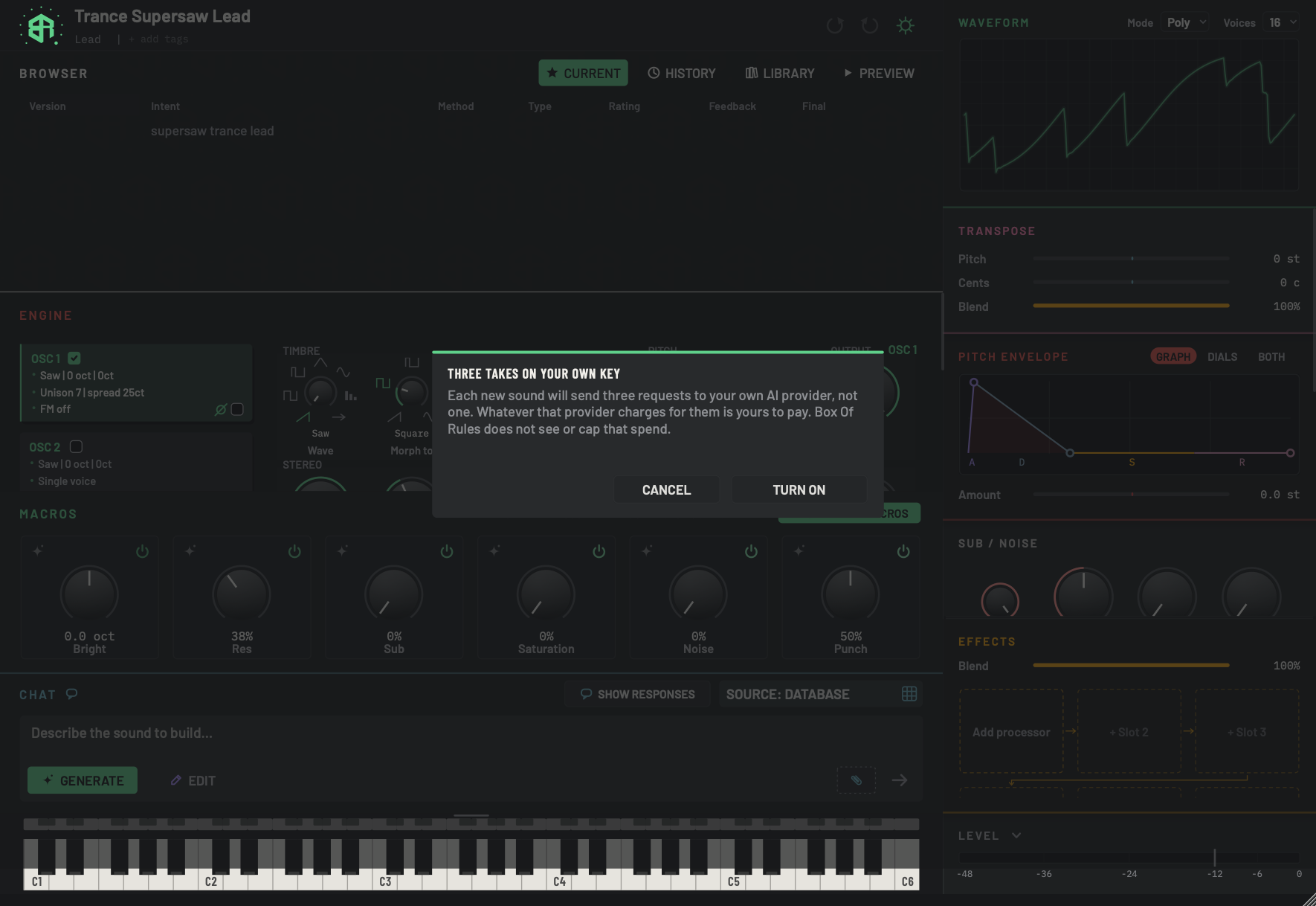
Turn it on and a card appears first. The switch does not go on until you accept.
-
1Three takes on your own keyDisplay
The title of the card. It shows over Settings when you turn on Three takes of each new sound (three requests on your key). The app writes it in capitals.
-
2Card textDisplay
Reads Each new sound will send three requests to your own AI provider, not one. Whatever that provider charges for them is yours to pay. Box Of Rules does not see or cap that spend.
-
3CancelKey
Closes the card and leaves the switch off. Clicking outside the card does the same.
-
4Turn onKey
Accepts. The switch goes on, and from then on each plain new sound sends three requests to your service.
Turning the switch off later needs no card.
- Turn on accepts. The switch goes on, and from then on a plain new sound sends three requests.
- Cancel closes the card and leaves the switch off. Clicking outside the card does the same.
Turn the switch off again and it goes off at once, with no card.
Turning takes off
| Source | Switch |
|---|---|
| Built-in database | There is no switch for this. |
| Box Of Synths (tokens) | There is no switch for this. |
| My own AI key | Yes: Three takes of each new sound (three requests on your key) in Settings. It starts off. |
| Local model | There is no switch for this on its page. |