
Box Of Synths manualThe browser
Browser: Preview
Hear the sound as a short pattern without playing a key, and set the style, key, speed and feel of that pattern.
Preview plays a short pattern through the sound that is on the synth, so you can judge it without touching a key. Press Play, listen, and change any option while it runs. The pattern follows at once, with no restart.
The same options shape the short previews you start from the play keys in Browser: Current, Browser: History and Browser: Library.
The Preview page
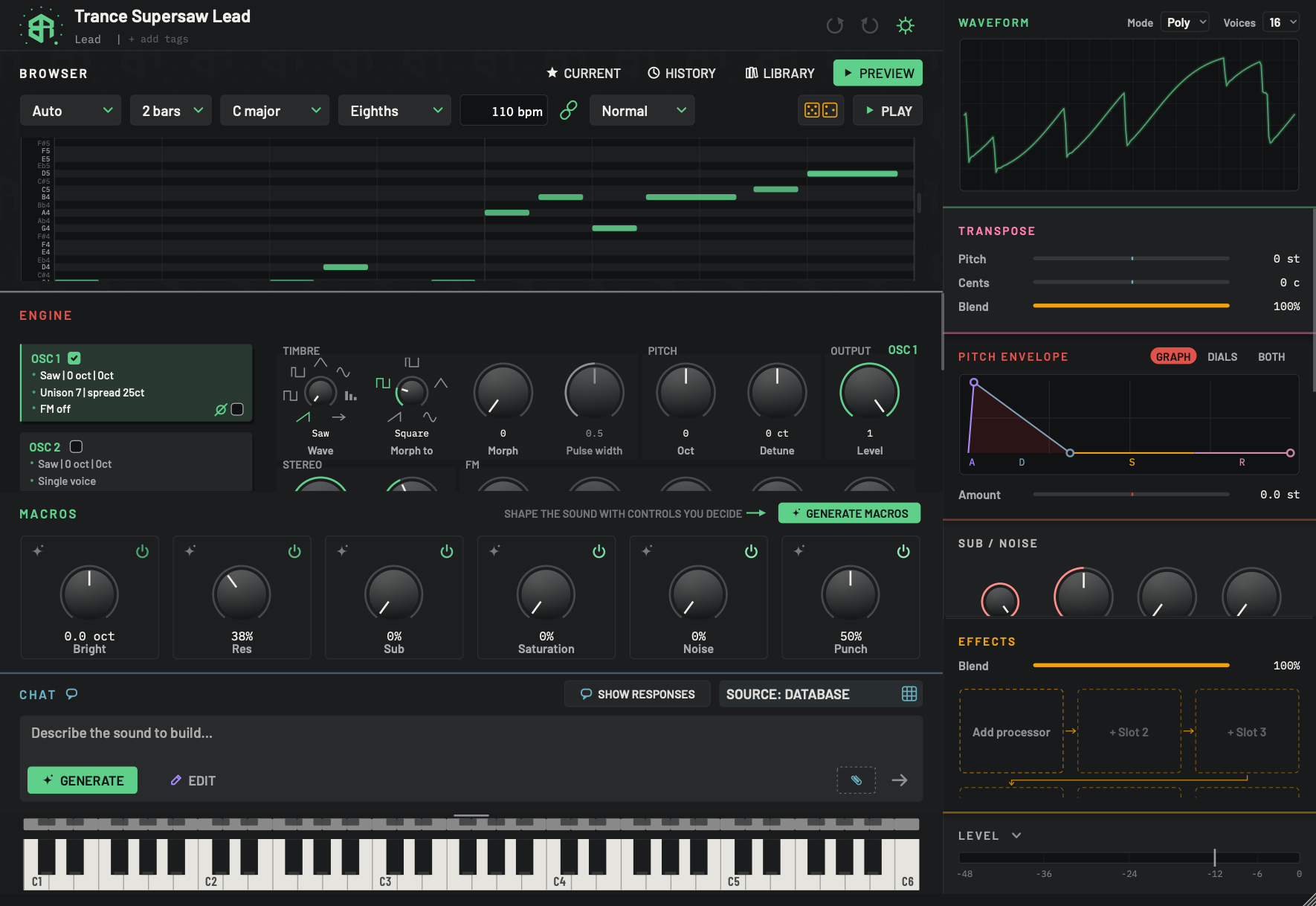
Preview plays a short pattern through the sound so you can hear it without touching a key. Change any option while it plays and the pattern follows at once.
-
1Preview tab keyTabs
The lit key. It opens this page.
Esccloses it and returns to Current. -
2Pattern styleMenu
How the pattern is built. Hover to read How the pattern is built. Auto follows the sound's family.
- Options
Auto: follows the sound's family. Pads and keys get chords, basses get a bass line, plucks and arps get an arpeggio, and anything else gets a melody.
Chords: chords in the progression I, vi, IV, V (i, VI, iv, v in a minor key).
Arp: an arpeggio, a chord played one note at a time.
Bass: a walking bass line.
Melody: a tune.
Rhythm: one note in a syncopated pattern of short hits with gaps, for stabs and percussive sounds.
- Starts as
- Auto
-
3LengthMenu
How long the pattern is before it repeats. Hover to read How long the pattern is before it loops.
- Options
1 bar, 2 bars, 3 bars, 4 bars.
- Starts as
- 2 bars
-
4KeyMenu
The key the pattern is in. Hover to read The key the pattern is in.
- Options
Twelve major keys, then twelve minor keys: C, C#, D, Eb, E, F, F#, G, Ab, A, Bb, B. For example C major and C minor.
- Starts as
- C major
-
5Steps per beatMenu
The rhythm grid for arpeggios, bass lines and melodies. Hover to read Steps per beat for arps, basses and melodies. It does not change chords.
- Options
Quarters: one note a beat.
Eighths: two a beat.
Sixteenths: four a beat.
- Starts as
- Eighths
-
6TempoText box
The speed of the pattern, shown as 110 bpm. Click the field, type a number and press
Return, or click away. The field takes digits and a point, up to five characters. A number outside the range is brought to the nearest end.- Options
60 to 170 bpm.
- Starts as
- 110 bpm
Typing a tempo lets go of the link beside it.
-
7Follow the project tempoSwitch
Click to make the tempo follow your project: in a music app, the app's tempo; in the standalone, the tempo it runs at. While it is on the glyph is lit, the field is greyed and the pattern changes when the project tempo moves. Click again to let go. Hover to read Follow the project tempo.
- Starts as
- Off
-
8Note feelMenu
How long each note rings. Hover to read How long each note rings: legato overlaps, staccato is short.
- Options
Legato: notes run into each other.
Normal.
Staccato: short notes.
- Starts as
- Normal
-
9DiceKey
Makes a new pattern from the same settings. Each click picks a new amount of chance: some notes change and some drop out. Click again for another. Hover to read Roll the dice again: a new pattern from the same settings.
-
10PlayKey
Starts the pattern. The green triangle becomes a red STOP square while it plays. Click again to stop. The pattern repeats until you stop it.
Spacedoes the same whenever the chat box is not in use.Playing a version, a saved synth or a chat from the other tabs uses these same options.
-
11Note gridDisplay
A picture of the pattern: time runs left to right, with stronger lines at the bars, and pitch runs up the left. Each green bar is a note, and a brighter bar is a harder note. A line sweeps across while it plays. The grid scrolls to the notes in play.
You can edit it. Drag a note up or down to change its pitch. Its timing stays fixed, and while the pattern is playing the change is heard straight away. A note moved out of the key turns amber.
A new pattern, from any menu or the dice, replaces your edits.
-
12Note namesDisplay
The pitch of each row, with its octave, such as C5 or Eb4. Rows inside the key are lightly lit.
Click the Preview tab to open the page. Esc closes it and returns to Current.
The options
| Option | Starts as | What it sets |
|---|---|---|
| Pattern style | Auto | How the pattern is built. |
| Length | 2 bars | How long it is before it repeats. |
| Key | C major | The key it is in. |
| Steps per beat | Eighths | The rhythm grid for arps, basses and melodies. |
| Tempo | 110 bpm | The speed. |
| Note feel | Normal | How long each note rings. |
Pattern style
| Choice | What you hear |
|---|---|
| Auto | The pattern that suits the sound's family, which you set in the header. Pads and keys get chords, basses get a bass line, plucks and arps get an arpeggio, and anything else gets a melody. |
| Chords | Chords, in the progression I, vi, IV, V (i, VI, iv, v in a minor key). |
| Arp | An arpeggio: a chord played one note at a time. |
| Bass | A walking bass line. |
| Melody | A tune. |
| Rhythm | One note in a syncopated pattern of short hits with gaps, for stabs and percussive sounds. |
Length
1 bar, 2 bars, 3 bars or 4 bars. The pattern repeats after that many bars.
Key
Twelve major keys and then twelve minor keys, on the notes C, C#, D, Eb, E, F, F#, G, Ab, A, Bb and B. For example C major or F# minor. The key sets the notes of the pattern and, for chords, the progression.
Steps per beat
How many notes fit into a beat for arps, bass lines and melodies: Quarters is one, Eighths is two and Sixteenths is four. Chords and the rhythm pattern do not follow it.
Tempo
The field reads like 110 bpm. Click it, type a number and press Return, or click away. It takes digits and a point, up to five characters. The range is 60 to 170 bpm. A number outside that range is brought to the nearest end.
Follow the project tempo
The link glyph beside the tempo makes the pattern follow your project. In a music app it follows the app's tempo. In the standalone it follows the standalone's own tempo. While the link is on, the glyph is lit and the tempo field is greyed, and the pattern changes when the project tempo moves. Hover to read Follow the project tempo. Click the glyph again to let go. Typing a tempo lets go of the link too.
Note feel
Legato lets the notes run into each other. Normal is in between. Staccato makes them short.
The dice
Click the dice for a new pattern from the same settings. Each roll picks a new amount of chance: some notes change and some drop out. Click again for another. The dice has no setting of its own. Hover to read Roll the dice again: a new pattern from the same settings.
Play and Stop
Play starts the pattern. While it sounds the key turns into a red STOP. The pattern repeats until you click it again. There is no switch to turn the repeat off. Space does the same whenever the chat box is not in use.
Starting a design stops the preview. Only one preview plays at a time.
The note grid
Under the options is a picture of the pattern. Time runs left to right, with stronger lines at the bars and lighter ones at the beats. Pitch runs up the page, with the note names down the left, such as D4 or Eb5. Rows that are in the key are lightly lit. Each green bar is a note, and a brighter bar is a harder note. While it plays a line sweeps across, and the grid scrolls to the notes in play.
The grid can be edited. Drag a note up or down to change its pitch. Its timing stays where it was, and if the pattern is playing you hear the change straight away. A note you drag out of the key turns amber. A new pattern, from any option or the dice, replaces your edits.
These choices are remembered
The style, length, key, steps, tempo, note feel, the dice roll and the state of the tempo link are all saved. They are the same the next time you open Preview, and the next time you start the app. When the page is narrow, the options wrap onto a second row.
-
1Open Preview
Click Preview. The options and a note grid appear.
-
2Pick a style
Leave Auto to let the sound's family choose, or pick Chords, Arp, Bass, Melody or Rhythm.
-
3Set key, length and speed
Choose a key. Set the length and the steps per beat in the menus beside it, and type a tempo from 60 to 170 bpm.
-
4Press Play
Click Play, or press
Spacewhile the chat box is not in use. The pattern repeats until you click Stop. -
5Change it while it plays
Switch the note feel between Legato, Normal and Staccato. The new pattern is heard at once, with no restart.
-
6Roll the dice
Click the dice for a fresh variation from the same settings.
-
7Edit a note
Drag a green note up or down in the grid to change its pitch. A note moved out of the key turns amber.