
Box Of Synths manualStart here
The screen at a glance
A tour of the main window, block by block, with a link to the page for each one.
Box Of Synths has one main window. The wide column on the left is where you ask for sounds and play them. The narrower column on the right shows and shapes the sound itself. Every block does one job, and each has its own page. This page tells you what each block is for.
The blocks
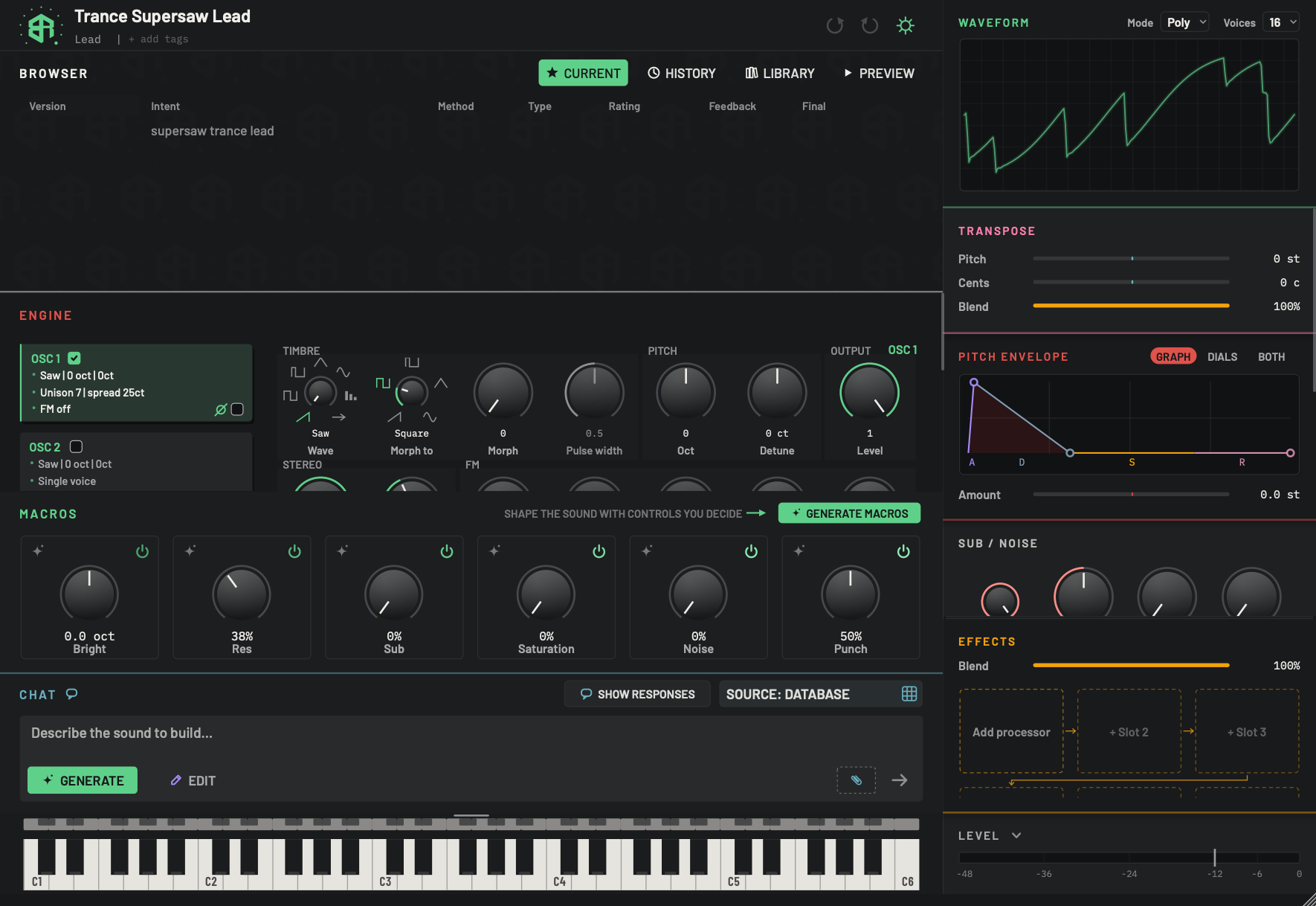
The window has two columns. The wide main column on the left is where you ask for sounds and shape them. The narrower column on the right shows and shapes the sound itself. Click any block to read about it.
-
1HeaderArea
The strip across the top of the main column. On the left: the Box Of Synths mark, the name of the sound, its version, its family and its tags. On the right: undo, redo and the Settings cog. Click the mark to start a new sound. Click the name to rename the sound.
When a newer release is out, a green UPDATE NOW key takes the place of the mark.
Full details are on The header.
After your first request on your own AI key, a small robot key appears beside undo. It lists what you have used. See Sources, tokens and what a design costs.
-
2BrowserArea
The list of everything this sound has been through. The table shows one row for each version, newest at the top, with the words that asked for it. Click a row to load that version onto the synth.
Click the title Browser to fold the block away, and click any tab key to open it again. See Browser: Current.
-
3Browser tab keysTabs
Four keys that change what the Browser shows. The green key is the page you are on.
- Options
Current: the versions of this sound (Browser: Current).
History: your earlier chats (Browser: History).
Library: your saved synths (Browser: Library).
Preview: hear the sound without playing it (Browser: Preview).
- Starts as
- Current
-
4EngineArea
Where the sound is built: the oscillators, the filters and the LFOs. Each oscillator has its own row of dials. This block scrolls inside itself, so scroll over it to reach what is below.
See Engine: oscillators, Engine: filters and Engine: LFOs and modulation.
-
5MacrosArea
A row of big dials that the designer builds for this sound. Each one moves several things at once, such as brightness or weight, so you can shape the sound with a few simple turns. The Generate macros key asks for a new set.
See Macros.
-
6ChatArea
Where you describe a sound and ask for changes. Type in the box, choose Generate for a new sound or Edit to change the one you have, and press
Return. The Source control at the top right of the block says who does the designing.See The chat and the composer and Sources, tokens and what a design costs.
-
7KeyboardArea
A thin strip of small keys sits above the full keyboard. Click the strip to open or close the keyboard. Click a key to hear the sound, or use the keys on your computer keyboard.
See The keyboard.
-
8WaveformArea
A picture of one cycle of the sound's wave, with the Mode and Voices choices above it. Mode sets how notes share the voices. Voices sets how many notes can sound at once.
-
9TransposeArea
Three sliders that shift the whole sound: Pitch in semitones, Cents for fine tuning, and Blend, which sets how much of the shifted sound you hear.
The middle blocks of this column scroll with the mouse wheel when they do not all fit. Waveform stays at the top and Level stays at the bottom. In this picture the volume envelope and the formant block are scrolled out of sight, between Sub / noise and Effects.
-
10Pitch envelopeArea
Shows how the pitch moves at the start of each note, as a drawn shape you can reshape. The Graph, Dials and Both keys change how it is shown. Amount sets how far the pitch moves.
-
11Sub / noiseArea
Dials for a low sub oscillator and a layer of noise under the main sound.
-
12EffectsArea
The effects chain. Blend sets how much of the effects you hear. Below it are slots, each holding one effect. An empty slot reads Add processor or + Slot and a number.
See Effects.
-
13LevelArea
The overall loudness of the sound, with a meter scale from -48 to 0.
See Level.
-
14Resize gripArea
The small diagonal marks in the bottom right corner. Drag them to make the window bigger or smaller. The whole window scales with it.
- Options
From 75% to 175% of the base size.
In a music program the window keeps its shape. In the standalone app you can drag it to any shape. To pick a size without dragging, use Window zoom in Settings: Appearance and themes.
Click a block in the picture to read its summary. The table below says the same in a line each, with the page to open next.
| Block | What it is for | Page |
|---|---|---|
| Header | The name of the sound, its tags, undo, redo and Settings. Click the mark to start a new sound. | The header |
| Browser | Every version of this sound, your earlier chats, your saved synths and a way to hear a sound without playing it. | Browser: Current |
| Engine | The oscillators, filters and LFOs that make the sound. | Engine: oscillators |
| Macros | A few big dials that move many settings at once. | Macros |
| Chat | Where you describe a sound and ask for changes. | The chat and the composer |
| Keyboard | A strip you click to open a playable keyboard. | The keyboard |
| Waveform | A picture of the sound's wave, with the mode and voice count. | Waveform, mode and voices |
| Transpose | Shifts the whole sound up or down. | Transpose and the envelopes |
| Pitch envelope | How the pitch moves at the start of each note. | Transpose and the envelopes |
| Sub / noise | A low sub oscillator and a layer of noise. | Sub, noise and formant |
| Effects | A chain of effects, with a blend. | Effects |
| Level | The overall loudness. | Level |
The Browser has four tab keys on its title line: Current, History, Library and Preview. Each opens a different page in the same block. They are described on Browser: Current, Browser: History, Browser: Library and Browser: Preview. If you fold the Browser, the four tab keys stay on its title line, and clicking one opens the block again.
These move the dials above while you play
Resize and zoom
Drag the small diagonal marks in the bottom right corner to make the window bigger or smaller. Everything scales together, so no block is ever cut off. In a music program the window keeps its shape. In the standalone app you can drag it to any shape. The window never opens taller than your screen allows, and the standalone app opens it where and how big you left it, as long as that place is still on one of your screens.
To choose a size without dragging, open Settings and use Window zoom on the Appearance tab. See Settings: Appearance and themes.
Folding blocks
Click the title of a block to fold it down to its title line, and click again to open it. The app remembers which blocks you left folded. The Level block never hides altogether: its bar is always there.
Scrolling
Some blocks do not fit all at once, so they scroll.
- Engine scrolls inside its block. Scroll over it to reach the rows below.
- In the right column, the middle blocks scroll with the mouse wheel. Waveform stays at the top and Level stays at the bottom. Between Sub / noise and Effects there are two more blocks that you reach by scrolling: the volume envelope and the formant block. They are on Transpose and the envelopes and Sub, noise and formant.
- The Browser table scrolls when it has more rows than fit.
Where messages appear
The main window has no status line. There is no message strip along the top or bottom, and no pop-up that fades away. You will see messages in these places:
- The design sheet. While a sound is being designed, a dark sheet covers the window. If the design fails, the sheet shows the reason in red under the words Design could not be completed. If the app answers in words instead of a sound, the answer shows on the sheet in plain text. Click BACK to return. See The chat and the composer.
- Cards in the middle of the window. Questions such as Create a new patch? and the tokens agreement appear on a card. They are listed on Agreements and confirmations.
- A red band under the header. If our site is down, a band reads BOX OF SYNTHS IS DOWN followed by a short note and THE DATABASE STILL DESIGNS. The built-in database keeps working.
- The change itself. Most actions simply show their result. A new design adds a row to the Browser and moves the dials. The undo key lights up after a change. A new name appears in the header.
- Hover tips. Rest the pointer on a key or dial for a short tip.
If you press something and nothing seems to happen, look for the change rather than a message. If a design did not land, check that the sheet is not waiting for you to click BACK.
Next
New here? Follow Your first sound. To start a fresh sound, see Starting a new sound.