
Box Of Synths manualSettings
Settings: Designer, source by source
What the Designer tab shows for Box Of Synths tokens, your own AI key, a local model and an agent.
The Designer tab changes with the source you pick. Settings: Designer covers the row of source keys, the built-in database, and the taste and guidance column on the right. This page covers the other four sources, one by one. The right-hand column is the same for every source, so it is not repeated here.
Box Of Synths (tokens)
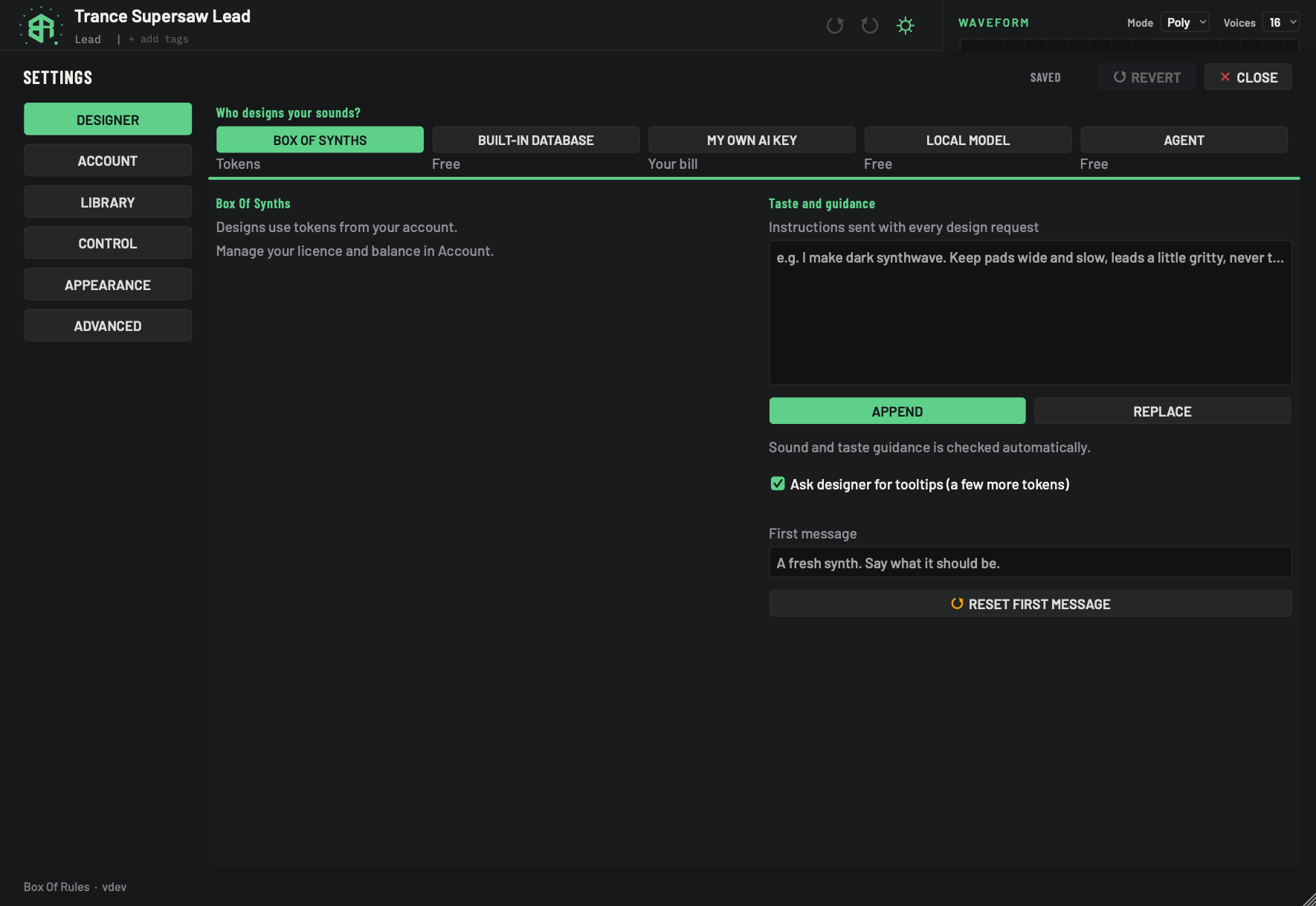
Our hosted designer. Each action you type costs tokens from your Box Of Synths account. The panel holds no controls: it is two lines of text and a pointer to the Account tab.
-
1Box Of Synths keyKey
The green key means the hosted designer is the source. Click it to choose it. If you pick the hosted designer from the Source menu in the chat and you are not signed in, the app starts the sign-in card for you.
Until you sign in, a tokens request does not go through. Choose Built-in database to keep designing in the meantime.
-
2Cost lineDisplay
The word under the key says what designing costs: Tokens. Each action you type costs tokens. Sources, tokens and what a design costs has the price list.
-
3Box Of Synths panelDisplay
The only content of this panel is two lines of text. The first reads Designs use tokens from your account. The second points you to the Account tab, where your balance and the buttons to top up live.
There are no switches here. Everything you can set for this source is in the Account tab and in the taste and guidance column.
-
4Account tabLink
Click to open the Account tab: sign in, see your tokens balance and top up. See Settings: Account and privacy.
-
5Taste, tooltips and first messageArea
The same standing note, Append and Replace, first message and reset as on every source. The right-hand column is the same for every source. See Settings: Designer for the taste and guidance box, Append and Replace, the first message and Reset first message.
-
6Ask designer for tooltipsSwitch
When on, each macro the designer makes comes with a hover tip. On this source that costs a few more tokens on each design, so turn it off to save them.
- Starts as
- On
- The first line reads Designs use tokens from your account. The second sends you to the Account tab, where you sign in, see your balance and top up. See Settings: Account and privacy.
- If you pick this source from the Source menu in the chat with no account, the app opens the sign-in card for you, with a code and a page in your web browser. See Settings: Account and privacy. Until you sign in, a tokens request does not go through: choose Database to keep designing in the meantime.
- Before your first design on tokens, the app asks you to agree to how tokens work. See Agreements and confirmations.
- Ask designer for tooltips costs a few more tokens on this source. Turn it off to save them.
- What each action costs, and what happens when you run out, is in Sources, tokens and what a design costs.
Use tokens, step by step
-
1Pick the source
On the Designer tab click Box Of Synths. The key lights up and the line under it reads Tokens.
-
2Go to the Account tab
Click Account. This is where your account and balance live.
-
3Sign in
Click Sign in. Your web browser opens our sign-in page and the app shows a card with a code. Sign in there and press Connect. The card closes by itself.
-
4Check your balance
Tokens balance shows what you have. Click Top up tokens if you need more.
-
5Agree on your first design
The first time you design on tokens, Designing on tokens appears. Click Accept and your request is sent.
My own AI key
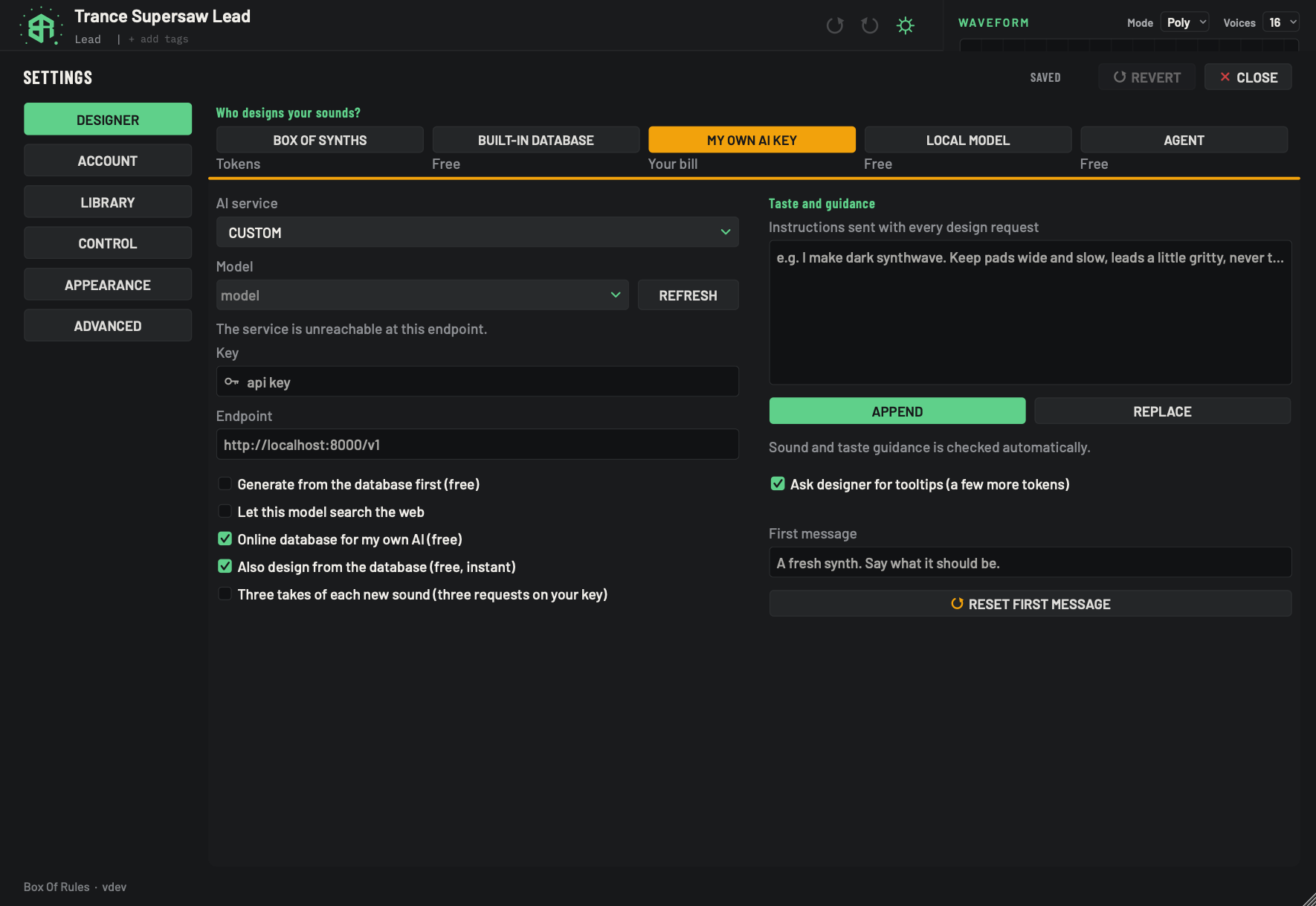
An AI service you already pay for designs the sound, using your own key. The service bills you directly. Box Of Synths does not see or cap that spend, so keep an eye on it with the service.
-
1My own AI key keyKey
The amber key means an AI service you pay for designs your sounds, using your own key. The first time you pick it, the app asks you to agree that charges are yours. See Agreements and confirmations.
-
2Cost lineDisplay
Reads Your bill. The service charges you directly. Box Of Synths does not see or cap that spend.
-
3AI serviceMenu
Picks the AI service that does the designing. Changing it switches to that service, loads the model, key and endpoint you saved for it, and fetches its list of models.
- Options
The services we support, and Custom for any other service at an address you type.
- Starts as
- The first service in the list
Each service keeps its own model, key and endpoint, so you can set up two or three and swap between them.
-
4ModelMenu
An editable list. Pick one of the service's models, or type a model name yourself. Leave it empty and the app uses the default for that service, shown in grey.
It is saved as soon as you change it.
-
5RefreshKey
Asks the service for its models again. Listing models is free: it costs no tokens. The list is also fetched on its own when this page opens and whenever you change the service, the key or the endpoint. The key is dimmed while a fetch is running.
-
6Model list statusStatus
One line under the Model box that says how the model list went. In the picture the service could not be reached.
- Options
Asking the service for its models... while it checks.
N model. Pick it, or type a name. or N models. Pick one, or type a name. when a list came back.
Add your key and its models are listed here. You can type a model name too. when there is no key yet.
If the list cannot be fetched you see one of these:
- The base URL must be https (or this machine). Nothing was sent.
- The service listed no models.
- The service did not accept the key, so it would not list its models.
- The service did not return a model list. You can still type a model name.
- The service is unreachable at this endpoint.
-
7KeyText box
Paste your service key here. It shows as dots, with a key symbol at the left. It is saved when you click away or press
Return.The key is stored in the settings file on this computer. It never appears in the diagnostics block. If the service refuses it while designing, the app tells you to check the key in Settings, Designer.
-
8EndpointText box
The web address of the service. Leave it empty to use the normal address for the service you picked. The address must start with
https, or point at this computer, or nothing is sent.- Starts as
- Empty. The grey words show the normal address for the service.
Changing the endpoint fetches the model list again.
-
9Generate from the database firstSwitch
When on, a matching record in the database answers first, before your AI service is asked. A match costs nothing on your key.
- Starts as
- Off
Kept separately for each source.
-
10Let this model search the webSwitch
When on, the design can use web search. A box for an optional search key appears under it. With a search key, the app adds five web results for your request to what it sends, which also sends your request words to the search service.
- Starts as
- Off
-
11Online database for my own AISwitch
When on, before your service is asked, the app fetches what our site knows about your request and adds it. No Box Of Synths tokens are used. Your AI service bills its own use. If our site cannot be reached, the app uses the copy on this computer instead.
- Starts as
- On
-
12Also design from the databaseSwitch
When on, each design on your key also gets a free, instant version from the database first, so there is a sound to play while your AI works.
- Starts as
- On
-
13Three takes of each new soundSwitch
When on, each plain new sound is asked of your AI service three times, and you choose between the takes on the Choose a take sheet. Your service bills all three requests, whichever take you use. Turning it on shows a card first, and the switch only goes on if you accept. See Takes and the card.
- Options
The label reads Three takes of each new sound (three requests on your key). Hover for Each new sound is asked for three times and you choose between them. Your provider charges for all three.
- Starts as
- Off
Only plain new sounds: not an edit, a drawn waveform, attached context or a recreate from a recording. Only shown for My own AI key, not for a local model.
-
14Taste, tooltips and first messageArea
The same standing note, Append and Replace, first message and reset as on every source. The right-hand column is the same for every source. See Settings: Designer for the taste and guidance box, Append and Replace, the first message and Reset first message.
The first time you pick this source, the app shows a card called Your keys, your bill. You need to agree before it switches. See Agreements and confirmations.
Choose a service and a model
- AI service lists four entries, in this order: Claude, OpenAI, OpenRouter and Custom. Custom is for any other service that speaks the same way, at an address you type. Each service keeps its own model, key and endpoint, so switching does not lose your settings.
- Model is an editable list. Pick one of the service's models or type a name. If it is empty, the app uses the service's default, shown in grey.
- Refresh asks the service for its models again. It costs nothing. The list also refreshes on its own when the page opens and when you change the service, the key or the endpoint.
Each service starts with the values below. The model and the endpoint show in grey in their boxes until you type your own.
| Service | Default model shown | Default endpoint | Needs a key |
|---|---|---|---|
| Claude | claude-haiku-5-5 |
https://api.anthropic.com/v1 |
Yes |
| OpenAI | gpt-4o-mini |
https://api.openai.com/v1 |
Yes |
| OpenRouter | anthropic/claude-sonnet-5 |
https://openrouter.ai/api/v1 |
Yes |
| Custom | model |
http://localhost:8000/v1 |
Optional |
The picture below shows the tab with the first service, Claude, chosen. It has no key yet, so the line under the Model box says so.
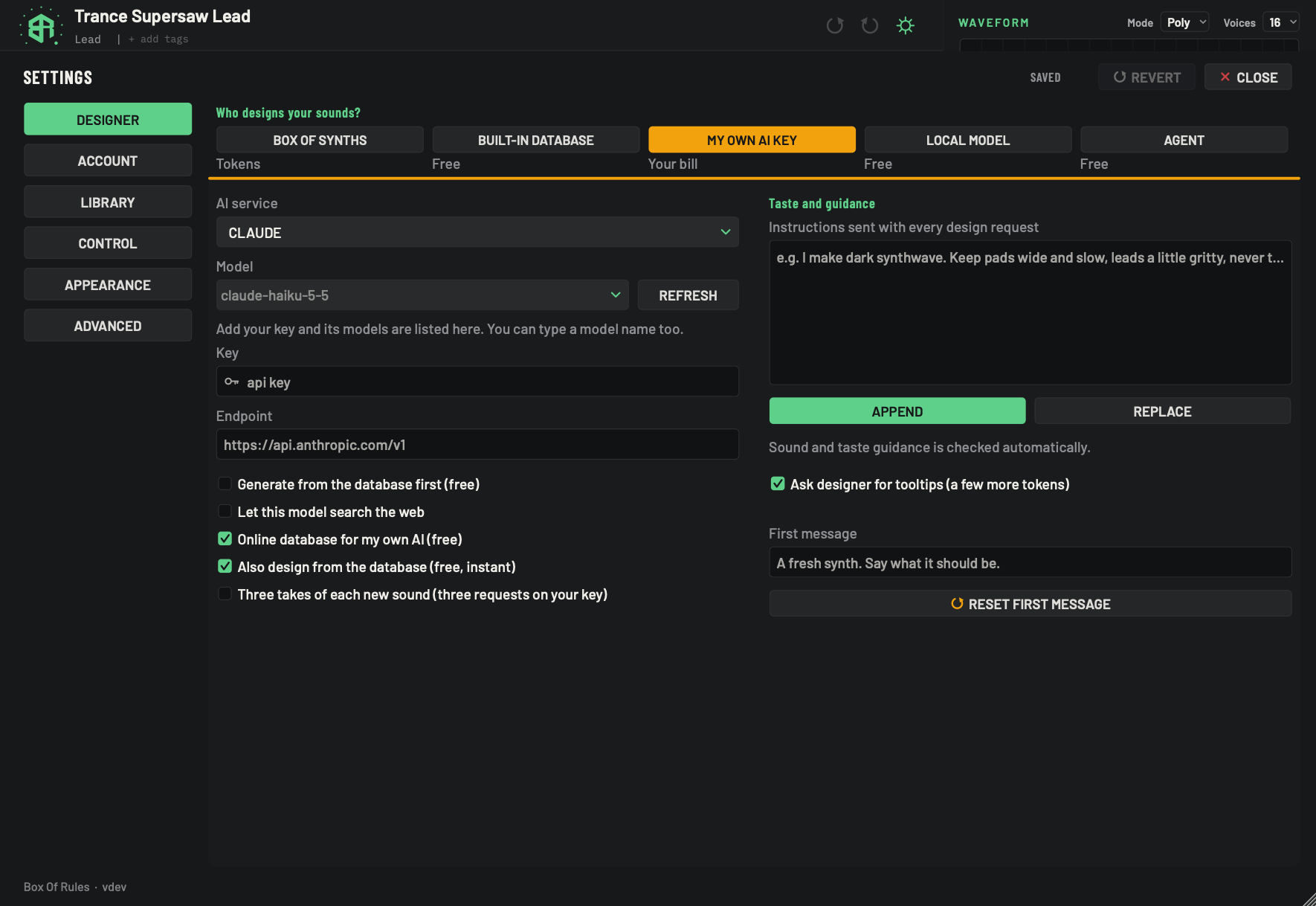
The same tab as My own AI key, with the first service in the list chosen. Only what changes with the service is described here. Everything else on the tab works as on that picture.
-
1AI serviceMenu
Shows the service chosen. Here it reads CLAUDE, the first entry. Picking another entry swaps the model, key and endpoint below to the ones saved for that service.
- Options
Claude, OpenAI, OpenRouter, Custom.
- Starts as
- Claude
-
2ModelMenu
Shows the default model for the service, in grey, because nothing has been picked or typed. Open it to pick a model from the service's list, or type a name.
- Starts as
claude-haiku-5-5for Claude. The other defaults are in the table on Settings: Designer, source by source.
-
3Model list statusStatus
With no key yet, the line reads Add your key and its models are listed here. You can type a model name too. Paste a key and the app asks the service for its models. The other lines are listed on My own AI key.
-
4KeyText box
Empty here, so it shows the grey words api key. Claude, OpenAI and OpenRouter need a key. Paste it and press
Return, or click away.How the key is stored is on My own AI key.
-
5EndpointText box
Shows the service's normal address,
https://api.anthropic.com/v1for Claude. Leave it as it is unless you have a reason to change it.- Starts as
- The address shown for the service.
The model list status line
One line under the Model box tells you how the list went.
| You see | It means |
|---|---|
| Asking the service for its models... | The app is waiting for the service. |
| N model. Pick it, or type a name. or N models. Pick one, or type a name. | The list came back. |
| Add your key and its models are listed here. You can type a model name too. | There is no key yet. |
| The base URL must be https (or this machine). Nothing was sent. | The endpoint is not safe to use. |
| The service listed no models. | The service answered with an empty list. |
| The service did not accept the key, so it would not list its models. | The key is wrong, expired or from another account. |
| The service did not return a model list. You can still type a model name. | The service gave no list. Type the name yourself. |
| The service is unreachable at this endpoint. | Nothing answered at that address. Check the endpoint and your connection. |
Key and endpoint
- Key takes your service key. It shows as dots and is saved when you click away or press
Return. It is stored in the settings file on this computer and never appears in the diagnostics block. - Endpoint is the web address of the service. Leave it empty to use the normal address. It must start with
https, or point at this computer. Anything else is refused and nothing is sent.
The switches
| Switch | What it does | Starts as |
|---|---|---|
| Generate from the database first (free) | A matching database record answers before your service is asked, which saves your key's spend. | Off |
| Let this model search the web | The design may use web search. A box for an optional search key appears when it is on. With a search key, the app adds five web results to your request, which sends your request words to the search service. | Off |
| Online database for my own AI (free) | Before your service is asked, the app fetches what our site knows about your request and adds it. No Box Of Synths tokens are used. If our site cannot be reached, the app uses the copy on this computer. | On |
| Also design from the database (free, instant) | Each design on your key also gets a free database version first, so there is a sound to play while your AI works. | On |
| Three takes of each new sound (three requests on your key) | Each new sound is asked of your service three times, and you choose between the takes on a sheet. Your service bills all three requests. A card asks you to accept before the switch goes on. See Takes. | Off |
The last switch only shows with My own AI key, not with a local model. It applies to a plain new sound: an edit, a drawn waveform or attached context still sends one request. With Also design from the database (free, instant) on, the database's own sound joins the three as one more take. The card, the sheet and what is sent are on Takes.
When your service refuses
If your service says no, the app tells you in plain words and adds Your sound has not changed. A
number in brackets is the code the service sent back, shown here as n. If the service gave a reason,
a line starting It said: shows the first part of it. These are the lines:
| Code | The app says |
|---|---|
| 401 or 403 | Your AI service did not accept the key (HTTP n). Check the key in Settings, Designer: it may be mistyped, expired, revoked or from a different account. |
| 402 | Your AI service says the account cannot pay for this request (HTTP 402). Check its billing, or choose another source. |
| 404 | Your AI service does not know that model (HTTP 404). Check the model name in Settings, Designer. |
| 429 | Your AI service is limiting requests or the account is out of quota (HTTP 429). Wait a moment and try again. |
| 500 or higher | Your AI service is having trouble (HTTP n). Try again shortly. |
| Any other | Your AI service refused the request (HTTP n). |
Other lines you may see while a design runs on your own key or a local model:
- The base URL must be https (or this machine). Nothing was sent.
- No reply from the address and a number of seconds, then The model may still have been thinking; try again, or a smaller request. The app waits up to five minutes.
- No connection to the address, then how many seconds it waited before giving up.
- Your AI service stopped part way: and the reason it gave, then Your sound has not changed.
- The model ran out of room before the patch was complete. Try again, or ask for something simpler.
- Design cancelled. when you cancel.
A failed call also saves a record of the exchange in the Errors folder of your library. The reply cap and price settings that apply to your own key are in Settings: Advanced.
Set up your own key, step by step
-
1Pick the source
In Settings, on the Designer tab, click My own AI key. The key turns amber and the line under it reads Your bill.
-
2Agree to the bill
The first time, a card called Your keys, your bill appears. Click I understand, use my key. Not now leaves your source as it was.
-
3Choose the service
Open the AI service list and pick the service you pay for. Each service remembers its own key, model and endpoint.
-
4Paste your key
Paste your key into Key, then click away or press
Return. It shows as dots and is saved at once. -
5List the models
Click Refresh. Listing models is free. The line under the Model box says how many came back.
-
6Pick a model
Open Model and pick one, or type a name. Leave it empty to use the default.
-
7Close Settings
Click Close or press
Esc. Your next Generate is designed by your own service and billed to you.
Local model
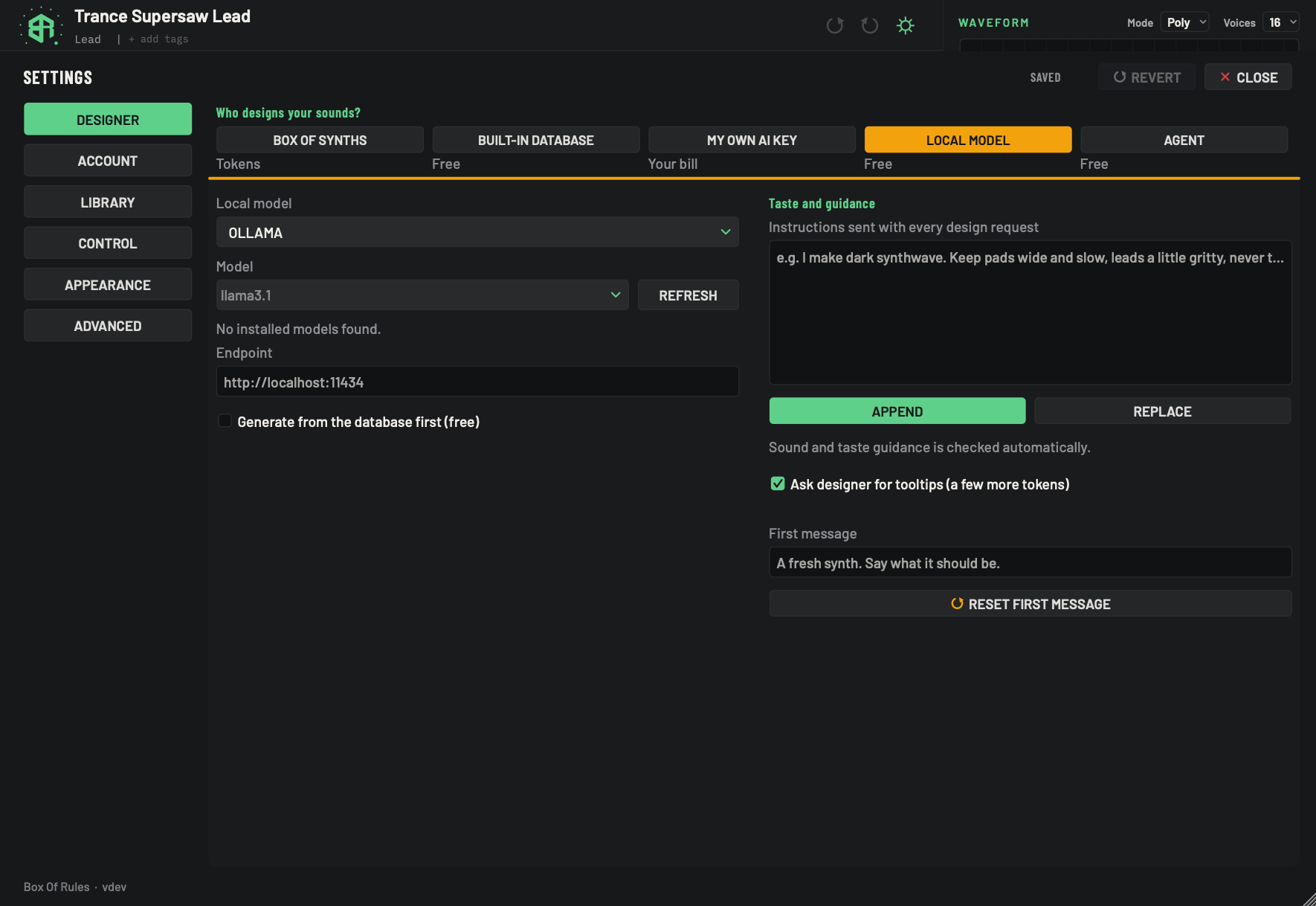
A model running on your own computer designs the sound. It is free and works offline. The model's own app must be open.
-
1Local model keyKey
The amber key means a model running on your own computer designs your sounds. The first time you pick it, the app asks you to agree to Your keys, your bill, as for your own key. See Agreements and confirmations.
-
2Cost lineDisplay
Reads Free. A local model costs nothing to use.
-
3Local modelMenu
Picks which local model app the fields below talk to. It takes the place of the AI service list.
- Options
Ollama, LM Studio.
- Starts as
- Ollama
-
4ModelMenu
An editable list of the models installed in the app. Pick one or type its name. With nothing picked it shows the default in grey,
llama3.1for Ollama andlocal-modelfor LM Studio.It is saved as soon as you change it.
-
5RefreshKey
Asks the app for its installed models again, and waits up to three seconds. It costs nothing. The list also loads on its own when the page opens and when you change the app or the endpoint.
-
6Model list statusStatus
Says how the list went. In the picture it reads No installed models found., so the app answered but has nothing installed.
- Options
Loading installed models... while it asks.
N installed model. or N installed models. when it finds some.
No installed models found.
Ollama did not return a model list. or Ollama is unreachable at this endpoint. for Ollama.
The service did not return a model list. You can still type a model name. or The service is unreachable at this endpoint. for LM Studio.
The base URL must be https (or this machine). Nothing was sent.
-
7EndpointText box
Where the local app listens. Leave it empty to use the normal address for the app you picked. There is no Key box, because a local model needs none.
- Starts as
http://localhost:11434for Ollama,http://localhost:1234/v1for LM Studio.
-
8Generate from the database firstSwitch
When on, a matching record in the database answers first, before your local model is asked.
- Starts as
- Off
Pick Local model in the row of source keys. The first time, the app shows the Your keys, your bill card, as for your own key. Then these fields appear. The picture shows them with Ollama chosen and nothing installed yet.
The Local model list has two entries, in this order: Ollama and LM Studio. Each starts with the values below.
| Local model | Default endpoint | Default model |
|---|---|---|
| Ollama | http://localhost:11434 |
llama3.1 |
| LM Studio | http://localhost:1234/v1 |
local-model |
| Field | What it does |
|---|---|
| Local model | The list above. It takes the place of the AI service list, and sets which app the fields below talk to. |
| Model | An editable list of the models installed in that app. Pick one or type its name. If it is empty, the app uses the default model in the table, shown in grey. |
| Refresh | Asks the app for its installed models again, and waits up to three seconds. It costs nothing. |
| Endpoint | Where the local app listens. Leave it empty to use the default in the table. |
| Generate from the database first (free) | A matching database record answers before your local model is asked. Off to start with. |
There is no Key field, because a local model needs none.
The status line under the Model box says how the list went:
- Loading installed models... while it asks.
- N installed model. or N installed models. when it finds some.
- No installed models found. when the app has none installed.
- Ollama did not return a model list. or Ollama is unreachable at this endpoint. for Ollama. Check that Ollama is open and that the endpoint is right.
- The service did not return a model list. You can still type a model name. or The service is unreachable at this endpoint. for LM Studio. Check that LM Studio is open and that the endpoint is right.
- The base URL must be https (or this machine). Nothing was sent. if the endpoint points somewhere else.
While a design runs, Ollama can also report Ollama: followed by the error it sent, or Ollama's streaming reply ended before its final frame. No partial design was used.
Agent
-
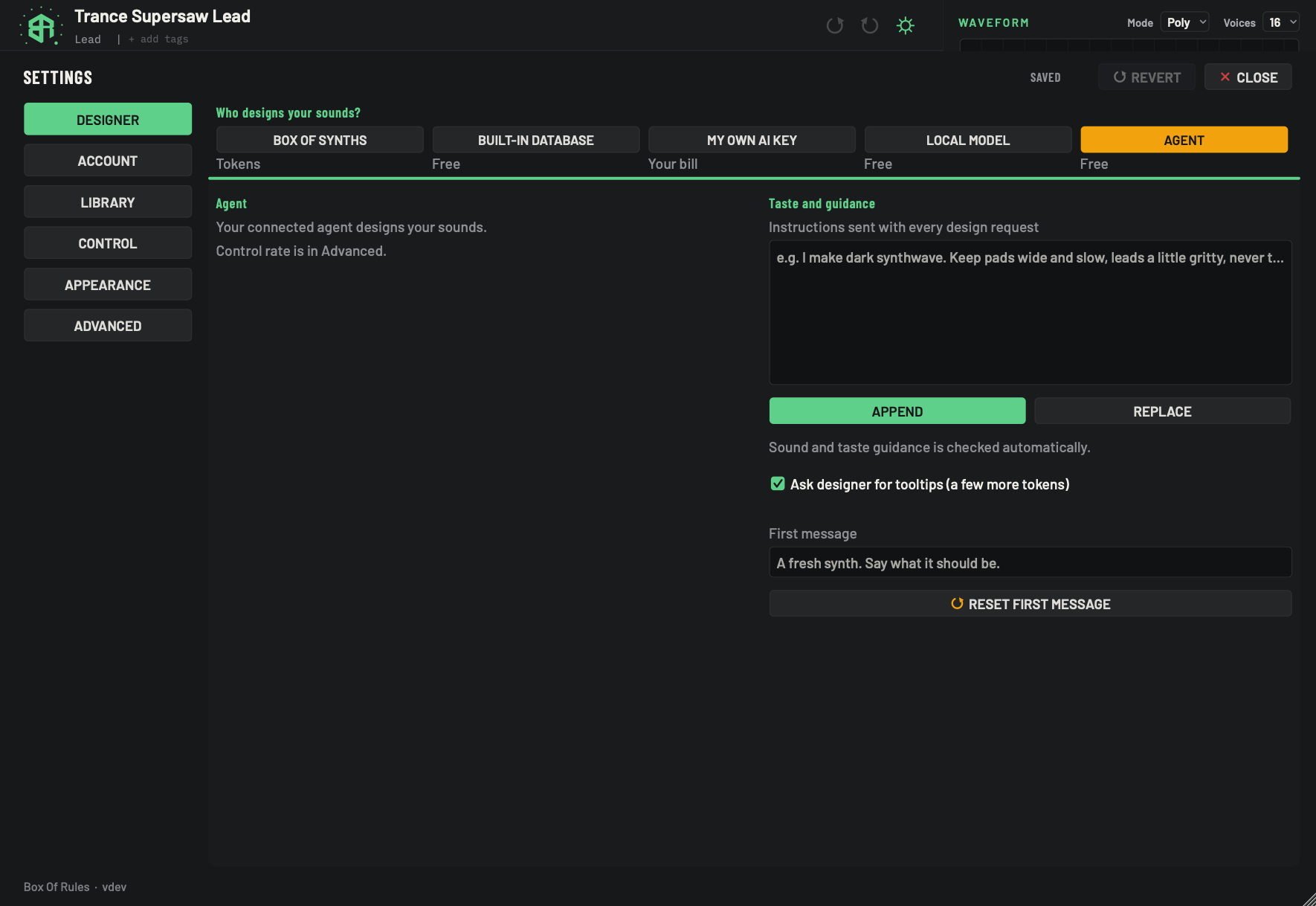
1Agent keyKey
The Agent key on the row of source keys, with Free under it. In this release, clicking it sends the source back to Built-in database, so the Agent source does not stay selected.
-
2Cost lineDisplay
Reads Free. The app itself charges nothing for an agent.
-
3Agent panelDisplay
Two lines of text: Your connected agent designs your sounds. and Control rate is in Advanced. There are no switches on this panel.
This panel closes again at once in this release, because the source returns to Built-in database. An agent can still send requests and control changes through the Inbox and Outbox folders of your library.
-
4Control rate pointerLink
The control rate, and the switch that lets agents spend tokens or your key, are in the Advanced tab. See Settings: Advanced.
-
5Taste, tooltips and first messageArea
The same standing note, Append and Replace, first message and reset as on every source. The right-hand column is the same for every source. See Settings: Designer for the taste and guidance box, Append and Replace, the first message and Reset first message.
The Agent key sits on the row of source keys, with Free under it. In this release an agent is not a source for the sounds you type. If you click the key, the source goes back to Built-in database straight away, so you cannot keep the Agent panel open. The picture shows what the panel holds: two lines of text, Your connected agent designs your sounds. and Control rate is in Advanced.
An agent connected to the app on your computer can still send it requests and control changes through the Inbox and Outbox folders in your library. How fast it may send changes, and whether it may spend tokens or your own AI key, are set on the Advanced tab. See Settings: Advanced.
Taste and guidance, on every source
The standing note, Append and Replace, the first message and Reset first message work the same on every source. See Settings: Designer.