
Box Of Synths manualSettings
Settings: Designer
Choose who designs your sounds, where the database comes from, and the standing guidance sent with every request.
The Designer tab decides what happens when you type a description and press Generate: who does the designing, what it costs, and what standing guidance goes with every request.
Open Settings
Click the cog at the top of the window. Settings slides down under the header and opens on the
Designer tab. To leave, click Close, click the cog again, or press Esc.
Every change saves itself. Switches save the moment you click them. Text boxes save when you click
away or press Return. The word next to the title tells you where you are: Saved, Editing
while a text box holds unsaved words, Checking while your guidance is being checked, and
Check notes if the guidance was refused.
The Designer tab
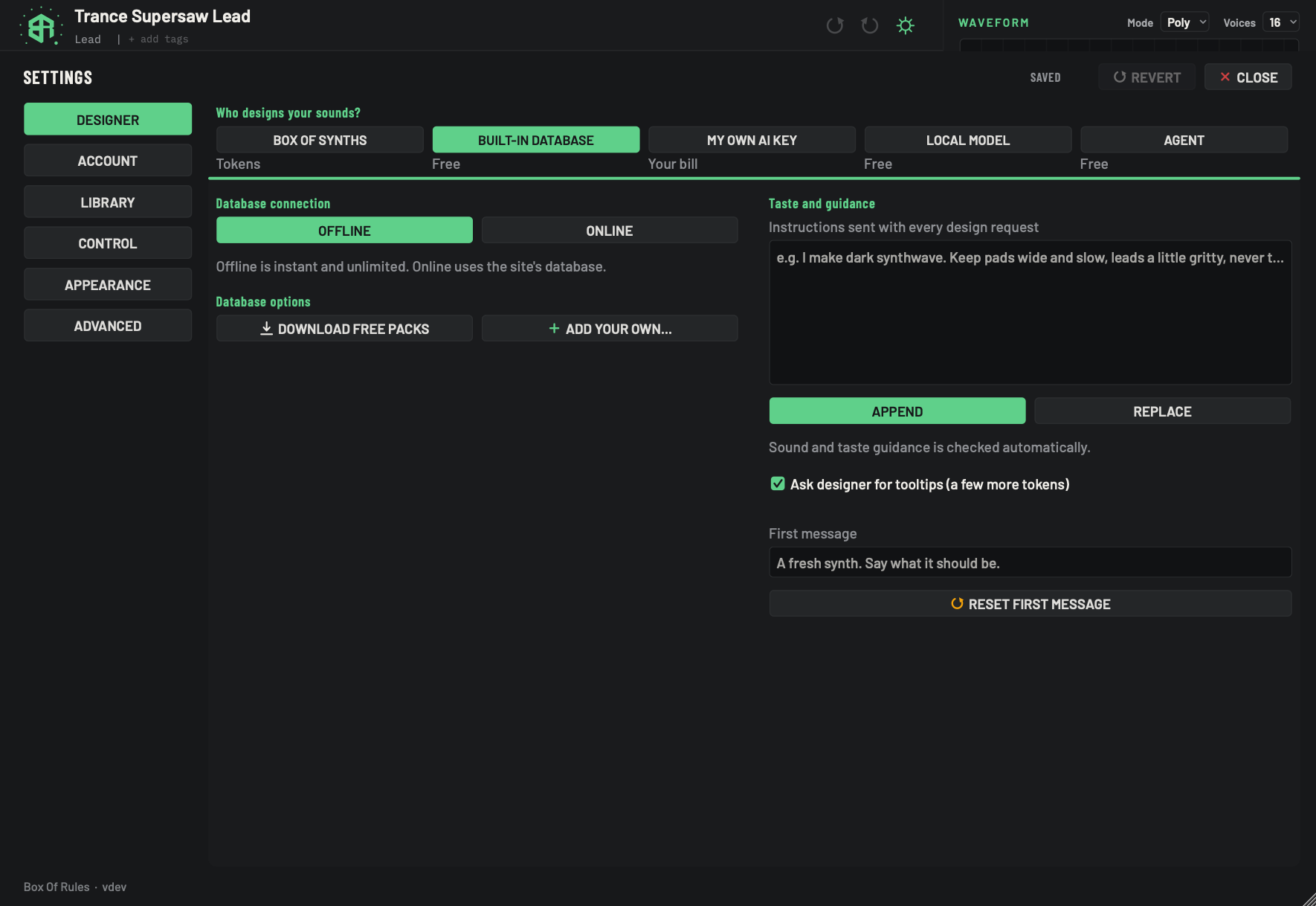
-
1Settings cogKey
Opens Settings. Click it again to close Settings. The header stays in view while Settings is open, so the cog is always there.
-
2Settings tabsTabs
The six pages of Settings. The green one is the page you are on. Settings opens on Designer each time you start the app, and returns to the tab you last used while the app stays open.
- Options
Designer, Account, Library, Control, Appearance, Advanced
-
3Save statusStatus
Shows whether your changes are stored. Settings saves itself: there is no save button.
- Options
Saved: everything is stored.
Editing: a text box holds words that are not stored yet. Click away or press
Return.Checking: your guidance is being checked.
Check notes: your guidance was refused. The line under the guidance box says why.
-
4RevertKey
Undoes your last change to Settings. Click it again to step back further. It is dimmed when there is nothing to undo.
- Options
Steps back through up to 30 changes.
-
5CloseKey
Closes Settings and returns to the synth.
Escdoes the same. Clicking outside Settings does not close it. -
6Who designs your sounds?Choice
Picks the source used when you press Generate. The lit key is the current source, and the line under each key says what it costs. The options below this row change to match.
- Options
Box Of Synths: our hosted designer, paid with tokens.
Built-in database: free.
My own AI key: an AI service you pay for yourself.
Local model: a model on your computer, free.
Agent: free, but in this release the key does not stay selected: the source returns to Built-in database.
The first time you pick My own AI key, the app asks you to agree that charges on your own key are yours.
-
7Database connectionChoice
Chooses which copy of the database designs your sounds. Shown when the source is Built-in database.
- Options
Offline: the packs on this computer. Free, instant, unlimited, and works with no internet.
Online: the whole database on our site, always current, including packs you have bought. 30 designs a day and 100 a month, unlimited on a plan. Needs you to be signed in.
- Starts as
- Offline
-
8Download free packsKey
Fetches the free database packs from our site and adds them to the database on this computer. If you are signed in, packs you own come down too. The line under the keys reports progress.
If nothing arrives, the app says No packs came down. Try again in a minute.
-
9Add your ownKey
Opens a file chooser so you can add your own records to the database: synths, sounds, effects or drum machines. The file is copied into the database folder and used straight away. The line under the keys says how many records were added.
- Options
Accepts
.jsonand.jsonlfiles: one JSON object per line, or one array.
If the file holds nothing usable, the app says No records found in that file. One JSON object a line, or an array.
-
10Taste and guidanceText box
A standing note sent with every design request. Describe your taste once here. It is saved, after an automatic check, when you click away from the box.
- Options
Up to 600 characters. Sound and taste only: anything else is refused.
- Starts as
- Empty. The grey words are an example.
-
11Append or ReplaceChoice
Sets how your note is used alongside our default guidance.
- Options
Append: your note is added after the request, on top of the default guidance.
Replace: your note stands in for the default guidance wherever the two disagree.
- Starts as
- Append
-
12Guidance statusStatus
Reports what happened to your note the last time it was checked.
- Options
Sound and taste guidance is checked automatically. Nothing to report.
Saved. It goes with every design request. The note passed the check.
Cleared. You emptied the box.
Put back. Revert restored the earlier note.
If the note is refused, the reason appears here.
-
13Ask designer for tooltipsSwitch
When on, each macro the designer creates comes with a short tip that appears when you hover over it. This uses a few more tokens on each design. Turn it off to save them.
- Starts as
- On
-
14First messageText box
The line every new chat opens with. Leave it empty to use ours: A fresh synth. Say what it should be.
- Options
Up to 160 characters.
- Starts as
- Empty
-
15Reset first messageKey
Clears your first message, so new chats open with our line again.
-
16Version lineLink
Shows the version of Box Of Synths you are running. Click it to open boxofrules.com in your browser.
Who designs your sounds
The row across the top picks the source. The line under each name says what it costs.
| Source | Cost | What it is |
|---|---|---|
| Box Of Synths | Tokens | Our hosted designer. Designs use tokens from your Box Of Synths account. Manage your balance in the Account tab. |
| Built-in database | Free | Designs come from the sound database. Instant, and it works with no internet when set to Offline. |
| My own AI key | Your bill | An AI service you already pay for designs the sound, using your own key. The service bills you directly. |
| Local model | Free | A model running on your own computer designs the sound. |
| Agent | Free | The key is on the row, but in this release it does not stay selected: the source goes back to Built-in database. See Settings: Designer, source by source. |
The options under the row change with the source you pick. The picture above shows the options for Built-in database.
Change the source, step by step
-
1Open Settings
Click the cog in the header. Settings slides down and opens on the Designer tab.
-
2Pick a source
Click one of the source keys, such as Built-in database. The key lights up, and the line under it tells you what designing will cost: tokens, your own bill, or free.
-
3Set its options
The area below the row now shows the options for that source. For Built-in database, choose Offline to design from this computer, or Online to use the whole database on our site.
-
4Check it saved
The status reads Saved. There is nothing else to confirm.
-
5Close Settings
Click Close or press
Esc. Your next Generate uses the source you picked.
Taste and guidance
The box on the right is a standing note that goes with every design request. Use it to describe your taste once, so you do not have to repeat it: the kind of music you make, how bright or dark you like things, what to avoid.
- It is for sound and taste only. The note is checked automatically, and anything that is not about sound is refused.
- It can hold up to 600 characters.
- Append adds your note to our default guidance. Replace lets your note win wherever the two disagree.
- If you change your mind, Revert at the top puts Settings back the way it was before your last change.