
Box Of Synths manualThe browser
The keyboard
Play the sound with the mouse or your computer keys, set how hard a note is played, and save any note as a sound file.
The keyboard runs along the bottom of the main column. It lets you play the sound you have just designed without a MIDI keyboard or a music app. It folds down to a thin bar when you do not need it.
Open and close it
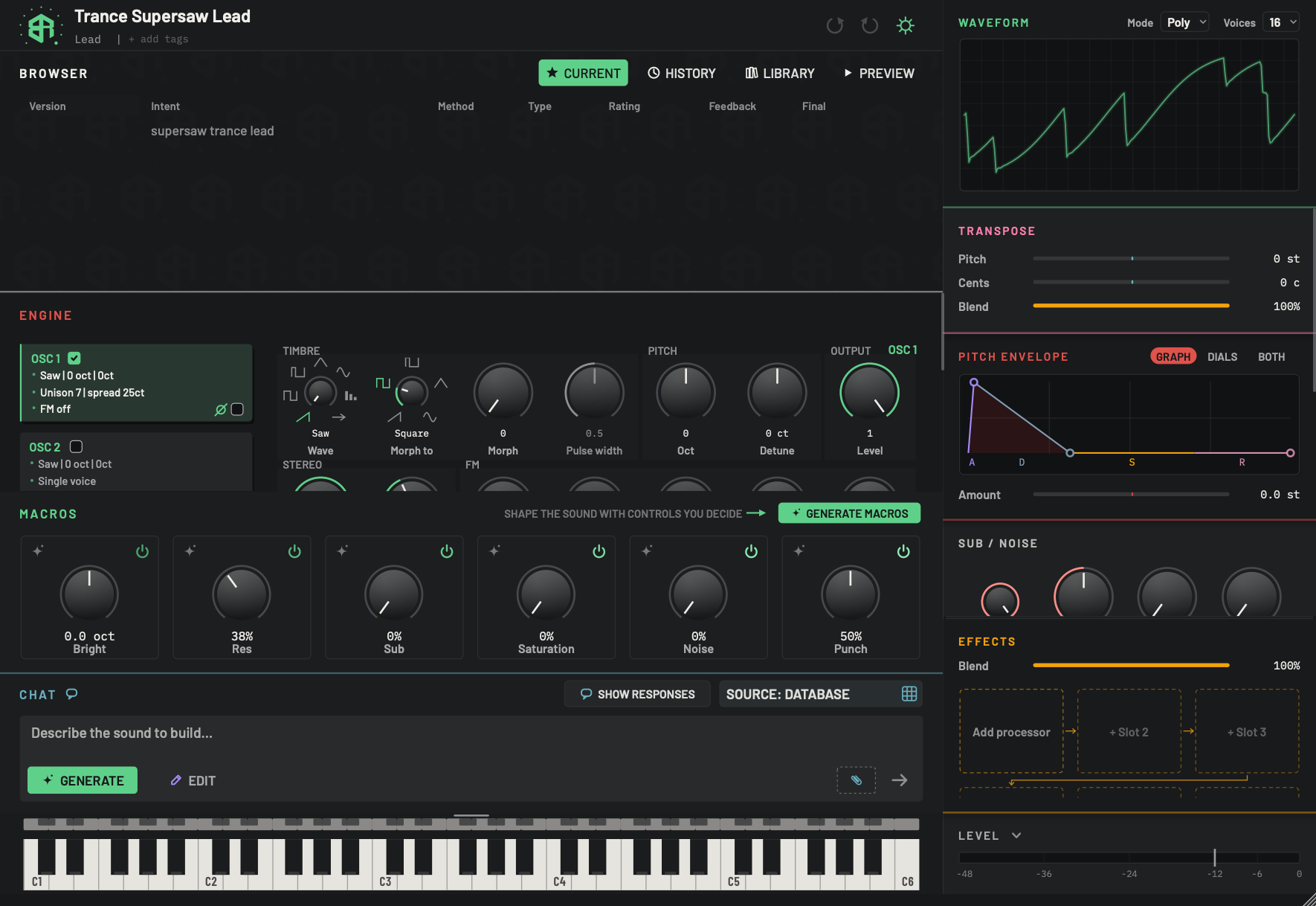
The keyboard lets you play the sound with the mouse. It is shown open here.
-
1Thin barKey
A row of small keys that is always there. Click it once to open the keyboard, and again to close it. The bar tints toward the accent colour when the pointer is over it. The keyboard slides smoothly, and it opens or closes the way you left it the next time you start.
The pointer must not move while you click: dragging across the bar does nothing.
- Options
Cmd+K(Ctrl+Kon Windows) opens or closes it too.- Starts as
- Closed
If the bar is missing, the keyboard has been switched off under Show the keyboard. See Settings: Appearance and themes.
-
2Resize handleSlider
A small grey bar at the top of the open keyboard. Drag the top edge of the keyboard up or down to make the keys taller or shorter. The pointer turns into an up-and-down arrow. The height is remembered.
- Options
40 to 220 pixels of keys.
- Starts as
- 60 pixels
-
3KeysArea
Click a key to play it. The note holds while the button is down and stops when you let go. Drag across the keys to slide from note to note: each new key sounds as the last one is released. A pressed key fills with the accent colour.
How high you click on a key sets how hard the note is played. Near the top of the key is soft. Near the bottom is full.
Right-click a key (Ctrl-click on a Mac) to save that note as a sound file. The key does not play. See saving a note.
- Options
Five octaves and one key: 36 white keys, from C1 to C6. The keys stretch to fill the width of the window.
-
4Octave labelsDisplay
Each C key is named at its foot, C1 to C6, so you can find your place. The other keys have no label.
Middle C is the C3 key, and it is MIDI note 60.
The thin bar of small keys is always there. Click it once to open the keyboard and again to close it. The keyboard slides open and shut. Box Of Synths remembers which way you left it, and starts the same way next time. The bar is closed to begin with.
Cmd+K (Ctrl+K on Windows) opens and closes it too.
The click must stay still. If you drag across the bar, nothing opens.
Show the keyboard
The keyboard has a switch in Settings, Show the keyboard, which is on to start with. Turn it off and the bar and the keyboard are gone, Cmd+K does nothing and the chat takes the room. See Settings: Appearance and themes.
The keyboard is also hidden on the start screen of a new sound, until a design has landed. See Starting a new sound.
Make it taller or shorter
When the keyboard is open, a short bar shows at the top centre of its top edge. It is only a cue for where to grab. Drag the top edge up or down. The pointer turns into an up-and-down arrow. The keys can be from 40 to 220 pixels tall, and they start at 60. The height is remembered. The keys always stretch to fill the width of the window.
The range and the labels
The keyboard has 36 white keys, from C1 to C6. That is five octaves, and covers MIDI notes 36 to 96. Each C is labelled at the foot of its key: C1, C2, C3, C4, C5 and C6. The other keys carry no label. Middle C, MIDI note 60, is the key labelled C3.
The keyboard has no scroll buttons, no pitch wheel, no mod wheel and no sustain key.
Play with the mouse
Click a key to play it. The note holds for as long as you hold the button, and stops when you let go. The key fills with the accent colour while it sounds, and the key under the pointer is tinted.
Drag across the keys to slide from note to note. Each new key sounds as the one before it is released.
How hard the note is played
Where you click along the key sets the velocity, so how hard the note is played. Click near the top edge of the key for a soft note and near the bottom for a full one. Black keys are shorter, and the same rule runs along their own length.
How strongly the sound answers to velocity depends on the sound. Some sounds hardly change, and some open up a lot.
Play from the computer keyboard
You can play with the letter keys, like a small piano. First click a key on the screen keyboard once, so the keyboard has the focus. Then press the keys below. The keyboard must be open. While a text box has the focus, such as the chat box or the name field, the letters go into the box instead.
| White keys | A |
S |
D |
F |
G |
H |
J |
K |
L |
; |
|---|---|---|---|---|---|---|---|---|---|---|
| Plays | C4 | D4 | E4 | F4 | G4 | A4 | B4 | C5 | D5 | E5 |
| Black keys | W |
E |
T |
Y |
U |
O |
P |
|---|---|---|---|---|---|---|---|
| Plays | C#4 | D#4 | F#4 | G#4 | A#4 | C#5 | D#5 |
The letters lay out like a piano: the home row plays the white keys and the row above plays the black keys. The note names are the labels on the screen keyboard. Notes from the letter keys always play at full velocity.
Space and the shortcut keys are not note keys, so they still work as usual. Space plays and stops the pattern in Browser: Preview.
Saving a note as a sound file
Right-click a key to save that note as an audio file. On a Mac, Ctrl-click does the same. The key does not play.
A small menu opens, headed by the note and how it will be made, for example C3 - 1 second hold, then release.
| Entry | What it does |
|---|---|
| Save note as WAV... | Renders the note and saves it as a .wav file. |
| Save note as MP3... | Renders the note and saves it as an .mp3 file. Greyed out unless an MP3 encoder is installed on your computer. |
Pick one and a file chooser titled Save played note opens. It suggests a file in your Documents folder named after the sound and the note, for example Trance Supersaw Lead C3.wav. Choose a place and a name. If a file with that name exists, you are asked before it is replaced.
The note is rendered on your computer, at a fixed velocity. It is played for one second, then released. The file runs on until the sound has faded, up to eleven seconds in all. The render uses the sound as it is now, with its volume, pan, transpose, voices, output stage, master level and limiter. A .wav is 24 bit, stereo, at 48 kHz.
Nothing is exported while a design is running or while another export is rendering.
MIDI input
The on-screen keyboard sends ordinary MIDI notes to the synth, on channel 1. The synth also takes MIDI from outside: notes and their velocity, pitch wheel, mod wheel, channel pressure and aftertouch. In a music app, the app sends them as it does for any instrument. What the wheels and pressure do depends on the sound. See Modulation sources and destinations.
-
1Open the keyboard
Click the thin bar of small keys. The keyboard slides open beneath it.
Cmd+K(Ctrl+Kon Windows) does the same. -
2Play with the mouse
Click a key and hold it. Click lower on the key to play harder. Drag across the keys to slide between notes.
-
3Find your place
The C keys carry their names, C1 to C6. Use them to find the octave you want.
-
4Play from the computer keyboard
Click a key once so the keyboard has the focus. Then the letters
A,W,S,E,Dand the rest of that row play notes. -
5Save a note
Right-click a key and choose Save note as WAV... (or Save note as MP3...). Choose a place to save it. The note is rendered with a one second hold, then released.