
Box Of Synths manualStart here
Starting a new sound
The start screen: describe a sound, draw a wave, load a sound file or throw the dice with Raw dog it.
The start screen is where a new sound begins. It covers the whole window, with a single card in the middle. From here you can describe a sound in words, draw the shape of its wave, build a granular synth from a sound file, or skip the words and build the sound by hand.
How you get here
Click the Box Of Synths mark at the top left of the main window. When the pointer is over it, the mark turns into a large plus and the name line reads Create new patch?
A card then asks Create a new patch? and says The synth on the rack goes to CHATS and a fresh one takes its place. It has two keys:
- Create opens the start screen.
- Keep this one closes the card and changes nothing.
Return chooses Create and Esc cancels. The card will not open while a design is running.
What happens to the sound you had
The sound that was on screen is not deleted. It goes into your chats, which you open from the History tab of the Browser, together with every version it had. You can open it again from there. See Browser: History.
To go straight back, press Close on the start screen (or Esc). The sound you were working on returns exactly as it was.
The start screen also appears when you open the app before any sound exists. In both cases it goes away by itself once your first sound lands.
The start screen
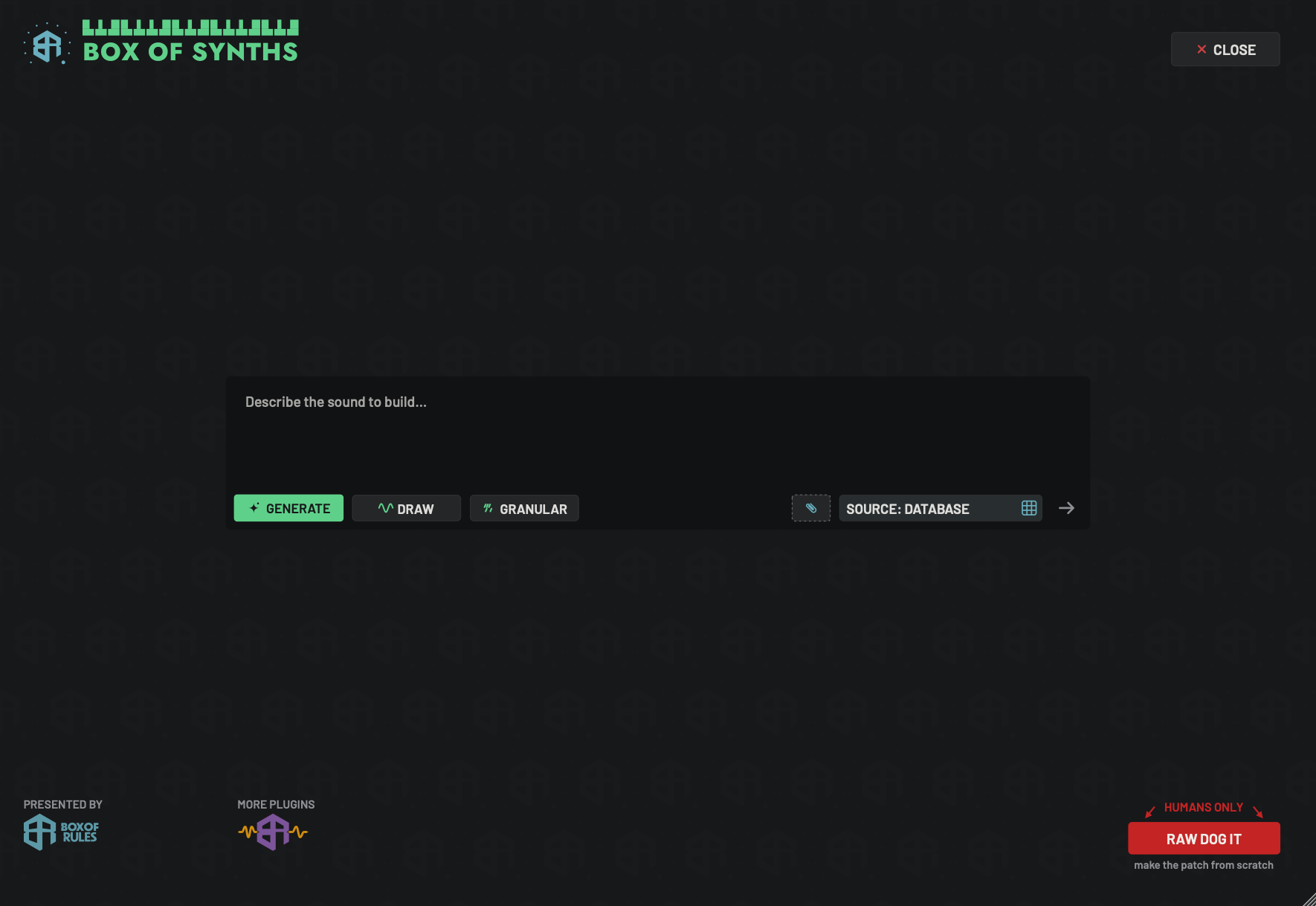
This is where every new sound begins. It takes over the whole window. You reach it from the logo, or on the first start before any sound exists. Everything you need to start is in the middle card.
-
1Box Of Synths wordmarkDisplay
The Box Of Synths mark and name, as the heading of this screen.
-
2CloseKey
Leaves this screen and brings back the sound you were working on, exactly as it was.
Escdoes the same. If you have typed words, drawn a shape, loaded a file or attached context, the app first asks Leave this new synth? with Leave and Cancel, and a tick box Do not ask again.Close is refused while a design is running.
-
3Description boxText box
Type the sound you want. The grey words read Describe the sound to build…. Press
Returnto send, orShiftandReturntogether for a new line. The box works the same way as in The chat and the composer.- Starts as
- Empty
-
4GenerateKey
The green key means your words will design a new sound. It is the lit key when you arrive. On this screen there is no Edit key, because there is no sound yet to edit.
On the Tokens source a gold coin and a number show the cost on this key. See Sources, tokens and what a design costs.
-
5DrawKey
Opens a pad above the description box where you draw one cycle of the oscillator wave with the mouse. Costs nothing if you add no words. See the picture Draw and the walkthrough below.
-
6GranularKey
Opens a file chooser so you can pick a sound file. The file becomes the raw material of a granular synth. See the picture Granular.
-
7Paperclip (context)Menu
Attaches a file as context for your request. Works as it does in The chat and the composer. The version choice does not appear here, because this sound has no versions yet.
-
8SourceMenu
Says who designs your sounds. Here it sits in the key row, to the left of the send arrow. It works as it does in The chat and the composer.
-
9Send arrowKey
Sends your words, the same as
Return. It stays grey until there is something to send: words, a drawn shape, or a sound file that has finished loading. -
10Presented byLink
The Box Of Rules logo under the words Presented by. Click it to open boxofrules.com in your browser. Hover for Box Of Rules, the home of this synth.
-
11More pluginsLink
The plugins mark under the words More plugins. Click it to open our plugins site in your browser. Hover for Every Box Of Rules plugin, on the plugins site.
-
12Raw dog itKey
A red key under the words Humans only, with the line make the patch from scratch. It skips the words and gives you the plain synth to build by hand. It asks whether you want the wizard or to go straight to the synth. See Raw dog it.
Hover for Skip the words: start from the plain synth and build it by hand.
The middle card is the same box you use in the main window, with two extra keys: Draw and Granular. The three keys on the left choose how you start.
| Key | How the sound starts | Cost |
|---|---|---|
| Generate | From your words. | The cost of your source. Free with the built-in database. |
| Draw | From a wave you draw. | Free if you add no words. |
| Granular | From a sound file of your own. | Free if you add no words. |
With words added to Draw or Granular, your words go to your source as well, so the cost of that source applies. See Sources, tokens and what a design costs.
The Show responses switch sits beside Source here too, and works as it does in The chat and the composer.
Dream bubbles
Leave the mouse still on the start screen for a while and your earlier requests start to drift upward like a screensaver. Up to nine show at a time, taken from the names of your saved chats. Move the mouse and they stop. They start after one minute. Change the wait, or turn the bubbles off, with Dream bubbles after in Settings: Advanced.
Close with work in progress
If you have typed words, drawn a shape, loaded a file or attached context, Close first asks Leave this new synth? with Leave and Cancel. A tick box, Do not ask again, stops the question in future. With nothing to lose, Close leaves at once.
Draw
Draw is for when you know the shape of the wave you want. Press Draw and a pad opens above the description box. It starts as one smooth sine wave.
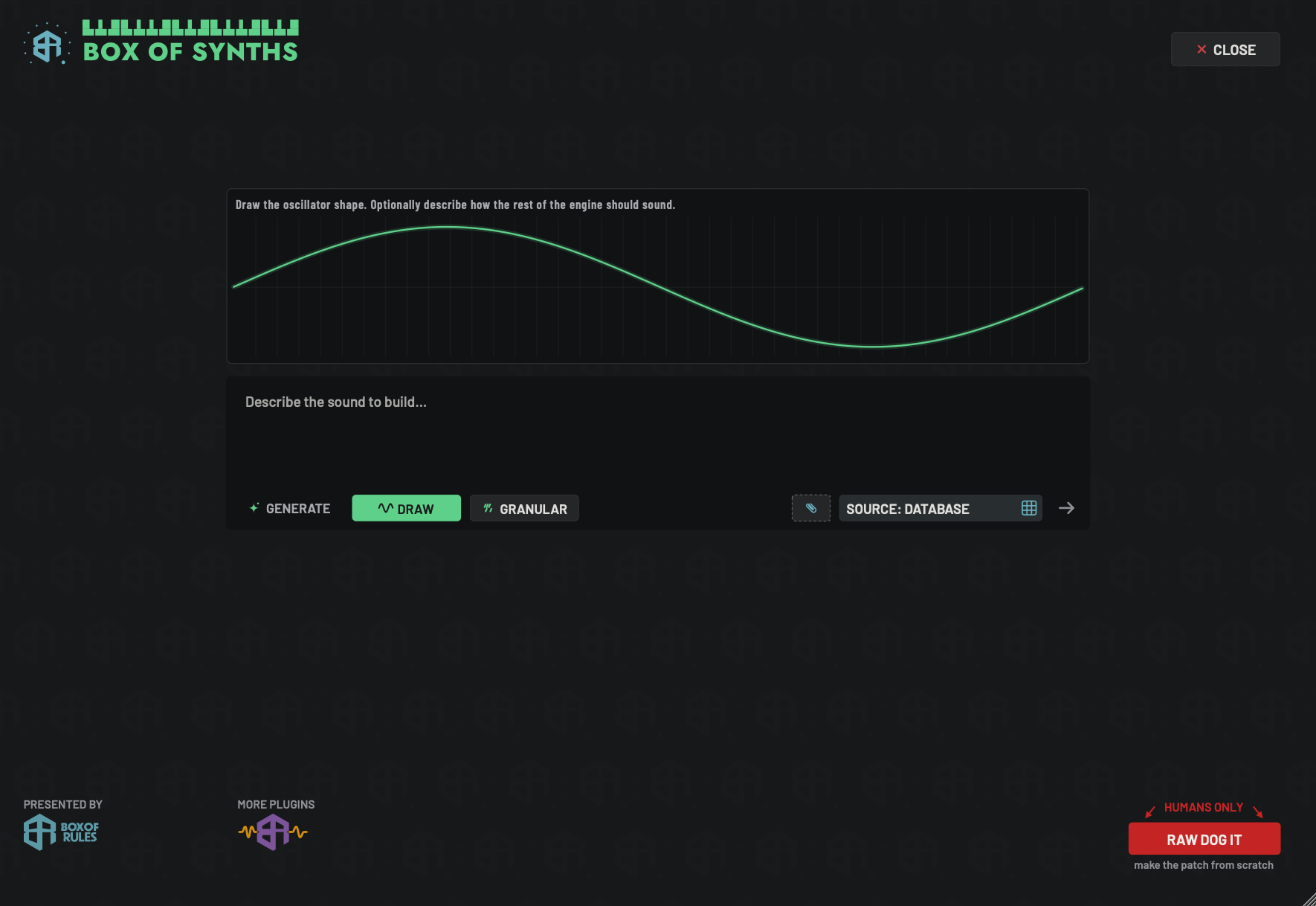
Draw lets you start a sound from the shape of its wave instead of from words. The pad holds one cycle of the wave. The rest of this screen works as on Starting a new sound.
-
1Drawing padArea
The frame you draw in. It shows a faint grid with a line through the middle. Press inside it and drag to draw. Strokes are joined with straight lines, so a fast stroke leaves no gaps. Release to keep what you drew. Press and drag again to change it. The pointer turns to a cross while it is over the pad.
- Options
Left to right is one cycle of the wave. Up and down is how far the wave swings above or below the middle line.
- Starts as
- One smooth sine wave
Presses outside the drawing area, such as on the caption, do nothing. There is no clear key. Closing this screen puts the pad back to a sine wave.
-
2Pad captionDisplay
Reads Draw the oscillator shape. Optionally describe how the rest of the engine should sound. The words are a reminder that you can add a description too.
-
3The wave you drawDisplay
The green line is your wave. It starts as a sine and changes as you draw. When you send, this shape becomes the first oscillator of the new sound.
-
4Description boxText box
Optional. Leave it empty and the sound is made from your wave alone. Add words, such as a warm pad, and the rest of the sound (filters, envelopes, effects) is designed to suit your wave, with the wave kept as drawn.
- Starts as
- Empty
-
5GenerateKey
Dim while Draw is on. Click it to put the drawing pad away and go back to designing from words only.
-
6DrawKey
Lit green while the pad is showing.
-
7GranularKey
Swaps to the granular start. See Granular.
-
8Send arrowKey
Grey until you have drawn something. Then click the arrow or press
Return. A drawing that is nearly flat is not accepted: nothing happens, so give the wave some movement.With no words, the sound is made at once on this computer, with no tokens and no designer. It is named Drawn followed by a made-up title, and it is saved as version
v1. With words, they go to your source as a request for a new sound, and the cost on that source applies. -
9CloseKey
Leaves the start screen. Your drawing is thrown away. If you drew something, the app asks first. See Starting a new sound.
Press inside the pad and drag to draw. Strokes are joined with straight lines, so a fast stroke leaves no gaps. Release to keep the shape, and drag again to change it. The pointer turns to a cross over the pad. Click Generate to put the pad away.
Send it with the arrow or Return once you have drawn something with some movement. With no words, the sound is made at once on your computer, named Drawn followed by a title, and kept as version v1. With words, the rest of the sound is designed around your wave and your wave is kept as drawn.
Draw one cycle of the oscillator wave and let the app build the sound from it.
-
1Switch on Draw
On the start screen, click Draw. A pad with a single sine wave opens above the description box.
-
2Draw the wave
Press inside the pad and drag. The green line follows the pointer. Release, then press and drag again to correct it.
-
3Add words if you like
Leave the box empty to make the sound from the wave alone, or describe how the rest should sound.
-
4Send
Click the send arrow or press
Return. With no words, the sound appears at once, named Drawn and a title, as versionv1.
Granular
Granular builds a synth out of a sound file of your own. The file stays on your computer.
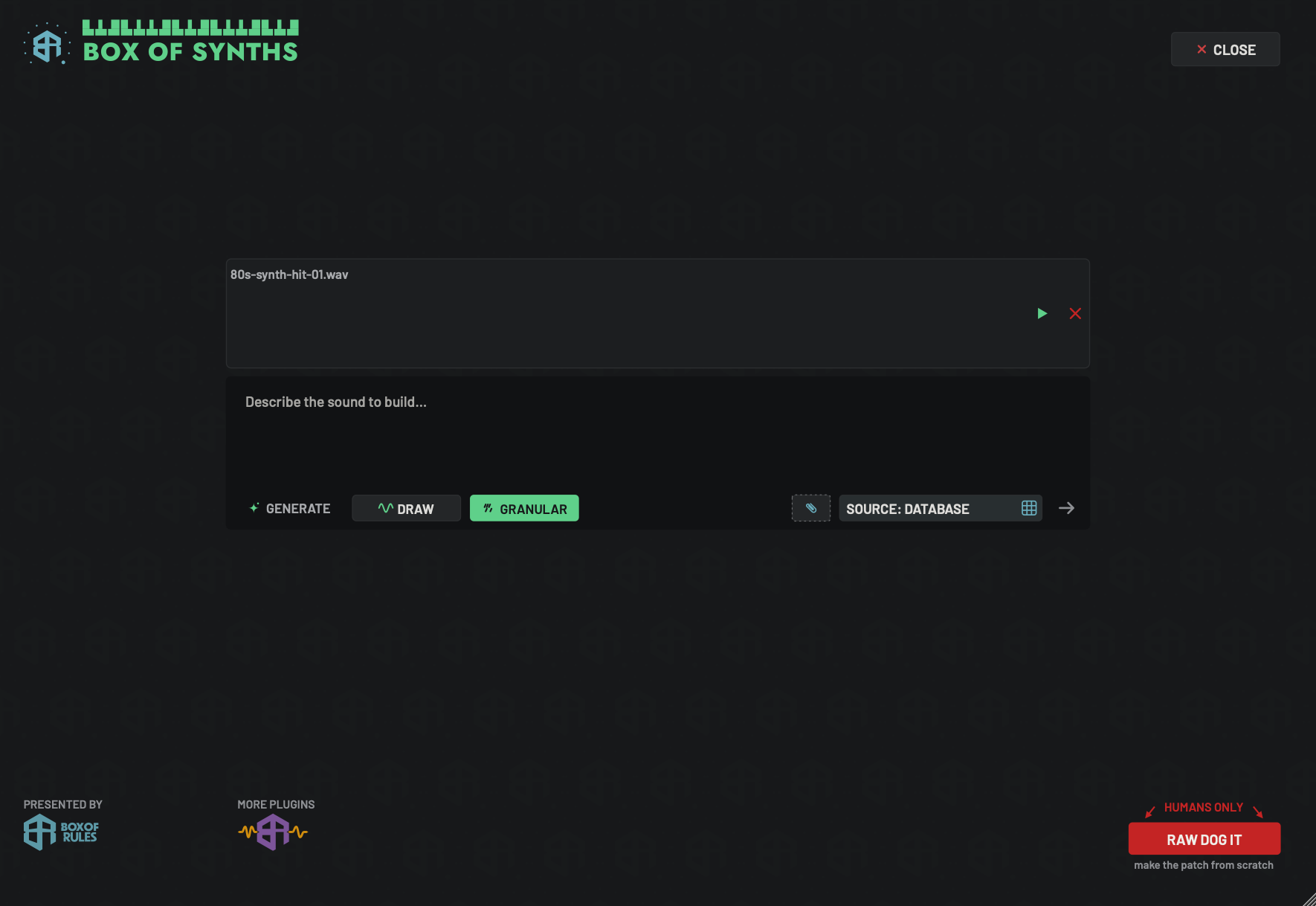
Granular builds a synth out of a sound file of your own. Press Granular, choose a file, and a card appears above the description box. The file stays on your computer.
-
1Sound file cardArea
Shows the file you chose. It reads NO RECORDING SELECTED when no file is loaded.
- Options
Files:
.wav,.aiff,.aifor.flac, mono or stereo. Up to 20 MiB and up to 60 seconds long.
-
2File name and stateStatus
The name of the file, followed by its state while the app works on it.
- Options
[file name] - reading...: the file is being read.
[file name], with nothing after it: ready to use.
[file name] - analysis failed: the file could not be used. It may be too big or too long, the wrong type or damaged. Remove it and choose another.
-
3PlayKey
The green triangle plays the file so you can hear what you are about to build from. It becomes a stop key while the file is playing. Click again to stop.
-
4RemoveKey
The red cross unloads the file and stops it playing. The card stays, now reading NO RECORDING SELECTED, with a Replace key (an upload glyph) that opens the file chooser again.
Hover for Remove this recording. The Replace key shows Replace the recording.
-
5Description boxText box
Optional. With the box empty, the sound is made straight from your file. With words, your source designs the rest of the sound around the file, the same as an edit would.
- Starts as
- Empty
-
6GenerateKey
Dim while Granular is on. Click it to go back to designing from words only.
-
7DrawKey
Swaps to the drawing pad. See Draw.
-
8GranularKey
Lit green while a file card is showing. Hover for Create a granular synth from a local WAV, AIFF or FLAC, up to 20 MiB and 60 seconds.
-
9Send arrowKey
Grey while the file is being read, and when no file is loaded. Once the file is ready, click it or press
Return.With no words, a granular sound named Granular and the file name is made at once, with no tokens and no designer. It is saved as version
v1, and its type in the Browser reads Granular. With words, the cost of the source applies.Hover when it is ready for Create from this sample. Add text to shape it with the selected source.
-
10CloseKey
Leaves the start screen and unloads the file. See Starting a new sound.
Press Granular and choose a file. The app accepts WAV, AIFF and FLAC files, mono or stereo, up to 20 MiB and up to 60 seconds long. A card shows the file name while it is read, and then it is ready. The green triangle plays the file. The red cross unloads it, and a Replace key then lets you choose another.
If the file cannot be used, the card reads [file name] - analysis failed. Remove it and try another.
Send with the arrow or Return. With no words, the granular sound is made at once and kept as version v1. With words, your source designs the rest of the sound around your file.
A granular sound has only the Edit key afterwards. To make a different sound from words, start a new sound.
Build a granular synth out of a WAV, AIFF or FLAC file of your own.
-
1Press Granular
On the start screen, click Granular. A file chooser opens. Pick a file up to 20 MiB and 60 seconds long.
-
2Wait for the file
The card shows the file name with - reading... after it. When only the name is left, the file is ready.
-
3Listen to it
Click the green triangle to hear the file. Click it again to stop. Use the red cross to unload it and pick another.
-
4Create the sound
Click the send arrow or press
Return. With no words, the granular sound appears at once as versionv1.
Raw dog it
The red key at the bottom right is for people who want to skip the words and build the sound by hand. The words Humans only sit above it, with two arrows pointing down at it. The line under it reads make the patch from scratch.
Press it and the app first loads a starting patch. That is the plain synth, or the starting template you chose in Settings: Control. Then a card asks Build it with the wizard? with two answers:
- Wizard opens the Raw dog it screen below.
- Straight to the synth goes to the main window with the Browser folded away and the engine open, ready for you to turn the dials.
A tick box on the card remembers your answer, and the question is not asked again.
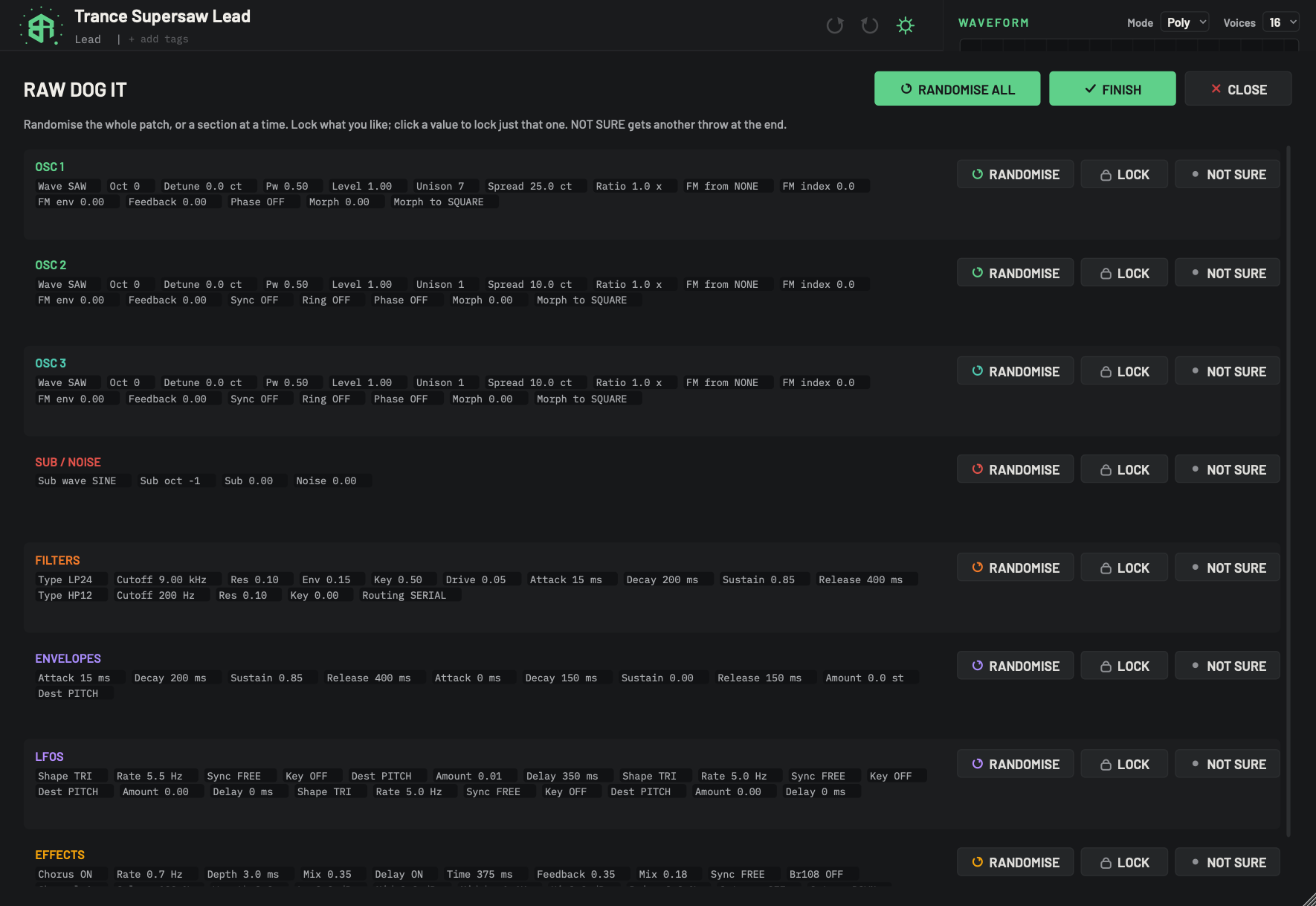
The wizard lays the whole sound out as a table. You throw the dice on all of it or one section at a time, lock what you like, and press Finish to put the result on the synth. It works on a copy, so the synth does not change until you press Finish. The list scrolls with the mouse wheel.
-
1Raw dog it titleDisplay
The name of the screen. The wizard starts from the plain synth, or from the starting template if you chose one under Raw dog it starts from in Settings: Control.
-
2InstructionsDisplay
Reads Randomise the whole patch, or a section at a time. Lock what you like; click a value to lock just that one. NOT SURE gets another throw at the end.
-
3Randomise allKey
Gives every section a new random throw. Click it again for another. Locked sections and locked values are left as they are.
-
4FinishKey
Gives every section marked Not sure one more random throw, then puts the whole table onto the synth in one step. That step can be undone with the undo key, and the wizard closes.
-
5CloseKey
Closes the wizard and leaves the synth as it was. Whatever you threw is thrown away.
-
6A sectionList
One block of the sound: its name in colour, then every value in it as a small tag. The sections, top to bottom, are OSC 1, OSC 2, OSC 3, SUB / NOISE, FILTERS, ENVELOPES, LFOS and EFFECTS.
A section you have locked shows (locked) after its name. One you have marked shows (not sure).
- Options
Each tag is a name and its value, such as Wave SAW or Detune 0.0 ct.
-
7A valueKey
Click a value to lock just that one. It turns amber and shows a small padlock. Click it again to unlock it. A locked value keeps its setting through every throw, even when its section is randomised.
-
8Randomise (section)Key
Gives this section a new random throw. The tags change to show the new values. It does nothing while the section is locked.
-
9Lock (section)Switch
Locks the whole section. The padlock turns amber, and neither Randomise nor Randomise all changes it. Click again to unlock.
- Starts as
- Off
-
10Not sure (section)Switch
Marks the section as one you are undecided about. The dot turns to a tick. When you press Finish, every marked section gets one more throw first. Click again to clear the mark.
- Starts as
- Off
-
11Sub / noise sectionList
The shortest section. It holds the sub oscillator's wave and octave, and the sub and noise levels. Its keys at the right work like those of every other section.
-
12Effects sectionList
The last section, half hidden at the bottom of the window. Scroll down to see all of it. Its values are the effects and their settings.
The wizard lays the whole sound out as a table of sections: OSC 1, OSC 2, OSC 3, SUB / NOISE, FILTERS, ENVELOPES, LFOS and EFFECTS. Each shows every value in it.
| Key | What it does |
|---|---|
| Randomise all | Gives every section a new random throw. |
| Randomise (on a section) | Throws just that section. |
| Lock (on a section) | Protects the section from every throw. |
| A value (click it) | Locks that one value. Click again to unlock. |
| Not sure (on a section) | Gives that section one more throw when you press Finish. |
| Finish | Puts the result on the synth in one step, so undo can take it back. |
| Close | Leaves without changing anything. |
The wizard works on a copy. Nothing sounds different until you press Finish.
Skip the words and make a sound from randomness you steer with locks.
-
1Press Raw dog it
Click the red key at the bottom right of the start screen. A card asks Build it with the wizard?. Click Wizard.
-
2Throw everything once
Click Randomise all. Every value in every section changes.
-
3Lock what you like
Click a value to lock it, or click Lock on a section's row to lock all of it. Locked things stay put through the next throw.
-
4Throw one section again
Click Randomise on a section to change just that section. Mark Not sure on any section you want to throw one more time at the end.
-
5Finish
Click Finish. The result goes onto the synth in one step, so the undo key can take it back. Close leaves without changing anything.
The links at the bottom
At the bottom left are two links that open in your browser: Presented by, with the Box Of Rules logo, opens boxofrules.com, and More plugins opens our plugins site.
Walkthrough: start a new sound
Leave the sound on screen and begin another from the start screen.
-
1Click the logo
Click the Box Of Synths mark at the top left. A card asks Create a new patch? and explains that the synth on the rack goes to History and a fresh one takes its place.
-
2Confirm
Click Create. The start screen fills the window. If you change your mind later, Close brings your old sound back.
-
3Describe the sound
Click the description box and type what you want.
-
4Send it
Press
Returnor click the send arrow. When the new sound lands, the start screen gives way to the main window.