
Box Of Synths manualThe synth
Engine: LFOs and modulation
The three LFOs, their shape, rate, fade in and destinations, and how a dial is linked to an LFO or a macro in the launch build.
An LFO is a slow wave that moves a dial for you, again and again. Point one at pitch and you get vibrato. Point it at the cutoff and you get a sweep. Box Of Synths has three, and the LFOS card in the ENGINE block opens all of them.
The LFOS card
The card lists one line per LFO: its shape, its rate, its fade in and where it points. A live LFO reads like LFO 1 Tri 5.5 Hz fade 350 ms > Pitch 0.50, with +n link(s) after it when it has more. An LFO that is off reads LFO 2 Off. The check at the end of each line switches that LFO on. An LFO that is off is silent and its row is dimmed until you tick it.
One LFO row
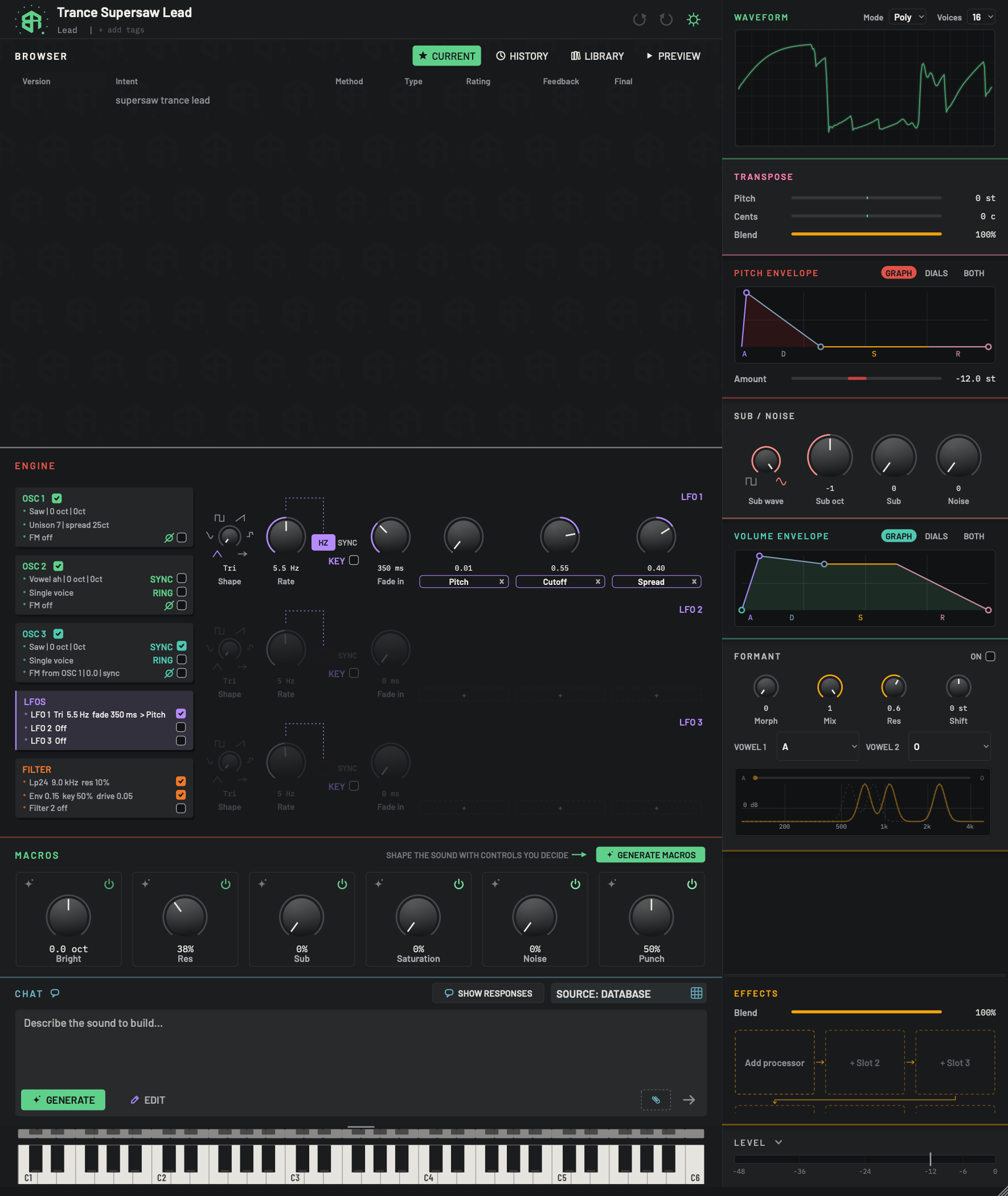
An LFO is a slow wave that moves a dial for you. The LFOS card opens all three LFOs, one under another. Each row reads left to right: Shape, Rate (or a note value), HZ / SYNC with KEY, Fade in, then up to three destinations.
-
1LFOS cardChoice
Click to open the three LFOs in the area on the right. It is a view only and changes nothing in the sound. There is one line per LFO.
- Options
A live LFO reads
LFO 1 Tri 5.5 Hz fade 350 ms > Pitch 0.50, then, if it has more,+n link(s). A note value shows in place of the Hz. An off LFO readsLFO 2 Off.
Hover tip: Open the three LFOs.
-
2LFO checksSwitch
One check at the end of each LFO line. Tick it to switch that LFO on. An unticked LFO is silent, and its row is dimmed and cannot be edited until you tick it.
- Starts as
- LFO 1 on in this sound, LFO 2 and LFO 3 off
Hover tips: A slow wave that moves a dial. Unticked, it is silent and its card greys. and the same idea for the second and third.
-
3LFO nameDisplay
Names the row: LFO 1, LFO 2, LFO 3, in the LFO colour.
-
4ShapeDial
The wave the LFO swings with. The marks are triangle, sine, square, saw and sample and hold (a staircase of random steps), then an arrow for more. Drag to step. Right-click for the whole list: Classic, then the bank waves under their family names, as for an oscillator (see The wave menu).
- Options
Tri, Sine, Square, Saw, S&H, then the 60 bank waves.
- Starts as
- Tri
-
5RateDial
How fast the LFO swings, in hertz. It has a curved travel, so slow rates are easy to set. It rests, dimmed, while SYNC is chosen or KEY is ticked. While SYNC is on, this dial becomes a note-value dial: it steps through FREE, 1/1, 1/2, 1/4, 1/8, 1/16, 1/32, 1/4d, 1/8d, 1/16d, 1/4t, 1/8t and 1/16t (d is dotted, t is triplet).
- Options
0.02 to 40 Hz
- Starts as
- 5 Hz
-
6HZ or SYNCChoice
Two words, HZ and SYNC. HZ is a free rate in hertz. SYNC locks the rate to the tempo of your host or the app and lets you choose a note value. Choosing SYNC starts at 1/8, and choosing HZ again sets the rate back to FREE. A dotted line ties the toggle to the dial it drives.
- Starts as
- HZ
-
7KeySwitch
Key tracking. With it ticked the LFO's rate follows the note you play: higher notes give a faster rate, doubling with each octave up. Rate and SYNC rest while it is on.
- Starts as
- Off
Hover tip: Key tracking: the rate follows the note you play (about 4 Hz at C3, doubling each octave). RATE and SYNC rest while it is on.
-
8Fade inDial
How long the LFO takes to come in after a note starts. At 0 it is at full strength at once. Use a long fade for vibrato that arrives late.
- Options
0 to 5000 ms
- Starts as
- 0 ms
-
9Destination 1 (the LFO's own)Dial
The first slot holds the destination the LFO owns. Here it is Pitch, and the dial above it is the depth. Click the pill to pick a new destination: a banner appears, and you double-click the dial you want to move. Press
Esc, or click STOP FINDING or the red cross in the banner, to cancel. The depth dial sets how far the LFO moves it.Alt-click the depth dial to return it to 0.5.- Options
Destinations offered: Pitch (the Pitch or Cents dial in Transpose), Cutoff, Amp (the Gain dial or the level bar), Pw (an oscillator's Pulse width), Formant (the Formant block's Morph dial) and Morph (an oscillator's Morph). The banner also lists these six as words you can click. Depth 0 to 1.
- Starts as
- Cutoff. The slot only appears while the depth is above 0.
An LFO on Morph is clamped at 0, so only the upper half of its swing is heard.
-
10Destination 2 (a link)Dial
The second and third slots are links from the same LFO to other dials. Here the link goes to Cutoff at depth 0.55. The dial is the depth and can be negative, which turns the swing upside down. Drag the pill up or down to set the depth, hold
Shiftfor finer control, and it snaps to 0 as you cross it.Alt-click the depth dial to return it to 0. Right-click the pill to cut the link.- Options
Depth -1 to 1
- Starts as
- 0
-
11Destination 3 (a link)Dial
The third slot, here a link to Spread at depth 0.40. Works as destination 2.
-
12Remove a destinationKey
The small x inside a pill removes that destination. On a link the link is cut. On the first slot the depth is set to 0, so the destination goes. Right-clicking a link pill does the same.
Hover tip: Remove this link.
-
13LFO 2 row (off)Area
An LFO that is off stays on screen, dimmed to about a third, so you can see its settings. Tick it on the LFOS card to bring the row to life.
-
14Empty destination slotsKey
Dashed + slots. On a live LFO click one, then double-click any dial on the synth that takes a link. The LFO now moves that dial too, at a depth of 0 until you turn its depth dial. Press
Esc, or click STOP FINDING or the red cross in the banner, to cancel. -
15LFO 3 row (off)Area
The third LFO, with the same dials as the first, also off in this picture.
Each row, left to right, holds these controls.
| Control | What it does | Range | Default |
|---|---|---|---|
| Shape | The wave the LFO swings with: Tri, Sine, Square, Saw, S&H (random steps), then the 60 bank waves on the right-click menu | 65 shapes | Tri |
| Rate | How fast, in hertz | 0.02 to 40 Hz | 5 Hz |
| HZ or SYNC | HZ is a free rate. SYNC locks to tempo and turns the rate dial into a note value | HZ, SYNC | HZ |
| Note value | FREE, 1/1, 1/2, 1/4, 1/8, 1/16, 1/32, 1/4d, 1/8d, 1/16d, 1/4t, 1/8t, 1/16t | 13 steps | FREE (1/8 when you choose SYNC) |
| Key | The rate follows the note you play: higher notes give a faster rate, doubling each octave. Rate and SYNC rest | on or off | Off |
| Fade in | How long the LFO takes to arrive after a note starts | 0 to 5000 ms | 0 ms |
An LFO is a slow, repeating movement. Point it at a dial and the dial sweeps on its own. The depth sets how far, and a negative depth sweeps the other way.
Destinations
Each LFO can move up to three dials. They are the pills at the right of the row.
- The first slot holds the destination the LFO owns, for example Pitch or Cutoff. The dial over the pill is the depth, 0 to 1.
Alt-click it to return to 0.5, and double-click it to type a value. The default destination is Cutoff, but nothing is heard until the depth is above 0. At a depth of 0 the slot is empty again. - The second and third slots are links to other dials. Their depth runs from -1 to 1. A negative depth turns the swing upside down.
Alt-click a depth dial to return it to 0.
Add a destination
Click an empty + slot. A banner appears over the synth, and dials that can take a link get a moving dotted line. Double-click the dial you want the LFO to move. The link appears as a pill with the dial's name, at a depth of 0, so turn its depth dial to hear it. To give up, press Esc, or click STOP FINDING or the red cross in the banner.
Click the pill of the first slot to move that destination somewhere else. The banner then offers PITCH, CUTOFF, AMP, PW, FORMANT and MORPH. Double-click the matching dial, or click one of those words. Pitch is the Pitch or Cents dial in Transpose, Amp is the Gain dial or the level bar, Pw is an oscillator's Pulse width, Formant is the Morph dial of the Formant block, and Morph is an oscillator's Morph.
Set the depth
Turn the depth dial over the pill. On a link pill you can also drag the pill itself up or down, and hold Shift for finer control. Dragging the pill snaps the depth to 0 as you cross it, so you can tell when it flips.
Remove a destination
Click the small x in the pill, or right-click a link pill. On the first slot, the x sets the depth to 0.
-
1Open the LFOs
Click the LFOS card. The three LFO rows open on the right.
-
2Switch the LFO on
Tick the check on the LFO's line. Its row stops being dimmed.
-
3Choose shape and rate
Drag Shape to pick a wave, then set Rate. Choose SYNC instead of HZ if you want the rate to follow the tempo.
-
4Pick a dial to move
Click an empty + slot. A banner appears. Double-click the dial you want the LFO to move, for example Cutoff.
-
5Set the depth
The new link starts at a depth of 0. Turn the depth dial over the new pill, or drag the pill up or down. A negative depth turns the swing upside down.
-
6Remove it again
Click the small x in the pill. The link is cut and the slot is empty again.
Link any dial to an LFO
You do not have to start from the LFO. Hold Ctrl and click a dial, or right-click a dial that has no menu of its own. A menu lists Link to LFO 1, Link to LFO 2 and Link to LFO 3. An LFO with no free slot reads (full) and cannot be picked. Pick one and the link is made, as if you had added it from the LFO row, at a depth of 0. An LFO that is already linked to the dial is ticked, and picking it again switches that link off or on. A dial that cannot take a link does nothing.
Dials that can take a link include: the oscillator detune, pulse width, level and spread, morph, the sub and noise levels, the filter cutoff, resonance and drive, the second filter's cutoff and resonance, the volume envelope dials, glide, Gain, the effects Blend, and, in an effect's detail panel (see Effects), the main dial of Fuzz, Octaver, Pre-amp, Bit crush, Flange, Phaser, Compressor, Chorus, Delay, Reverb, OTT and Fold. An LFO can also be linked to a macro dial when the controls that macro moves can take a link.
How modulation is shown and changed
- The LFO row shows every link as a pill with the target's name and a depth dial. The card lines show how many links an LFO has.
- On an engine dial, the reading is what you hear: any macros are already included.
- On the filter, Base res says so in its hover tip: Base resonance before macros. After macros: . Resonance macros add to this value.
- A pink arc on a dial or a pink bar on a slider shows how far the plugin's sidechain input can pull it down. Right-drag a dial to set it. See How dials, sliders and keys behave.
- A macro moves its controls through the links shown in its detail view, see Macros.
- To change any link, use the LFO row, the macro detail, or
Ctrl-click a dial.
For the full list of what can move what, see Modulation sources and destinations.
Next: Engine: filters.