
Box Of Synths manualThe synth
Macros
The MACROS block: what a macro is, asking for new ones, the six cards, switching one off or removing it, and the detail view with its links.
A macro is one big dial that moves several small things at once. Instead of hunting through the filter, the oscillators and the effects, you turn one dial called Bright or Punch and the sound changes the way its name says. The designer writes the macros for each sound and names them. The MACROS block sits between the ENGINE block and the chat.
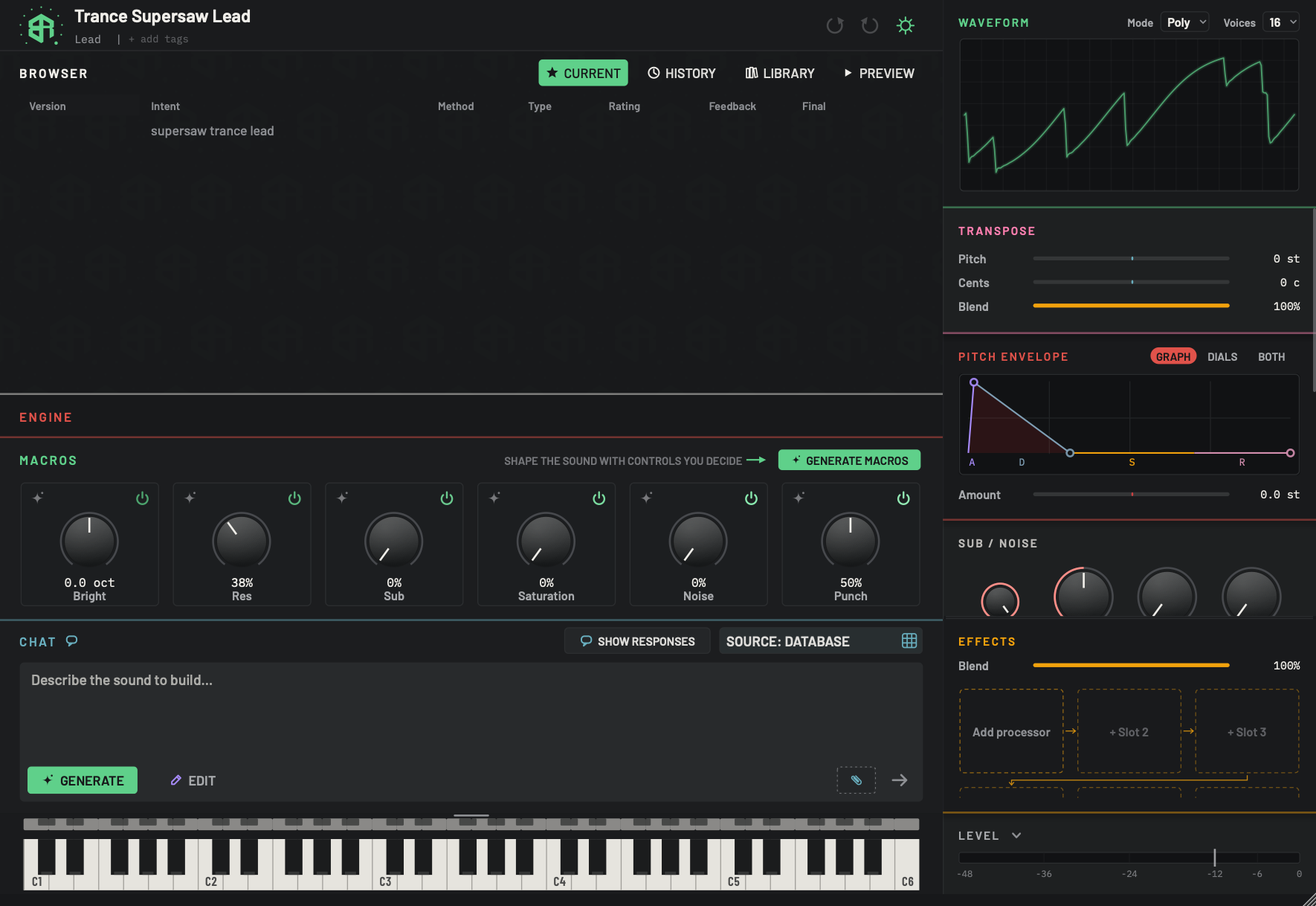
A macro is one big dial that moves several small things at once. The designer writes the macros for each sound and names them. The ENGINE block above is folded here so the macros stand out.
-
1Engine title (folded)Link
The ENGINE block folded to its title. Click the title to open it again. See Engine: oscillators.
-
2Macros titleLink
Click the title to fold the block. Folded, it lists every macro as its name and value, joined by dots, along the right of the title. Click again to open it.
-
3Macros hint and arrowDisplay
The words SHAPE THE SOUND WITH CONTROLS YOU DECIDE and an arrow. Until the designer has written macros for the sound, the arrow bobs toward Generate macros.
-
4Generate macrosKey
Asks the designer for a new set of macros. The chat opens in Edit with the words
Design a new set of macros for this sound:already started and the cursor in the box. Finish the sentence and send it. Nothing is sent until you send it. The new macros replace the old ones.Greyed until a sound exists, with the tip Generate a sound first. Otherwise the tip is Ask the designer for a new set of macros for this sound. See The chat.
-
5Macro cardArea
One macro. This card is Bright. A card holds a spark glyph at the top left, a power glyph at the top right, a dial, the value and the name. Each card has its own shade of the accent colour, and its edge lights up under the pointer. Double-click the card to see what it controls. Right-click the card, away from the dial, to remove it. Hover for its tip, which reads the macro's name, a colon, and what it does.
Hover tip for this card: Bright: Opens the filter: up is brighter and thinner, down is darker and rounder. A macro the designer invented says : a character control the designer invented for this sound.
-
6Spark glyphKey
Click to ask the designer to change this one macro. The chat opens in Edit with
Change the <name> macro:started and the box focused, and the card lights while the request waits. Finish the sentence and send it. If the chat was folded, it opens. The spark is bright when the designer made the macro and dim grey when not. -
7Power glyphSwitch
Switches this macro on or off. An off macro stops moving what it is wired to, its card steps back to the panel colour and its dial dims. Its value is kept. You can undo it.
-
8Macro dialDial
Drag it and everything the macro is wired to moves together. The sound follows as you drag. Every dial gesture on How dials, sliders and keys behave works here:
Shiftfor fine control, double-click to type a value,Alt(Optionon a Mac) click to go back to the designer's setting.- Options
Each macro has its own range and unit, set by the designer.
-
9Macro valueDisplay
The macro's current reading in its own unit, for example
0.0 oct,38%or0%. -
10Macro nameDisplay
The macro's name, up to 14 characters. There is no way to type a new name. To change a name, or what a macro does, ask the designer with the spark.
-
11The other macrosArea
The rest of the six. A fresh synth starts with the standard macros, and the designer replaces them with ones that suit the sound. Here the others are Res, Sub, Saturation, Noise and Punch. At most six cards show.
The title row
Click the MACROS title to fold the block. Folded, it lists each macro as its name and value, joined by dots. While the block is open, the words SHAPE THE SOUND WITH CONTROLS YOU DECIDE sit beside the key. Until the designer has written macros for the sound, an arrow beside them bobs toward the key.
Generate macros
Click Generate macros to ask the designer for a new set. The chat opens in Edit with Design a new set of macros for this sound: started and the cursor in the box. Finish the sentence, say what the macros should control, and send it. Nothing is sent until you send it. The key is greyed with the tip Generate a sound first until the sound exists. See The chat.
A macro card
Each card holds:
- a spark glyph at the top left. Click it to ask the designer to change just this macro. The chat opens in Edit with
Change the <name> macro:started, and the card lights while the request waits. - a power glyph at the top right. Click it to switch the macro off. An off macro stops moving what it is wired to, its card steps back and its dial dims. Its value is kept. Click again to switch it on.
- a dial. Drag it and everything the macro is wired to moves together. It behaves like every other dial, see How dials, sliders and keys behave.
- the value, in the macro's own unit, such as
0.0 octor38%. - the name, up to 14 characters.
Each card has its own shade of the accent colour, and its edge lights under the pointer. There is no way to rename a macro by hand. To change a name or what a macro does, use the spark and ask.
Hover tips
Point at a card and its tip reads the macro's name, a colon and what it does. Examples: Bright: Opens the filter: up is brighter and thinner, down is darker and rounder. and Res: Resonance at the filter's edge: a peak that whistles as it goes up. The other four standard macros read:
- Sub: A sub oscillator an octave below: weight under the sound.
- Saturation: Drive into the filter: harder and thicker as it goes up.
- Noise: White noise mixed in with the oscillators: breath and grit.
- Drift: Detunes the oscillators against each other, in cents: a slow beating that gets wider as it goes up.
A macro the designer invented for the sound says : a character control the designer invented for this sound.
Remove a macro
Right-click a macro card, on the card and not on its dial, to remove it. Only the card goes. It is one undo step. To get macros back, use Generate macros. A right-click on the dial opens the LFO link menu instead, see Engine: LFOs and modulation.
The limit of six
At most six macro cards show. A fresh synth starts with a standard set, and the designer replaces them with ones that suit the sound. If a sound has fewer than six, the row is topped up from a few standard ones. A macro that only moves the volume envelope is not shown as a card, because the Volume envelope block already holds those controls.
The detail view
Double-click a macro card to see what it controls. The other cards step aside, the card you chose sits at the left, and the detail fills the rest of the row. Press Esc, double-click the macro again, or click outside to close it.
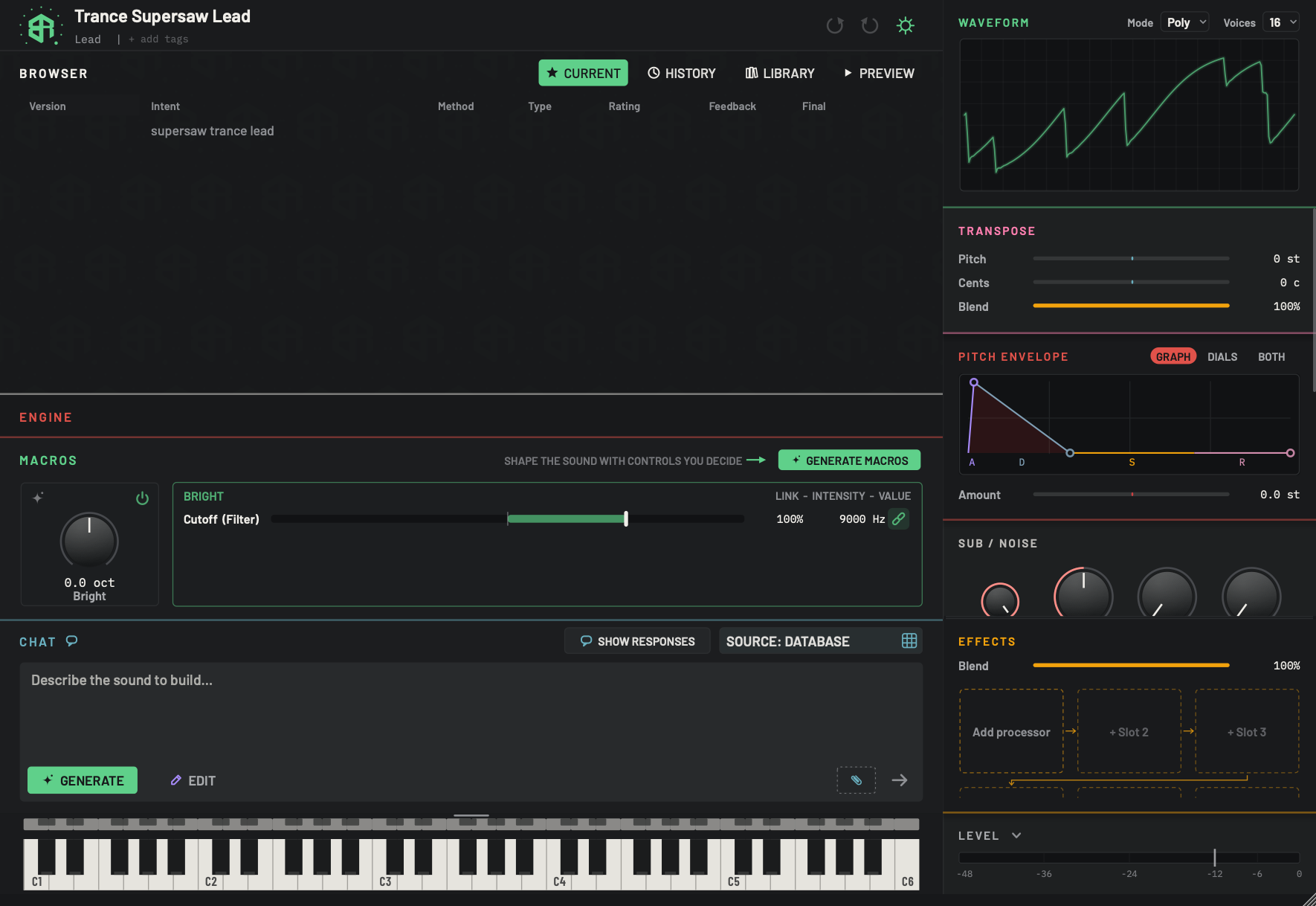
Double-click a macro card to open its detail. The other cards step aside, the card you chose sits at the left, and the detail fills the rest of the row. It lists every control the macro reaches.
-
1The open macroArea
The card you double-clicked, still live: its dial still works while the detail is open.
-
2Macro detailArea
The detail panel. It closes when you press
Esc, double-click the macro again, or click outside it. When the macro reaches nothing it says This macro reaches nothing yet. -
3Macro nameDisplay
Names the macro whose links you are reading.
-
4Column headingDisplay
Reads LINK - INTENSITY - VALUE, the three things each row shows, plus the percentage in the middle.
-
5Control reachedDisplay
The control this row moves, with the part of the synth it belongs to in brackets, here Cutoff (Filter). A macro can have several rows.
-
6Intensity trackSlider
How much of the macro's swing reaches this control. Click or drag to set it: the thumb goes where the pointer is, and the whole drag is one undo step. A mark at the middle is zero. Left of it inverts the link, so turning the macro up closes the control instead. Double-click to go back to 100%.
- Options
-200% to +200%, in steps of 5%.
- Starts as
- 100%
-
7Intensity percentageDisplay
The intensity as a number, for example 100%.
-
8Value nowDisplay
The value the control has right now, with the macro included, for example 9000 Hz. It moves as you turn the macro dial.
-
9Link keySwitch
Click to unlink this row. The macro's share is folded into the control's own setting, so the sound does not jump, and the glyph gets a red slash. Click again to relink: the share is taken back out. Use it to take one control out of a macro without changing how the sound sounds.
- Starts as
- Linked
Each row of the detail is one link. It reads the control the macro reaches, with its part of the synth in brackets, an intensity track, the intensity as a percentage, and the value the control has right now. The columns are headed LINK - INTENSITY - VALUE. When the macro reaches nothing, the detail says This macro reaches nothing yet.
- Intensity: click or drag the track to set how much of the macro's swing reaches this control. It runs from -200% to +200% in steps of 5%. A negative value turns the link upside down. Double-click the track to return to 100%. A track only answers while its link is on. One drag is one undo step.
- Value: shows what the control reads with the macro included. It moves as you turn the macro.
- Link key: click to unlink the row. The macro's share is folded into the control's own setting, so the sound does not jump, and the key gets a red slash. Click again to relink.
-
1Turn a macro
Drag the dial on a macro card. The sound follows as you drag, and the value under the dial changes.
-
2Open the detail
Double-click the card. The other cards step aside and the detail opens beside it.
-
3Read the links
Each row names a control the macro moves. The value at the right shows what the control reads now.
-
4Change how much it reaches
Click or drag the track. Double-click it to return to 100%.
-
5Take one link out
Click the link key. The glyph gets a red slash and the sound does not jump. Click again to relink.
-
6Close the detail
Press
Esc, double-click the macro, or click outside the detail.
See also
Macros can also be moved by LFOs, see Engine: LFOs and modulation. A macro's pull on the filter resonance is explained under Base res on Engine: filters.