
Box Of Synths manualThe synth
sOURnd effects
Add effects from sOURnd, our sister brand, to your synth: who can use them, the sheet line by line, and how they appear in the Effects block.
sOURnd is our sister brand. It makes a family of effects, and they load inside Box Of Synths. You pick them from a sheet, put them in order, set how much of each you hear and turn their own controls. They work on top of the built-in effects.
Who can use them
The sOURnd effects need you to be signed in to an account that has access to them. See Settings: Account and privacy for signing in.
- With access, the last line of the effects add menu reads sOURnd effects... and you can add effects.
- Without access, that line is not in the menu at all, so there is nothing to click.
- If a sound already holds sOURnd effects, for example one you opened from the library, it keeps playing them. Its sOURnd tiles still show, and you can double-click one to open the sheet and turn the effects down, switch them off or remove them. Add effect is dimmed.
If your copy does not show the sOURnd effects line, it does not include them.
Open the sheet
- In the Effects block, click an empty slot. The add menu opens.
- Choose sOURnd effects..., the last line, under Generate...
The sheet opens over the synth. Click Close, press Esc or click outside the card to shut it. While it is open, the keyboard does nothing to the synth.

The sheet is one card over a dimmed window. Each effect has its own row. The last row here is opened to show its controls.
-
1Title and order lineDisplay
The title sOURnd effects, and under it the line They run after everything else on this synth, from the top down. The effects work in the order of the list, the top one first, on the finished sound of the synth.
-
2CloseKey
Closes the sheet.
Escdoes the same, and so does a click on the dimmed window outside the card. While the sheet is open, keys do not reach the synth. Closing puts the cursor back in the chat box. -
3Effect pictureDisplay
A small picture of the effect's own world. It is there to help you tell the effects apart. It dims when the effect is off.
-
4Effect nameDisplay
The name of the effect.
-
5Style wordDisplay
One word for the character of the effect, in the colour of its family, for example a word like room or clipper. If an effect has no style word, its family name is shown instead.
-
6On / OffSwitch
Click to switch this effect on or off. Off, the effect does nothing and uses no processing power, and its row dims. Its settings are kept.
- Options
On, Off
- Starts as
- On, when you add it
-
7MixSlider
How much of this effect you hear against the sound going into it. Drag it, or click on the line. Double-click to put it back to 100%.
- Options
0 to 100%
- Starts as
- 100%
Hover for Mix: how much of this effect is heard against the sound going into it. One drag is one undo step.
-
8UpKey
Moves this effect one place earlier in the list, so it works sooner. It is dimmed on the top row.
Hover for Earlier in the chain.
-
9DownKey
Moves this effect one place later in the list. It is dimmed on the bottom row.
Hover for Later in the chain.
-
10ControlsKey
Opens the effect's own controls under its row. Click it again, now reading Hide, to close them. One effect is opened at a time: opening another closes the first. When there is only one effect in the list, it starts opened.
-
11RemoveKey
Takes this effect off the synth. It leaves the list at once. You can undo it with the header's undo.
Hover for Take this effect off the synth.
-
12HideKey
On an opened effect, Controls reads Hide. Click it to close the controls again.
-
13About the effectDisplay
A short line that says what the effect is, and a line on what it does. It shows only while the effect is opened.
If an effect has no controls of its own, this reads This effect has no controls of its own.
-
14The effect's controlsDial
One dial for each control of the effect, with its name under it and its value above that, in the colour of its family. Different effects have different dials. Drag a dial to change it, and double-click it to put it back to its starting value. Every move is one undo step.
Hover a dial for its name and Double-click for its starting value.
-
15Add effectMenu
Opens a menu to add an effect. The menu is grouped by family. Choose a family, then choose an effect. The effect goes to the end of the list, switched on, with its controls opened. The key is dimmed when the list holds eight effects.
- Options
Families: Analysis, Delay, Distortion, Dynamics, EQ, Filter, Modulation, Performance, Pitch, Reverb, Utility.
Hover for Add a sOURnd effect to the end of the chain. If your account does not have access to the sOURnd effects, this key is dimmed and reads Adding sOURnd effects needs a sOURnd subscription on your account when you hover it.
-
16Effect countStatus
How many effects are in the list, out of the most that fit. 4 of 8 means four are in and four more can be added. At 8 of 8 you must remove one before you can add another.
The sheet, line by line
- The title is sOURnd effects. Under it the sheet says They run after everything else on this synth, from the top down. The list is the order of work: the top effect works first.
- Close is at the top right.
- Each effect has a row with a picture, its name, a style word, an On key, a Mix slider and the keys Up, Down, Controls and Remove. The keys are described in the picture above.
- Controls opens a row. You then see a short description of the effect and one dial for each of its controls. The dials are different for each effect, and each wears the colour of the effect's family. Controls now reads Hide.
- With no effects in the list, the sheet reads No effects yet. Add one below.
- If a sound refers to an effect this copy of Box Of Synths does not hold, its opened row says This effect is not in this build of Box Of Synths.
Add an effect
Click Add effect. The menu has one entry for each family: Analysis, Delay, Distortion, Dynamics, EQ, Filter, Modulation, Performance, Pitch, Reverb and Utility. Each opens a list of effects by name. Choose one and it goes to the end of the list, switched on, with its controls opened.
The count at the bottom right, for example 4 of 8, shows how many effects are in the list. Eight is the most a synth can hold. At 8 of 8, Add effect is dimmed until you remove one.
Open the sOURnd effects sheet, add an effect, set how much of it you hear and turn its controls.
-
1Open the Add menu
Click an empty slot in the Effects block. At the foot of the menu, after Generate..., choose sOURnd effects.... The sheet opens over the synth.
-
2Add an effect
Click Add effect, pick a family, then pick an effect. A new row appears at the end of the list, switched on, with its controls opened.
-
3Set the mix
Drag Mix down to hear less of the effect. Double-click it to go back to 100%.
-
4Turn its controls
Drag a dial under the description. You hear the change as you drag. Double-click a dial to put it back to its starting value.
-
5Put it in order
Click Up or Down to change when this effect works. The list runs from the top, so the top effect works first.
-
6Close the sheet
Click Close or press
Esc. Each effect is now a tile in the Effects block. -
7See the tiles
The tile's dial is the effect's mix. Double-click the tile to open the sheet again with this effect's controls showing.
Where they sit in the sound
The sOURnd effects work on the finished sound of the synth, after the oscillators, the filter and all of the built-in effects. They run from the top of the list to the bottom. The same effect twice is allowed.
Switching an effect off stops it and it uses no processing power. Mix blends it with the sound going into it: at 0% you hear none of it, at 100% you hear it fully.
In the Effects block
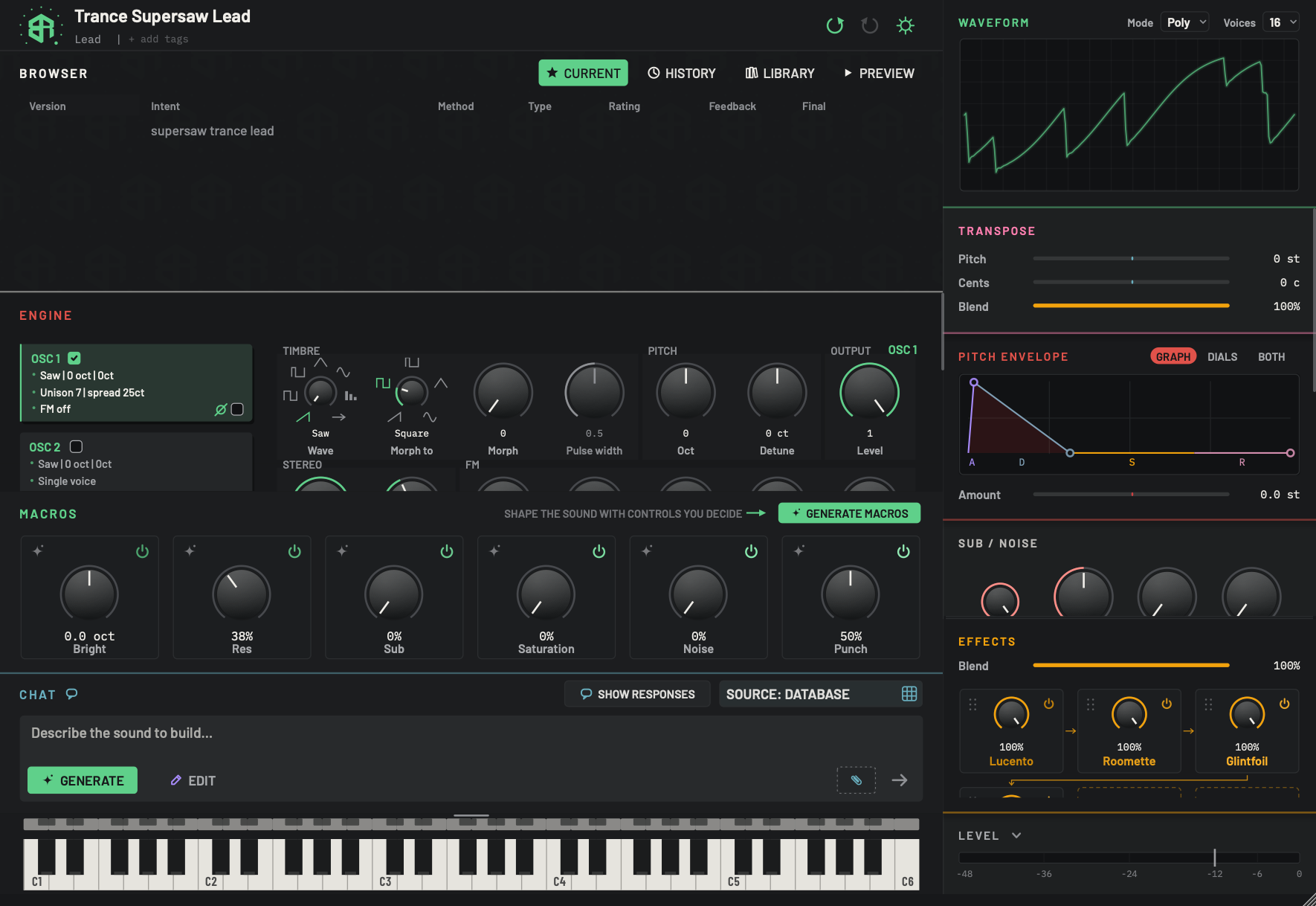
With the sheet closed, each sOURnd effect is a tile in the Effects block, after the built-in effects. The picture shows three of the four tiles.
-
1First sOURnd tileArea
A sOURnd effect as a tile. The dial is its mix, and the value under it reads for example 100%. The power glyph at the top right switches it on and off. Double-click the tile, away from the dial, to open the sOURnd effects sheet with this effect's controls opened. Right-click it and choose Remove followed by its name to take it off.
Hover for sOURnd effect. The dial is its mix. Double-click for its controls.
-
2Second sOURnd tileArea
The next effect in the list. The small arrow between tiles shows the order the sound takes. Drag a sOURnd tile onto another sOURnd tile to swap them. A sOURnd tile cannot be dropped in front of a built-in effect, because sOURnd effects always run after the built-in ones.
-
3Third sOURnd tileArea
Every effect in the sheet's list has a tile in the same order, so reordering in the sheet reorders the tiles. Mix changes on a tile, switching on and off, and removing all show in the sheet the next time it opens.
When the sheet is closed, each sOURnd effect is a tile in the Effects block, after the built-in effects, in the same order as the list. The dial on a tile is the effect's mix.
- Click the power glyph to switch it on or off.
- Double-click the tile, away from the dial, to open the sheet with that effect's controls opened.
- Drag the tile onto another sOURnd tile to swap them. A sOURnd tile cannot go in front of a built-in effect, because sOURnd effects always run after the built-in ones.
- Right-click the tile and choose Remove followed by its name to take it off.
Undo, versions and redesigns
Every change is one step you can undo with the header's undo: adding, removing, moving, switching on or off, a drag of Mix and a drag of a dial. Once you stop changing things, the result is kept as a new version of the sound, like any change by hand. See Browser: Current.
If you ask the designer for a new design and it brings no sOURnd effects of its own, your sOURnd effects stay on the synth.