
Box Of Synths manualSettings
Settings: Control
How new synths start, what Raw dog it starts from, how the controls move, and how MIDI learn works.
The Control tab is about how the app behaves under your hands: the defaults a new synth starts with, the feel of the controls, a few behaviour switches, and MIDI.
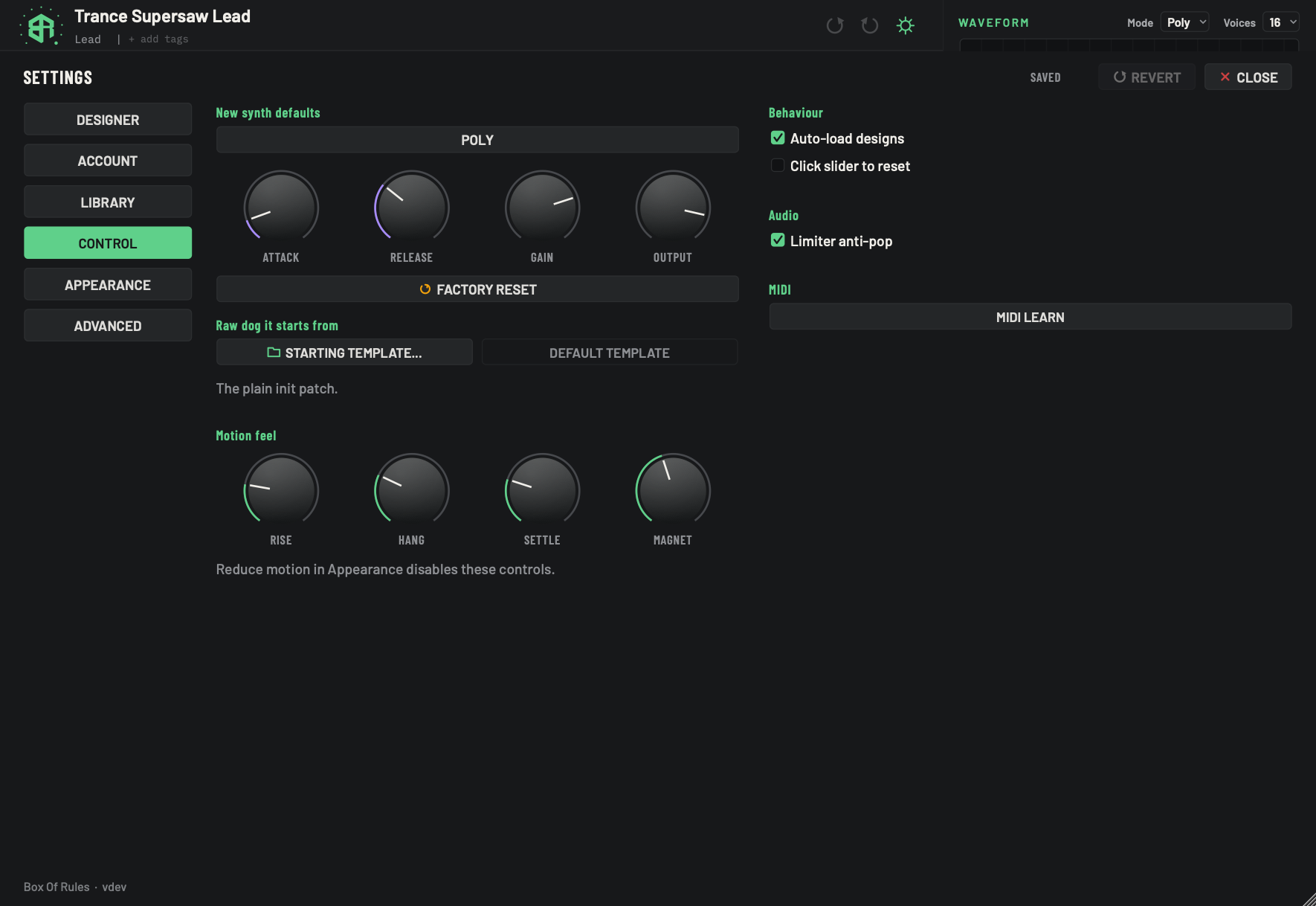
-
1Poly or MonoKey
Click to flip between Poly and Mono. The key shows what a new synth starts as: Poly plays chords, Mono plays one note at a time.
- Starts as
- Poly
It applies to the first sound and to every new synth. It does not change a sound you already have.
-
2AttackDial
How fast a new synth's notes come up. Drag the dial.
- Options
0.5 to 2000 ms
- Starts as
- 5 ms
-
3ReleaseDial
How long a new synth's notes take to die away.
- Options
5 to 5000 ms
- Starts as
- 200 ms
-
4GainDial
A new synth's own level.
- Options
-36 to +12 dB
- Starts as
- 0 dB
-
5OutputDial
What leaves a new synth.
- Options
-36 to +6 dB
- Starts as
- 0 dB
-
6Factory resetKey
Puts the five new-synth defaults back to the factory values: Poly, 5 ms, 200 ms, 0 dB, 0 dB. It does not touch Motion feel.
-
7Starting templateKey
Opens a file chooser headed Starting template. Pick a patch file (
.json) and Raw dog it starts from that sound instead of the plain init patch. -
8Default templateKey
Clears your starting template, so Raw dog it starts from the plain init patch again. It is dimmed when no template is set.
-
9Template captionDisplay
Shows the file name of your starting template, or The plain init patch. when none is set.
-
10RiseDial
How fast a pressed key reaches the top. Double-click to return it to the value it had when the window opened.
- Options
30 to 300 ms
- Starts as
- 90 ms
-
11HangDial
The hold at the top. This is what makes a key feel snappy. Double-click to return it to the value it had when the window opened.
- Options
0 to 200 ms
- Starts as
- 55 ms
-
12SettleDial
The fall back after the hold. Double-click to return it to the value it had when the window opened.
- Options
40 to 400 ms
- Starts as
- 130 ms
-
13MagnetDial
How far outside a control still counts as hitting it, so small controls are easier to grab. Double-click to return it to the value it had when the window opened.
- Options
0 to 16 px
- Starts as
- 7 px
-
14Reduce motion noteDisplay
Reminds you that Reduce motion in the Appearance tab dims these four dials and turns the glides off. See Settings: Appearance and themes.
-
15Auto-load designsSwitch
When on, each design lands on the synth as it arrives. When off, the design is still saved as a version but does not go onto the synth until you click Load on its row in the version list.
- Starts as
- On
-
16Click slider to resetSwitch
Changes what a click on the name or the value of a slider does. Off: the name takes the slider to its lowest end, the value to its highest. On: the click puts the slider back to the design's value.
Alt-click always puts it back to the design's value.- Starts as
- Off
It applies to the glide and volume envelope sliders.
-
17Limiter anti-popSwitch
When on, the limiter eases in so it does not pop. Turn it off to disable that fix. It takes effect while you listen.
- Starts as
- On
-
18MIDI learnKey
Opens a menu to map a MIDI controller to a synth control or a macro. The steps are in the MIDI section of the page text.
New synth defaults
These five settings decide what a new synth starts as. They apply to the first sound and to every new synth. They do not change a sound you already have.
| Setting | What it sets | Range | Starts as |
|---|---|---|---|
| Poly or Mono key | Poly plays chords. Mono plays one note at a time. Click to flip it. | Poly, Mono | Poly |
| Attack | How fast a new synth's notes come up. | 0.5 to 2000 ms | 5 ms |
| Release | How long a new synth's notes take to die away. | 5 to 5000 ms | 200 ms |
| Gain | A new synth's own level. | -36 to +12 dB | 0 dB |
| Output | What leaves a new synth. | -36 to +6 dB | 0 dB |
Drag a dial to change it. Attack and release are not spread evenly: the short times take more of the turn, so small changes are easy. Factory reset puts all five back to Poly, 5 ms, 200 ms, 0 dB and 0 dB. It does not touch Motion feel.
Set how new synths start, step by step
-
1Pick Poly or Mono
Click the key to flip between Poly and Mono. New synths start as what it shows.
-
2Set the envelope
Drag Attack and Release to the times you want new notes to start with.
-
3Set the levels
Drag Gain and Output. They set the level of every new synth.
-
4Start again if you want
Click Factory reset to put all five defaults back to Poly, 5 ms, 200 ms, 0 dB and 0 dB.
Raw dog it starts from
Raw dog it is one way to start a new sound. By default it starts from the plain init patch. You can start it from a sound of your own instead. See Starting a new sound.
- Starting template opens a file chooser headed Starting template. Pick a patch file (
.json) and Raw dog it starts from that sound. - Default template clears your choice, so Raw dog it starts from the plain init patch again. It is dimmed when no template is set.
- The line under the keys shows the file name of your template, or The plain init patch.
Motion feel
Four dials set how the controls move. They apply while you drag, and they are saved when you let go. Double-click a dial to return it to the value it had when the window opened.
| Dial | What it does | Range | Starts as |
|---|---|---|---|
| Rise | How fast a pressed key reaches the top. | 30 to 300 ms | 90 ms |
| Hang | The hold at the top. This is what makes a key feel snappy. | 0 to 200 ms | 55 ms |
| Settle | The fall back after the hold. | 40 to 400 ms | 130 ms |
| Magnet | How far outside a control still counts as hitting it, so small controls are easier to grab. | 0 to 16 px | 7 px |
The dials are dimmed when Reduce motion is on in the Appearance tab. The line under them says so: Reduce motion in Appearance disables these controls. See Settings: Appearance and themes.
Behaviour
- Auto-load designs (on to start with): each design lands on the synth as it arrives. Turn it off and the new design is still saved as a version, but it does not go onto the synth: it waits in the version list until you click Load on its row.
- Click slider to reset (off to start with): changes what a click on the name or the value of a slider does. Off, the name takes the slider to its lowest end and the value takes it to its highest. On, the click puts the slider back to the design's value.
Alt-click always puts it back to the design's value. It applies to the glide and volume envelope sliders. See How dials, sliders and keys behave.
Audio
Limiter anti-pop (on to start with): the limiter eases in so it does not pop when the sound starts. Turn it off to disable that fix. It takes effect while you listen.
MIDI
MIDI learn maps a MIDI controller to a control on the synth or to a macro.
How to learn a control
- Click MIDI learn. A menu opens under the key.
- Pick the target. Every group of controls is a sub-menu, and the active synth's macros are in a Macros sub-menu. Each item shows its state: MIDI with the channel and controller number and the last value, MOVE a MIDI control, or Not learned.
- The target's menu item now reads MOVE a MIDI control. Move the knob or fader on your controller.
- The first controller you move is bound to the target. The bound controller then moves that control from 0 to 100 percent.
To cancel before moving anything, open the menu and choose Cancel MIDI learn. The target goes back to Not learned. To remove every mapping, choose Clear MIDI mappings.
What to know
- Learning applies to the active synth.
- Controller numbers 0 to 119 work, on any of the 16 channels. Numbers from 120 up are ignored.
- You can hold up to 64 mappings.
- Learning the same target again replaces its old mapping.
- Mappings are saved with your session, not in the settings file.