
Box Of Synths manualSettings
Settings: Appearance and themes
Choose dark, light or system, add your own colour themes, pick a language, and set the logo, hover help, keyboard, motion and window size.
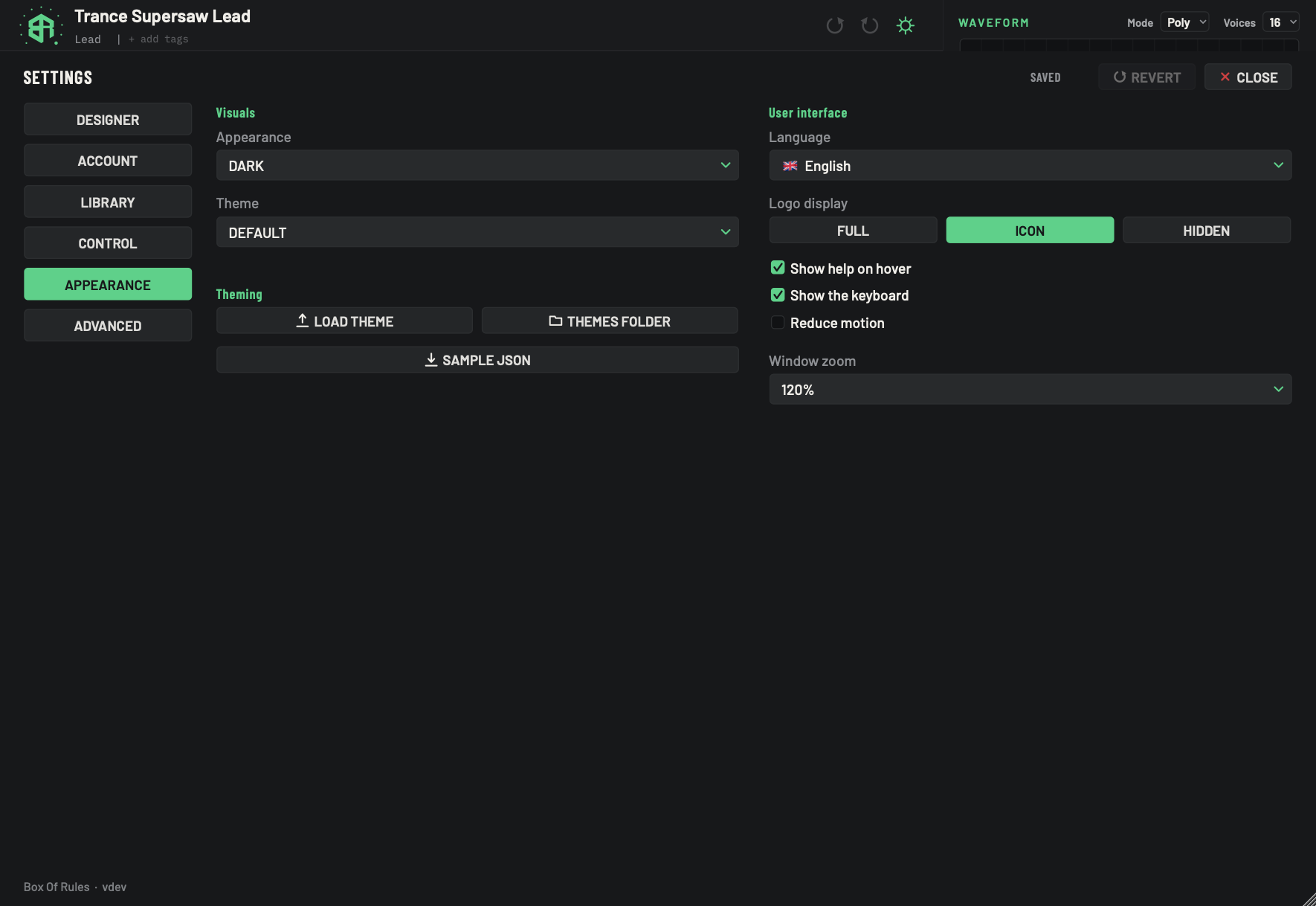
The Appearance tab changes how Box Of Synths looks. The left column is about colour and themes. The right column is about the interface: language, logo, help, keyboard, motion and size.
-
1AppearanceMenu
Chooses the look: dark, light, or follow your computer.
- Options
Dark
Light
System: follows your operating system and changes while the app is open if the system changes.
- Starts as
- Dark
Dark and Light each remember their own theme. Only the dark Default theme is installed to start with, so Light looks the same until you add a light theme.
-
2ThemeMenu
Lists the built-in theme, Default, and every theme in your Themes folder. Your own themes carry a star. Picking one changes everything at once and the app remembers it for Dark or Light, whichever the theme belongs to.
- Starts as
- Default
-
3Load themeKey
Opens a file chooser to pick a theme file (
.json). The file is copied into your Themes folder and used straight away. Pictures the theme refers to are packed into the copy when they sit beside the file. -
4Themes folderKey
Opens your Themes folder in Finder or File Explorer.
-
5Sample JSONKey
Writes a sample theme,
sample.json, into your Themes folder with every key filled in, and shows it to you in Finder or File Explorer. Copy it, rename its id and change the colours.An unchanged sample is not listed as a theme.
-
6LanguageMenu
Picks the language of the words on keys and captions. Each entry shows a flag and the language's own name. The change is immediate.
- Options
English, Chinese, Hindi, Spanish, French, Arabic, Bengali, Portuguese, Russian, Urdu, Japanese, Italian, German, Swedish, Polish, Dutch, Finnish, Ukrainian, Indonesian, Thai
- Starts as
- English
Translation is still in progress. Words with no translation stay in English. The app never picks a language for you.
-
7Logo displayChoice
Chooses how the Box Of Synths mark looks in the header.
- Options
Full: the complete logo.
Icon: the icon only.
Hidden: no logo, and the title gets more room.
- Starts as
- Icon
The app starts on Icon each time you open it. A change you make here lasts until you close the app.
-
8Show help on hoverSwitch
Shows or hides the hover tips across the whole app. Typing an exact value stays available either way.
- Starts as
- On
-
9Show the keyboardSwitch
Shows or hides the piano strip along the bottom. When off,
Cmd+K(Ctrl+Kon Windows) does nothing and the chat takes the room.- Starts as
- On
-
10Reduce motionSwitch
Turns off glides and confetti. Everything still works the same. It also dims the four Motion feel dials in the Control tab.
- Starts as
- Off
-
11Window zoomMenu
Resizes the whole window to a percentage of its normal size.
- Options
75%, 90%, 100%, 110%, 120%, 125%, 140%, 150%, 175%
- Starts as
- 120%
Appearance and theme
Appearance has three choices.
- Dark, the default.
- Light.
- System, which follows your operating system and changes while the app is open if the system changes.
Dark and Light each remember their own theme. Only one theme comes with the app, the dark Default, so Light looks the same as Dark until you add a light theme.
Theme lists Default and every theme found in your Themes folder. Your own themes carry a star. Pick one and everything changes at once. The app remembers it for Dark or for Light, whichever the theme belongs to.
Theming
Three keys let you add your own themes.
- Load theme opens a file chooser. Pick a theme file (
.json). The file is copied into your Themes folder and used straight away. Pictures the theme refers to are packed into the copy when they sit beside the file. - Themes folder opens your Themes folder. It sits in the Box of Rules folder, then Synths, inside your Music folder, and is called Themes.
- Sample JSON writes a sample theme into your Themes folder and shows it to you in Finder or File Explorer. The file is called
sample.json, and it holds every key filled in with the current colours. Copy it, rename the id, change the colours. An unchanged sample is not offered as a theme.
Add your own theme, step by step
-
1Get a sample
Click Sample JSON. A file called
sample.jsonis written into your Themes folder with every key filled in. -
2Open the folder
Click Themes folder, copy
sample.json, rename the copy, change itsidand its colours, and save it. -
3Load it
Click Load theme and pick your file. The app uses it straight away.
-
4Pick it later
Your theme is now in the Theme list with a star beside it. Pick it any time.
The theme file
A theme is one .json file holding an object. Keep it in the Themes folder. Any key you leave out
takes the Default theme's value, so a theme can be as small as an id and a few colours.
{
  "id": "midnight",
  "name": "Midnight",
  "author": "You",
  "accent": "#7AA2F7"
}
| Key | What it holds |
|---|---|
id |
Required. Letters, numbers, dot, dash and underscore. moss is taken by the built-in theme. |
name |
The name shown in the Theme list. |
author |
Your name. |
light |
true if the theme belongs to Light. |
font_ui, font_mono, font_heading |
Fonts for the interface, a fixed-width font, and headings. |
background, dial, logo |
Pictures for the background, the dials and the logo. |
background_opacity |
0 to 1. |
background_mark_opacity |
0 to 0.20. Starts at 0.006. |
background_mark_size |
36 to 240. Starts at 72. |
dial_frames |
1 to 512. How many frames a dial picture holds. |
logo_max_aspect |
1 to 8. Starts at 4. |
The colours are hex values like "#5FD08A".
| Colour keys | What they colour |
|---|---|
ink, ink2, ink3, rule, bone, label, mute |
Backgrounds, lines and text. |
accent, accent2, accentChat, signal, amber, ok, bad |
Highlights, the chat, warnings and good and bad states. |
logo_blue, logo_green, logo_pink |
The three colours of the logo. |
keyboard_white, keyboard_black, keyboard_edge, keyboard_down |
The keyboard. |
dial_pointer, dial_track, edit_blue, mcp_purple |
The dial pointer and track, and two more accent colours. |
envelope_glide, envelope_attack, envelope_decay, envelope_sustain, envelope_release |
The envelope stages. |
mod_lfo1, mod_lfo2, mod_amp_env, mod_filter_env, mod_velocity, mod_keytrack, mod_random |
The modulation sources. |
version_red, version_orange, version_gold, version_green, version_cyan, version_blue, version_violet |
The seven colours used for versions. |
rating_yellow |
Ratings. |
meter_floor, meter_clip, meter_low, meter_mid, meter_high, meter_hot |
The level meter. |
The text size is fixed. There is no setting for it.
If a theme will not load
Nothing changes and the app shows no message. Check these:
- The file must hold one JSON object.
- It needs an
id. - The
idcan only use letters, numbers, dot, dash and underscore. - The
idcannot bemoss, which the built-in theme uses. - Any picture it names (background, dial or logo) must be a file the app can read.
Language
Language lists twenty languages, each with a flag and its own name: English, Chinese, Hindi, Spanish, French, Arabic, Bengali, Portuguese, Russian, Urdu, Japanese, Italian, German, Swedish, Polish, Dutch, Finnish, Ukrainian, Indonesian and Thai. The app starts in English and never picks a language for you. Pick one and the words on keys and captions change at once.
Translation is still in progress. The launch build has translations for a part of the words in the
app. Any word without a translation stays in English, so expect a mix. Translation files you add
yourself go in the Translations folder of your library, named by language code like fr.json, and
they take priority over the built-in words. See Settings: Library and folders.
Logo display
Three keys choose how the Box Of Synths mark looks in the header.
- Full shows the complete logo.
- Icon shows the icon only.
- Hidden hides the logo and gives the title more room.
The app opens on Icon every time. A change you make lasts until you close the app.
Help, keyboard and motion
- Show help on hover (on to start with) shows or hides the hover tips across the app. Typing an exact value stays available either way.
- Show the keyboard (on to start with) shows or hides the piano strip along the bottom. With it off,
Cmd+K(Ctrl+Kon Windows) does nothing and the chat takes the room. See The keyboard. - Reduce motion (off to start with) turns off glides and confetti. Everything still works the same. It also dims the four Motion feel dials in Settings: Control.
Window zoom
Window zoom resizes the whole window to a percentage of its normal size. It starts at 120%.
Every value, from smallest to largest: 75%, 90%, 100%, 110%, 120%, 125%, 140%, 150% and 175%.