
Box Of Synths manualThe browser
The header
The strip across the top of the window, where you start a new sound, rename it, set its family and tags, undo and redo, and open Settings.
The header describes the sound that is on the synth and holds the keys that act on the whole window. On the left are the Box Of Synths mark, the sound's name, its version, its family word and its tags. On the right are undo, redo and the Settings cog.
The header at a glance
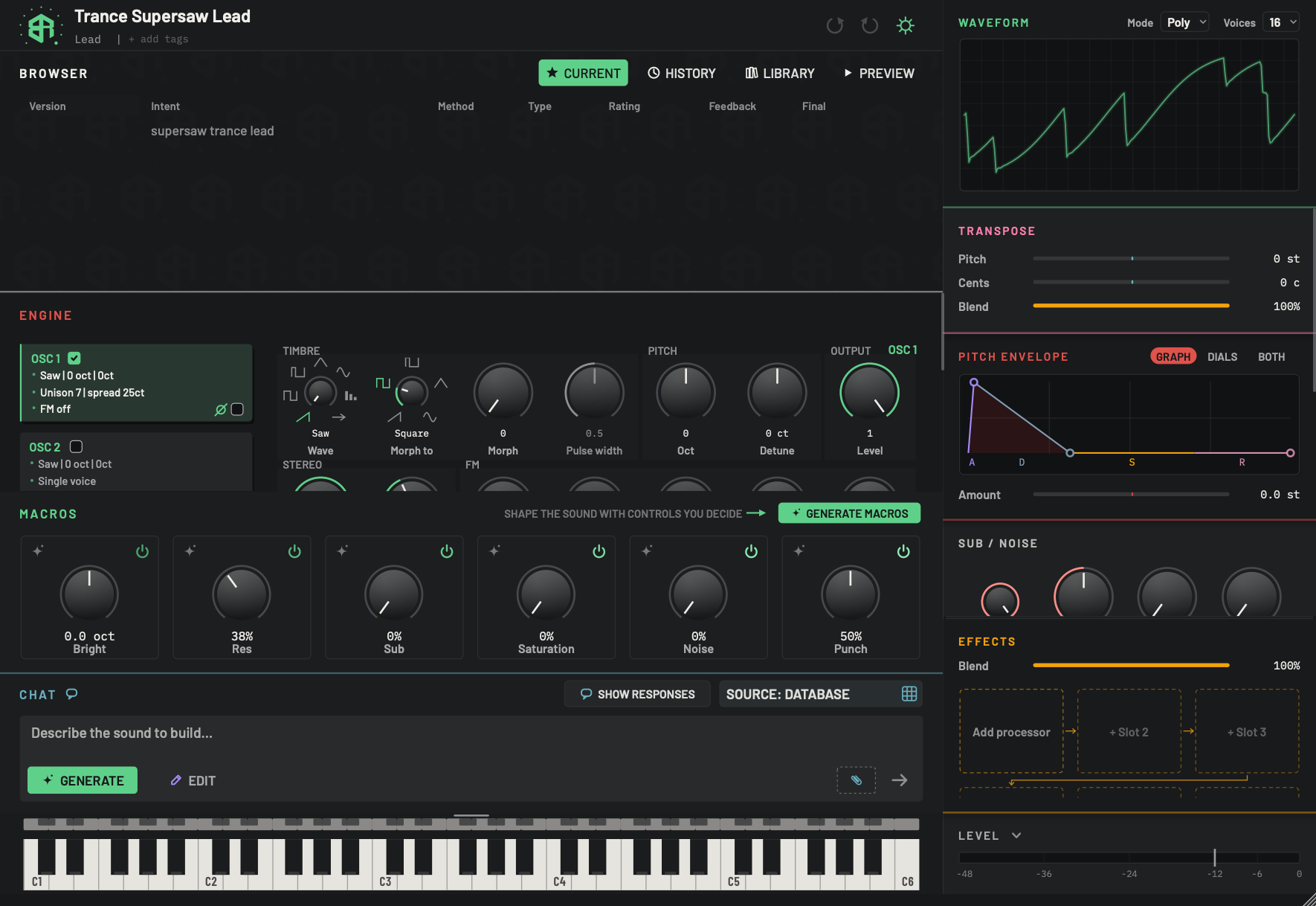
The header sits across the top of the main column. The left half describes the sound on the synth. The right half holds undo, redo and Settings.
-
1Box Of Synths markKey
Starts a new sound. Move the pointer over the mark: it turns into a large plus and the name line reads Create new patch? Click it and a card asks Create a new patch? Create sends the current synth to your chats and gives you a fresh one. Keep this one changes nothing.
While a design is running the click does nothing. Wait for it to finish.
How the logo looks is set under Settings, Appearance: see Settings: Appearance and themes. When a newer release is out, a green UPDATE NOW key takes the mark's place. Click it to download the update. See Starting a new sound and Agreements and confirmations.
-
2Sound nameText box
The name of the sound on the synth. Click it to rename the sound in place: a field opens over the name with the caret at the end. Press
Returnor click anywhere else to keep the new name. PressEscto leave the old one.- Options
Up to 28 characters. A name left empty is not kept.
- Starts as
- A new sound with no name reads A fresh synth.
-
3Family wordMenu
The kind of sound this is, as one word. Click it and a menu opens with a tick on the current family. Choose another to change it. Pick Add category... to type a family of your own.
The family sorts your saved synths in the Library, and Auto in Preview follows it to choose a pattern.
- Options
Lead, Pad, Bass, Keys, Pluck, FX, Drum, Other, then any families you added.
- Starts as
- Reads + category if the sound has none.
-
4Add tagsText box
Your own words for finding the sound later. Click the line and type tags separated by commas. Press
Returnor click away to keep them. PressEscto leave them as they were.Tags show as
#warm-style chips. To remove one, click the line and delete its word.- Options
Up to five tags. They are changed to lower case, a
#is dropped, and a repeated tag is kept once.- Starts as
- None. The line reads + add tags.
-
5UndoKey
Takes back the last step. Hover to read Undo followed by the name of the step it will take back. It is dimmed, and the hover reads Nothing to undo, when there is nothing to take back.
See what counts as a step on this page.
- Options
Cmd+Z, or Ctrl+Z on Windows. Holds the last 100 steps.
-
6RedoKey
Puts back a step you just undid. Dimmed, with the hover Nothing to redo, when there is nothing to put back. A new change after an undo clears the steps waiting to be redone.
- Options
Cmd+Shift+Z or Cmd+Y, or Ctrl+Shift+Z or Ctrl+Y on Windows.
-
7Settings cogKey
Opens Settings, which slides down under the header. The cog stays lit while Settings is open. Click it again to close Settings. Hover to read Settings, themes and how the controls feel.
Settings is covered from Settings: Designer.
Start a new sound
Click the Box Of Synths mark. As you move the pointer over it, the mark turns into a large plus and the name line changes to Create new patch? Click, and a card asks Create a new patch? with the line The synth on the rack goes to CHATS and a fresh one takes its place.
- Create sends the sound you have now to your chats and opens the start screen for a fresh one. The old sound is not lost: it is the newest entry in Browser: History, and its versions stay with it.
- Keep this one closes the card and changes nothing.
Escdoes the same.
While a design is running, the click does nothing. Wait for it to finish. The start screen and what you can do on it are on Starting a new sound. The card itself is on Agreements and confirmations.
-
1Click the mark
Move the pointer over the Box Of Synths mark. It turns into a plus. Click it.
-
2Decide
A card asks Create a new patch? Keep this one closes it and changes nothing.
-
3Create
Create sends the current synth to your chats and opens the start screen for a fresh one.
How the logo looks
Settings has three choices for the logo: Full (the whole logo), Icon (the mark only) and Hidden (no logo, so the name gets more room). They are on Settings: Appearance and themes. With Hidden there is no mark to click, so starting a new sound from the header is not possible. Start one from the start screen instead.
While Settings is open, the mark is not clickable.
When a newer release of Box Of Synths is out, a green UPDATE NOW key takes the place of the logo. Click it to download the new release for your computer. Hover to read A new version is out. Click to download it for this system.
Rename the sound
Click the name. The name turns into a field with the caret at the end of the old name and nothing selected, so what you type is added to it.
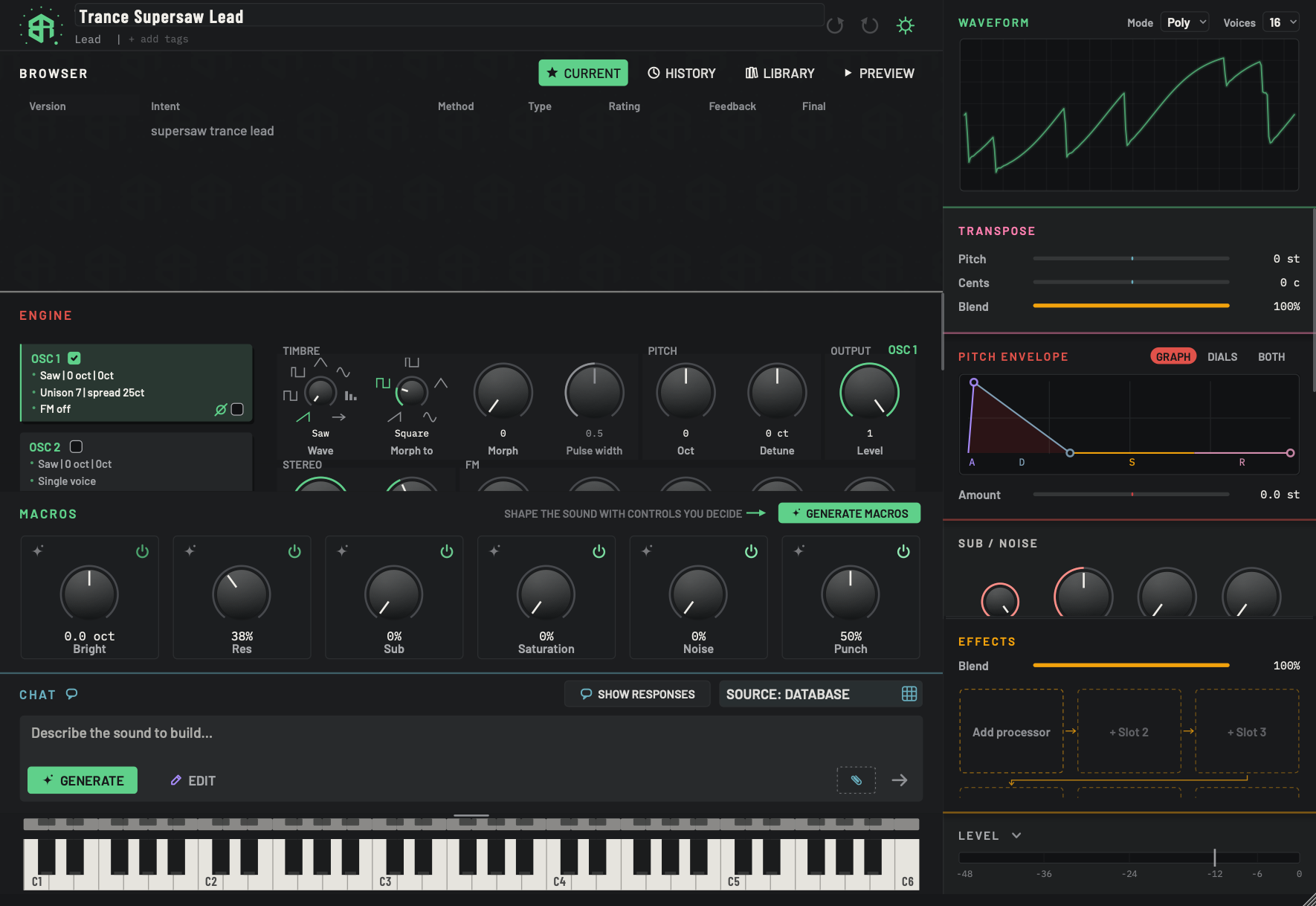
Click the name in the header and it turns into a field. Type, then press Return.
-
1Name fieldText box
The name, open for editing. The caret sits at the end of the old name and nothing is selected, so typing adds to it. Select the old name first if you want to replace it.
Returnkeeps the new name. Clicking anywhere else keeps it too.Escleaves the old name. An empty name, or one that did not change, is not kept.- Options
Up to 28 characters.
-
2Family wordMenu
The family menu. Not changed by renaming. See the header.
-
3Add tagsText box
The tag line. Not changed by renaming. See the header.
Returnkeeps the new name.- Clicking anywhere else keeps it too.
Escleaves the old name.- A name can be up to 28 characters. A name that is empty, or has not changed, is not kept.
A sound with no name reads A fresh synth. Renaming is a step you can undo.
Renaming the sound also renames its chat in Browser: History. It works the other way too: rename the chat there and the name in the header changes with it.
The version beside the name
Once a sound has versions, the version that is on the synth shows beside the name, for example v1.0 or v2.1.2. It follows the synth: load another version in the Browser and the label changes with it. Its colour is the colour of that version's dot in the tree. Browser: Current explains how the numbers work. The label is only a label. Clicking it renames the sound, like clicking the name.
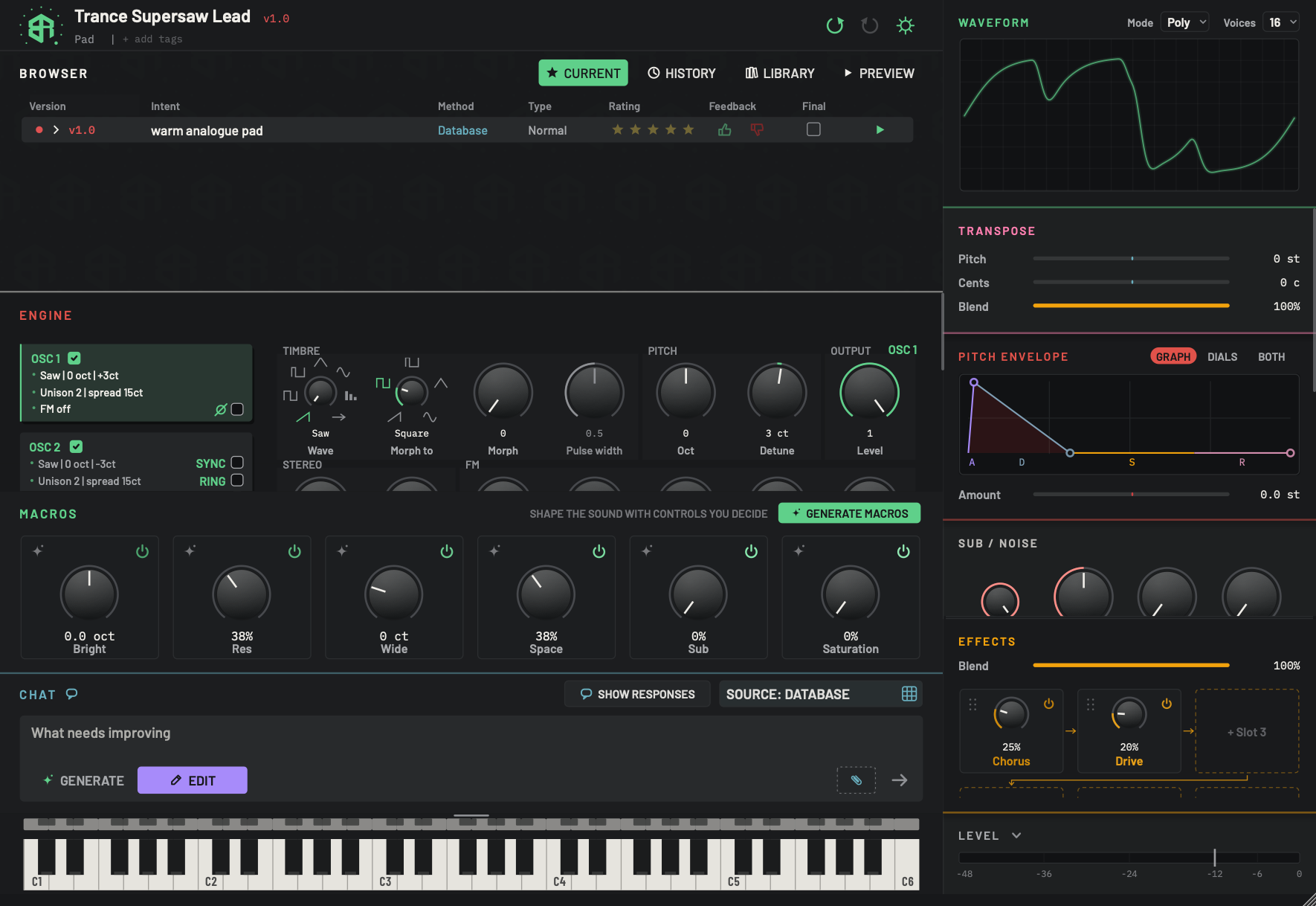
Once a sound has versions, the header names the one that is on the synth. Undo lights up as soon as there is a step to take back.
-
1Sound nameText box
The sound's name. Click it to rename. See the header.
-
2Version labelDisplay
The version of the sound that is on the synth now, for example v1.0 or v2.1.2. It follows the synth: load another version in the Browser and the label changes. It wears the same colour as that version's dot in the Browser.
The label is not a key of its own. Clicking on it renames the sound, like clicking the name.
How version numbers work is on Browser: Current.
-
3Family wordMenu
The sound's family. Here it reads Pad. See the header.
-
4Undo (lit)Key
Lit green because there is a step to take back. Here that step is the design itself. Click it and the synth goes back to what it was before. See the header.
-
5Redo (dimmed)Key
Dimmed, because nothing has been undone yet. After an undo it lights up and puts the step back. See the header.
The family word
Under the name is one word that says what kind of sound this is: Lead, Pad, Bass, Keys, Pluck, FX, Drum or Other. If the sound has no family the word reads + category.
Click the word to open a menu. The family the sound has now carries a tick.
| Entry | What it does |
|---|---|
| Lead, Pad, Bass, Keys, Pluck, FX, Drum, Other | The eight stock families. Choose one to set the family. |
| Your own families | Any family you added before is listed here, one per line. Choose one to use it. |
| Add category... | Opens a small field over the family word with the grey hint Category. Type a family of your own, up to 32 characters, and press Return or click away to keep it. Esc cancels. The new family is remembered and is listed from then on. |
Changing the family is a step you can undo. The family decides where the sound goes in the Library filter, and the Auto pattern in Browser: Preview follows it.
Tags
Beside the family word, after a short bar, are the sound's tags. A sound with no tags shows + add tags.
Click the line. A field opens with the grey hint tags, separated by commas and the tags the sound already has. Hover to read Up to five tags, separated by commas.
- Type your tags separated by commas, then press
Returnor click away to keep them.Escleaves them as they were. - A tag is changed to lower case, a
#is dropped, and a tag you type twice is kept once. - At most five tags are kept.
- To remove a tag, open the line again and delete its word. Clear the whole field and all the tags go.
Tags show as small green chips such as #warm. A chip that does not fit the line is held back, though it is still on the sound.
Three small jobs in the header that make a sound easy to find later.
-
1Click the name
Click the sound's name in the header. A field opens over it with the caret at the end of the old name.
-
2Type and keep
Type the new name, up to 28 characters, and press
Return. The header shows the new name.Escwould have left the old one. -
3Choose a family
Click the family word under the name. Pick a family from the menu, or choose Add category... and type your own.
-
4Add tags
Click + add tags, type up to five words separated by commas, and press
Return. They appear as small#chips. -
5Undo if you change your mind
Click undo. Each of these changes is its own step, so one click takes back the last one only.
Undo and redo
The two round arrows on the right undo and redo your last steps. Undo points back and redo points forward.
Both keys are dimmed when there is nothing to do. When lit, hover over one to read what it will do: Undo or Redo followed by the name of the step. When there is nothing, the hover reads Nothing to undo or Nothing to redo.
What counts as one step
One click of undo takes back one step. These are single steps:
- A design landing on the synth, from words or from an edit in words.
- Starting a new sound, or designing a new sound over the one you have.
- Loading an earlier version, opening a chat, or loading a synth from the Library, from a file or from a web address.
- One drag of a dial, a slider or an envelope handle, from the moment you press to the moment you let go. Each press of an arrow key on a focused dial is its own step.
- A reset to the design's value made with
Alt-click. - A randomise.
- Renaming the sound, changing its family, or changing its tags.
- Rating a version, ticking Final, or giving a thumb.
- Copying, moving, deleting or flattening versions in the Browser.
Undo remembers the last 100 steps. When there are more, the oldest drops off. Make a new change after an undo and the steps waiting to be redone are cleared.
Shortcuts
| Keys | What they do |
|---|---|
Cmd+Z (Ctrl+Z on Windows) |
Undo. |
Cmd+Shift+Z or Cmd+Y (Ctrl+Shift+Z or Ctrl+Y on Windows) |
Redo. |
While you are typing in a text box, the same keys undo and redo what you typed there, and leave the synth alone. Click outside the box first to undo a step on the synth.
-
1Look for the lit undo key
After you design a sound, or change anything, the undo key lights up. Hover over it to read what it will take back.
-
2Take the step back
Click undo, or press
Cmd+Z(Ctrl+Zon Windows). The synth returns to how it was before that step. -
3Put it back
Redo is now lit. Click it, or press
Cmd+Shift+Z, and the step returns. If you make a new change instead, redo goes dim.
The Settings cog
The cog on the far right opens Settings. Settings slides down under the header and the header stays in view. The cog stays lit while Settings is open, and clicking it again closes Settings. Hover to read Settings, themes and how the controls feel. Settings starts at Settings: Designer.
Keys that appear only sometimes
After you have used your own AI key for a design, a small robot key shows beside undo. It opens a menu of what you have used, in tokens and an estimated cost. See Sources, tokens and what a design costs.