
Box Of Synths manualThe browser
Browser: Library
The synths you chose to keep. Save one, stamp a version, load from a file or a web address, use folders and filter the list.
Your versions and chats are kept for you automatically. The Library is different: it holds the synths you decide to keep and want to find by name. It mirrors the Synths folder on your computer, so anything you save here is an ordinary file in that folder, and anything you put in that folder shows up here. Where the folder lives is set in Settings: Library and folders.
The Library page
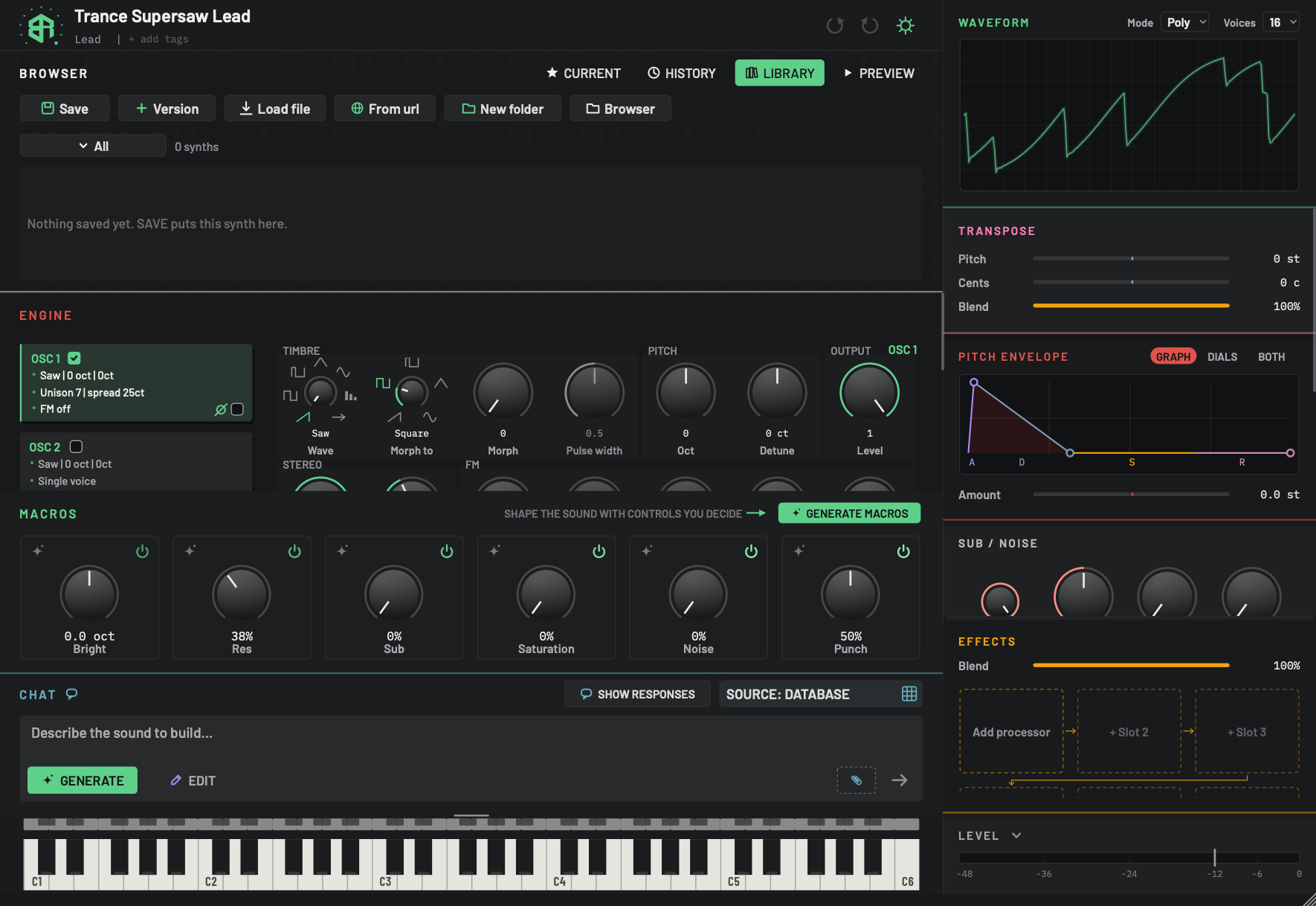
The Library holds the synths you chose to keep. It mirrors the Synths folder on your computer.
-
1Library tab keyTabs
The lit key. It opens this page.
-
2SaveKey
Saves the synth under its name. A card titled Save this rack asks Rack name: with the synth's name filled in. Press
Returnor click Save to keep it, orEscor Cancel to stop. It then appears in the list. Hover to read Save this synth to your library, under its name.Cmd+S(Ctrl+Son Windows) does the same. -
3VersionKey
Saves the synth again as the next version of itself, without asking for a name. A synth called Bright Pad is saved as Bright Pad v2, the next time as Bright Pad v3, and so on. The number always climbs past the ones already saved, so an earlier version is never replaced. Hover to read Stamp it as the next version of itself: name v2, v3...
-
4Load fileKey
Opens a file chooser titled Load a rack or patch. Pick a
.jsonfile and it goes onto the synth. Loading is one undo step, so the header's undo brings back what was there before. Hover to read Load a synth from a file.- Options
.jsonfiles only.
-
5From urlKey
Loads a synth from a web address. A card titled Load from a URL asks for A preset page on boxofsynths.com, or a link to a patch or rack JSON:. The box starts with
https://. Paste the address and click Load. Only addresses that start withhttpwork. If the address does not give a synth, nothing changes.Loading is one undo step. Hover to read Load a synth from a link.
-
6New folderKey
Makes a folder in your Synths folder. A card titled New folder says A folder in your Synths folder. Sounds saved there, or moved there, show under it. Type a Name and click Create. The folder shows in the list even while it is empty. Hover to read A new folder in your Synths folder. Right-click a sound to move it in.
-
7BrowserKey
Opens your Synths folder in your computer's file manager. Make folders there, or drop
.jsonsynths in, and they show up here. Hover to read a reminder that folders you make there show up here. -
8Filter menuMenu
Shows only part of the list. Click it and choose; the key then reads your choice. Hover to read Show one category, or the favourites.
- Options
All, Favourites, then the families Lead, Pad, Bass, Keys, Pluck, FX, Drum, Other, each with a count (greyed at 0). Below a line, one
#tagfor every tag you use, with its count.- Starts as
- All
A synth's family comes from its family word in the header. Strings, brass, organ and piano go to Keys. Arps and sequences go to Pluck.
-
9CountStatus
How many synths the list is showing, for example 0 synths. When a filter is on it adds the filter, for example tagged warm or in pad.
-
10Synth listList
With nothing saved the list reads Nothing saved yet. SAVE puts this synth here.
Once synths are saved, each row shows a dot (a pencil under the pointer), the name, a line of small grey text, a tag glyph, a star and a green play key. Click a row to load that synth onto the synth. See what the list shows.
Sounds in the top folder come first, then one heading per folder, with your favourites first inside each.
The keys
| Key | What it does |
|---|---|
| Save | Saves the synth under its name. |
| Version | Saves the synth again as its next version, under a new name. |
| Load file | Loads a synth from a file on your computer. |
| From url | Loads a synth from a web address. |
| New folder | Makes a folder in your Synths folder. |
| Browser | Opens your Synths folder in your computer's file manager. |
Save
Click Save. A card titled Save this rack asks Rack name:, with the synth's own name filled in. Change it if you like. Press Return or click Save to keep it. Esc or Cancel stops. The synth then appears in the list.
Saving stores the whole synth: its sound, its effects and its name. It is written as a .json file in your Synths folder. If you save under the name of one that is already there, the earlier one is replaced without asking, though it keeps its star. Use Version when you want to keep both. Cmd+S (Ctrl+S on Windows) does the same as Save.
Version
Click Version. The synth is saved again with a number added to its name: a synth called Bright Pad becomes Bright Pad v2, then Bright Pad v3. The number always goes above any that are already saved, so nothing is replaced. It does not ask for a name.
This is separate from the versions in Browser: Current. Those are made for you as you design. These are copies you stamp when you want one on the shelf.
Load file
Click Load file. A file chooser titled Load a rack or patch opens. Pick a .json file and it goes onto the synth, replacing the sound that is there. Loading is one step you can undo with the header's undo, so you can get the old sound back.
Only .json files can be loaded. A file that cannot be read does not change anything.
From url
Click From url. A card titled Load from a URL asks for A preset page on boxofsynths.com, or a link to a patch or rack JSON:. The box starts with https://. Paste the address and click Load, or press Return. Esc or Cancel stops.
- A preset page on boxofsynths.com loads the synth that page describes.
- A link straight to a synth's
.jsonfile loads that synth. - The address must start with
http. Anything else is refused. - If the address does not give a synth, nothing changes.
Like Load file, it replaces the sound on the synth in one step you can undo. Box Of Synths does not report the address you load from.
New folder
Click New folder. A card titled New folder says A folder in your Synths folder. Sounds saved there, or moved there, show under it. Type a Name and click Create. The folder shows in the list straight away, even while it is empty.
The Browser key
This key shares its name with the whole block. It opens your Synths folder in your computer's file manager. Make folders there, or drop synth files in, and they show up in the list. Hover to read a reminder that folders you make there show up here.
The filter menu
The key at the left of the second row starts on All. Click it to show only part of the list. The key then reads your choice.
| Entry | Shows |
|---|---|
| All | Every synth. |
| Favourites | Synths you starred. |
| Lead, Pad, Bass, Keys, Pluck, FX, Drum, Other | One family. A family with nothing in it is greyed. |
# and a tag |
One entry for every tag you have used, with its count. |
Each entry shows how many synths it holds. A synth's family comes from its family word in the header. A family word that holds string, brass, organ or piano goes to Keys. One that holds arp or seq goes to Pluck. Anything else that is not a stock family goes to Other.
The count beside the key reads, for example, 12 synths, and adds tagged warm or in pad while a filter is on. There is no search box on this page. Use the filter and your folders.
The list
With nothing saved the list reads Nothing saved yet. SAVE puts this synth here.
Once there are synths, the list shows your Synths folder: sounds in the top folder first, then a heading for each folder, indented by how deep it is, with its sounds below. In each folder your favourites come first. The row of the sound on the synth now is highlighted.
Each row has:
- A dot. Move the pointer over it and it turns into a pencil. Click the pencil to rename the synth. A box titled Rename and the name asks What should it be called?, with Rename and Cancel.
- The name, with a line of small grey text under it: normal or granular, then its
#tags, then its family in lower case, for examplenormal #warm pad. - A tag glyph. Click it to edit the synth's tags. A box titled Tags for and the name asks Your own tags, separated by commas:, with Keep and Cancel. Tags are lower case and a
#is dropped. - A star. Click it to make the synth a favourite. It lights yellow. Click again to undo.
- A green play key. It plays the saved synth without loading it. It becomes a red square while it plays, and one thing plays at a time. Hover to read Preview this synth without loading it, or Stop preview while it plays.
Click the row itself to load that synth onto the synth.
Folders and moving a synth
Right-click a synth to open a menu with the heading MOVE TO:
- Top folder, greyed if it is already there.
- One entry for each folder you have, greyed for the folder it is in.
- New folder..., which opens the same card as the New folder key.
Choosing a folder moves the file into it. Synths cannot be dragged into folders. Use this menu, or move the files yourself in your file manager after pressing Browser.
The cloud
If your plan keeps your library in the cloud, a save, a new design or the rename of a chat is sent up a couple of seconds later. There is no sync key on this page. The switch, and what a sync does and never does, are on Settings: Library and folders.
-
1Open Library
Click Library. With nothing saved the page reads Nothing saved yet. SAVE puts this synth here.
-
2Save
Click Save. Check the name in the card Save this rack, then click Save. The synth appears in the list.
-
3Keep a new version
After more changes, click Version. The synth is saved again as its next number, and the earlier one stays.
-
4Make a folder
Click New folder, type a name and click Create. Right-click a synth in the list to move it in.
-
5Filter the list
Click All to show only favourites, one family or one tag.
-
6Load a synth
Click a row. That synth goes onto the synth. Use Load file or From url to bring in a synth from outside.