
Box Of Synths manualThe synth
Level
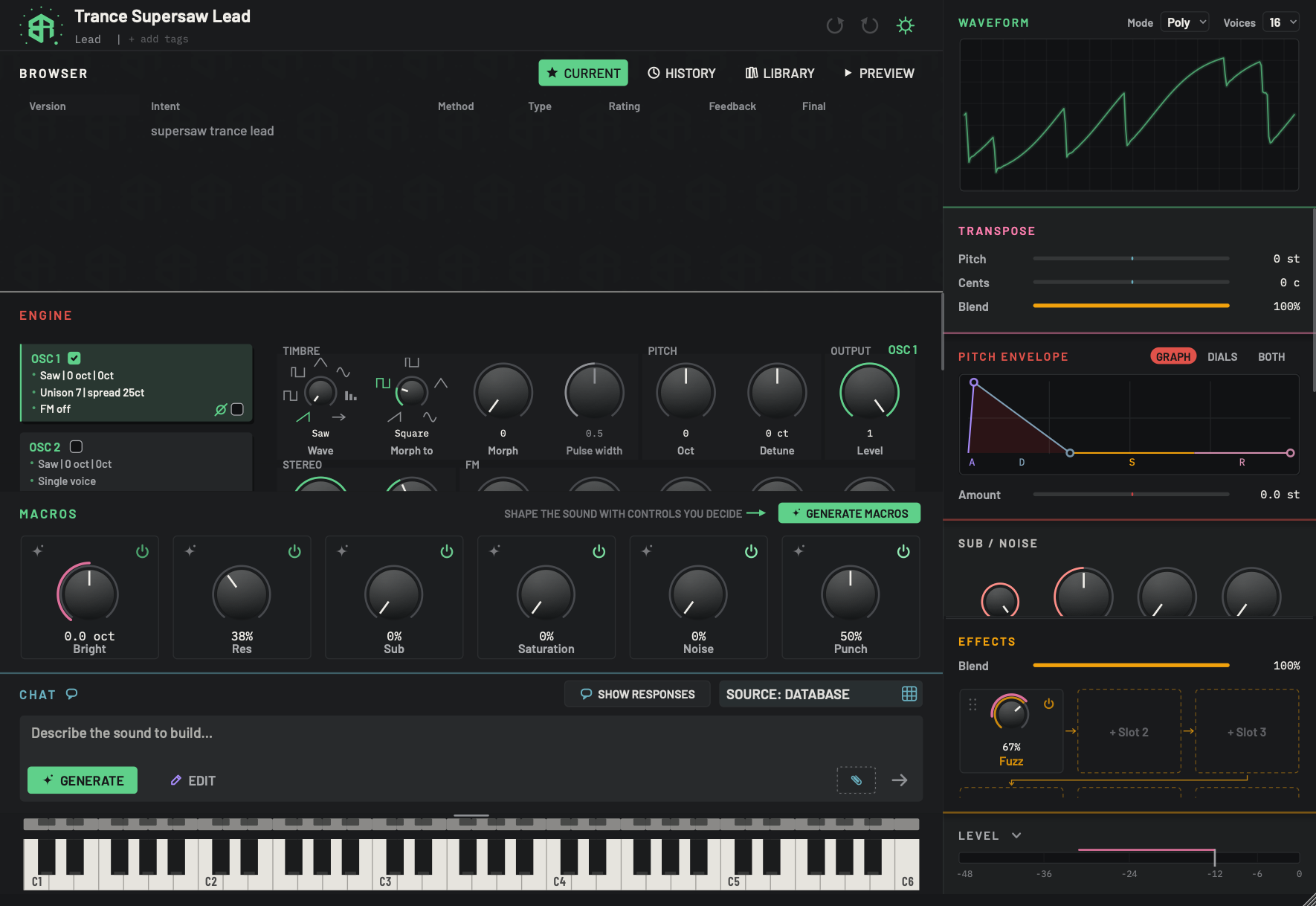
The level bar at the foot of the right-hand column, its fader, and the Gain, Limiter, Width and Output dials that open under it.
The Level block is at the foot of the right-hand column. It shows how loud the synth is, and it holds the final volume control.
-
1Effect dial with reach arcDial
A dial with a pink arc behind it. The arc is the sidechain reach, set by right-dragging the dial. See Sidechain reach.
-
2Level titleKey
Click the title to open or close the four output dials under the bar. While the sound is playing, the level in dBFS is written at the right of the title, for example -12.3 dBFS. It is blank when there is silence.
-
3ChevronKey
The small arrow beside the title. It points down while the block is closed and up while it is open. Click it, or the title, to open or close the dials for gain, limiter, width and output.
The block never hides altogether: the bar is always there.
-
4Level barDisplay
The meter. It runs from -48 dB at the left to 0 dB at the right and fills as the sound gets louder. The colour shifts along the bar from cool tones through green and yellow to red at the loud end. A thin line holds the highest recent peak for about a second and a half, and turns red above -3 dB. Click or drag on the bar to set the volume with the fader line.
-
5Scale in dBDisplay
The marks under the bar: -48, -36, -24, -12, -6 and 0 dB.
-
6Fader lineSlider
The vertical line on the bar is the output fader. At 0 dB it sits on the -12 mark. Click or drag along the bar and the line goes where your pointer is.
Alt-click (Optionon a Mac) sends it back to 0 dB. While you hover or drag, the value in dB shows above the line.- Options
-36 to +6 dB.
- Starts as
- 0 dB
This is the same control as the Output dial, so the two move together.
-
7Sidechain reach lineDisplay
The pink line along the top of the bar, running left from the fader line. It shows how far the sidechain input can pull the level down. Right-drag on the bar to the left of the fader line to set it.
Altand right-click clears it.In the plugin versions only. The standalone app has no sidechain input.
The level bar
The bar is a meter. It runs from -48 dB at the left to 0 dB at the right, and fills as the sound gets louder. The colour changes along the bar from cool tones through green and yellow to red at the loud end. Marks under the bar are at -48, -36, -24, -12, -6 and 0 dB.
A thin line holds the highest recent peak for about a second and a half. It turns red above -3 dB.
While the sound is playing, the level in dBFS is written at the right of the title, for example -12.3 dBFS. It is blank when the synth is silent.
The fader line
The vertical line on the bar is the volume fader. At 0 dB it sits on the -12 mark. Click or drag along the bar and the line goes where your pointer is. Drag it left to turn the sound down, and right to turn it up. The range is -36 to +6 dB. While you hover or drag, the value in dB shows above the line. Alt-click (Option on a Mac) sends it back to 0 dB.
The fader line and the Output dial are the same control, so they move together.
The chevron
The small arrow beside the LEVEL title is a switch. It points down while the block is closed and up while it is open. Click the arrow, or the title, to open or close four dials under the bar. The block remembers whether you left it open.
The block never hides altogether: the bar is always there.
| Dial | Range | Starts at | What it does |
|---|---|---|---|
| Gain | -36 to +12 dB | 0 | The sound's own level, before the effects. |
| Limiter | -24 to 0 dB | 0, which is off | A ceiling on this synth's output. |
| Width | 0 to 2 | 1, which is off | Stereo width on the way out. |
| Output | -36 to +6 dB | 0 | What leaves the synth, after the effects. The same as the fader line. |
Limiter
The Limiter holds the output under the level you set, in dB. Turn it left to lower the ceiling. At 0 it is off. Use it to stop a loud chord or a fierce effect from running past the level you want.
Width
Width is stereo width. The middle of the dial is off, and the reading says Off. Turn it to the right to widen the sound. The reading says Width and a percentage. Turn it to the left to narrow the sound toward mono. The reading says Narrow and a percentage.
Right-click the dial to choose how the left half folds the sound to mono. The menu has four ways, with the current one ticked.
| Way | What it does |
|---|---|
| Quiet | The sides go down and nothing else moves. |
| Calm | The sides go and the loudness stays. |
| Present | The sides go and the middle comes forward. |
| Deep | The lows fold first and the highs last. |
Sidechain reach
In the plugin versions, a dial or the level bar can be made to follow the sidechain input of the host, so the sound ducks when another track plays. This is set by right-dragging, and it shows as a pink line or arc.
- On the level bar, right-drag to the left of the fader line. The pink line along the top of the bar shows how far the sidechain can pull the level down.
Altand right-click clears it. - On a dial, right-drag up or down. A pink arc behind the dial shows the reach.
The standalone app has no sidechain input, so the reach has no effect there.
Watch the meter while you play, then set the volume and a ceiling.
-
1Watch the meter
Play a loud chord. The bar fills from the left and turns red near the right. The thin line holds the peak for a moment.
-
2Move the fader line
Drag the vertical line along the bar to turn the sound down or up. The value in dB shows above the line.
-
3Open the output dials
Click the arrow beside LEVEL. Four dials open under the bar: Gain, Limiter, Width and Output.
-
4Set a ceiling
Turn Limiter to the left to hold the output under a level in dB. At 0 it is off.
-
5Reset the volume
Hold
Alt(Optionon a Mac) and click the bar to put the volume back to 0 dB.