
Box Of Synths manualThe synth
Waveform, mode and voices
The live waveform display at the top of the right-hand column, the Mode menu (Poly or Mono) and the Voices menu.
The right-hand column holds the controls that shape the whole sound. At the top is the Waveform block. It shows you the sound as a picture and decides how many notes can play together.
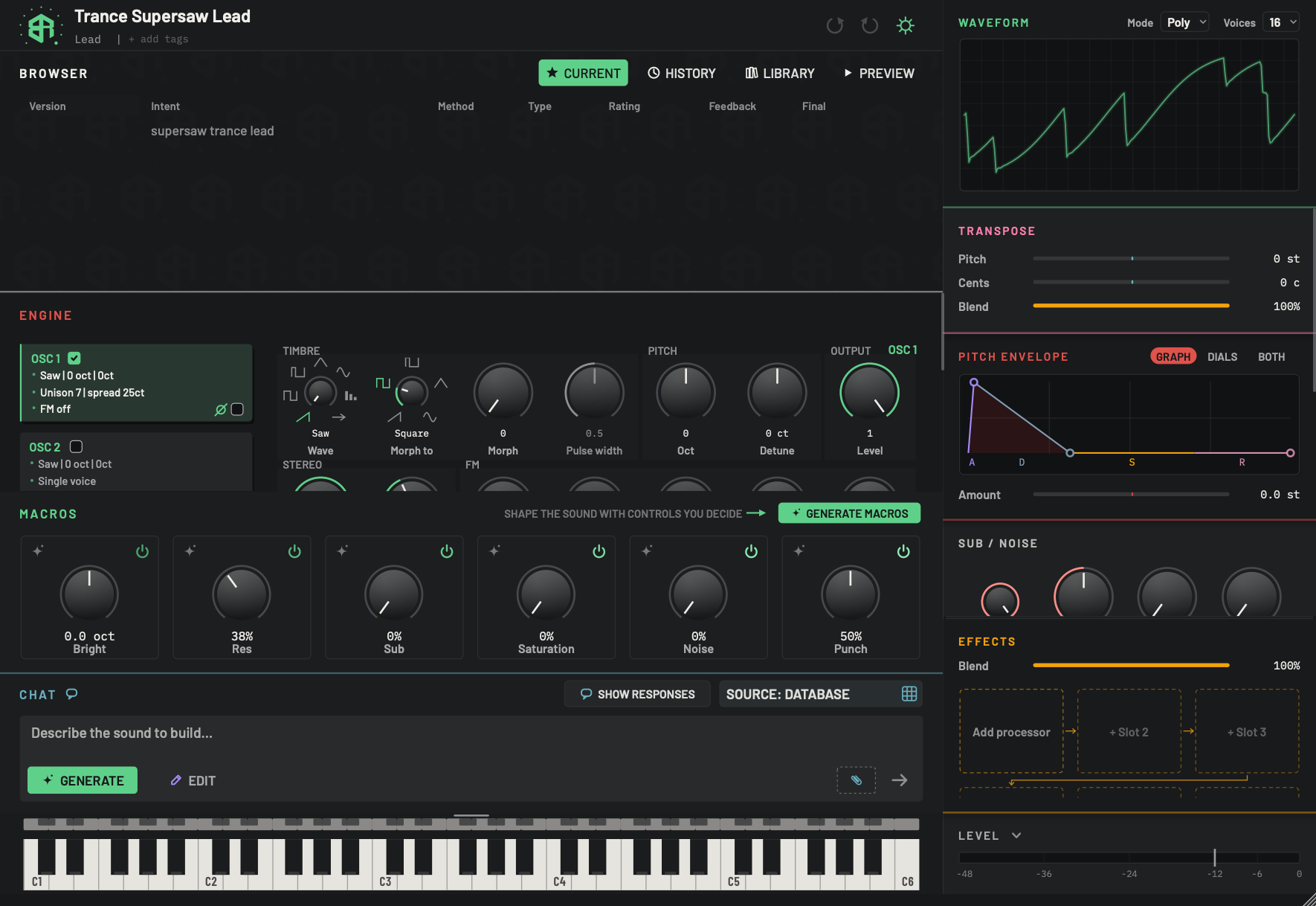
The right-hand column holds the controls that shape the whole sound. Waveform is at the top.
-
1Waveform titleKey
Click the title to fold the block away, and click again to open it. Folded, the block shrinks to its title with a small live waveform at the right and the voice setting written out beside it: the word POLY with the number of voices, or MONO. The Mode and Voices menus show only while the block is open.
-
2ModeMenu
Click to choose how the synth plays notes. Poly plays chords. Mono plays one note at a time, and slides from one held note to the next.
- Options
Poly, Mono. The current choice is ticked.
- Starts as
- Poly
Hover for the tip Poly plays chords, mono one note at a time. In Mono the Voices menu is hidden, because there is only ever one voice. The length of the slide in Mono comes from Glide in the volume envelope.
-
3VoicesMenu
Click to choose how many notes can sound at once.
- Options
1 to 16, one entry for each number. The current choice is ticked.
- Starts as
- 16
Hover for the tip How many notes can sound at once. Only shown while Mode is Poly.
-
4Waveform displayDisplay
A window on the sound. At rest it draws one cycle of the sound's tone, after the filter and before the effects. While you play it shows the live signal, with the word LIVE at the top right (at the bottom right on a granular sound). A grid sits behind it. Click it once to silence everything: every sounding note is stopped at once. The display draws a granular sound differently: the outline of the sample, the part being scanned, and the length of one grain.
Hover for the tip The current waveform. Click to silence everything. Engine settings are below. The display only draws. To change the tone itself, use the oscillators in the engine.
-
5Display height edgeArea
The bottom edge of the display is a handle. When the pointer is over it, the pointer changes to an up and down arrow. Drag up or down to make the display shorter or taller. A small Set as default? key then appears at the right of the title: click it to give every new sound this height.
The waveform display
The display is a window on the sound, with a faint grid behind it.
- At rest it draws one cycle of the sound's tone, after the filter and before the effects. Change an oscillator or the filter and the picture changes with it.
- While you play it draws the live signal, and the word LIVE shows at the top right (at the bottom right on a granular sound).
- For a granular sound it draws the outline of the sample instead, with the part being scanned and the length of one grain. At the top right it reads the grain rate and length, for example 20 GRAINS/S 80 MS, followed by the share of grains that play backwards, for example 25% REV, when there are any.
Hover over the display for the tip The current waveform. Click to silence everything. Engine settings are below. The display only draws. To change the tone, use the oscillators.
Click to silence everything
Click the display once and every sounding note stops at once. Use it if a note hangs, or if a sound is too loud.
Make the display taller or shorter
The bottom edge of the display is a handle. Put the pointer on it and the pointer becomes an up and down arrow. Drag to change the height. After you drag, a small Set as default? key appears at the right of the title. Click it and every new sound starts with this height.
Fold the block
Click the Waveform title to fold the block. Folded, it shows a small live waveform at the right and the voice setting beside it, written as POLY with the number of voices, or MONO. Click the title again to open it.
Mode
The Mode menu is on the title, at the right. It has two choices.
| Mode | What you hear |
|---|---|
| Poly | The synth plays chords: several notes at once. |
| Mono | The synth plays one note at a time. When you hold one key and play another, the sound slides between them, by the time set in Glide (there is no slide while Glide is 0). |
The start is Poly. In Mono the Voices menu is hidden, because there is only one voice. How long the slide takes in Mono is set by Glide, in the volume envelope.
Voices
The Voices menu is next to Mode while Mode is Poly. It sets how many notes can sound at once. The choices are the numbers 1 to 16, and the start is 16. Use a low number for a tight, simple part. Use a high number for pads and long releases, where old notes are still ringing as new ones start.
Switch the synth from chords to a single voice, or limit how many notes can sound.
-
1Look at the display
Play a key. The display draws the live signal and shows the word LIVE. Click the display once if you want to stop everything that is sounding.
-
2Open the Mode menu
Click Mode. A short menu lists Poly and Mono, with the current one ticked.
-
3Choose Mono
Click Mono. The synth now plays one note at a time. The Voices menu disappears.
-
4Go back to Poly and limit the voices
Choose Poly again, then click Voices and pick a number from 1 to 16. No more than that many notes will sound together.