
Box Of Synths manualThe synth
Transpose and the envelopes
Move the whole synth in pitch with Transpose, and shape the pitch sweep and the loudness of a note with the two envelopes.
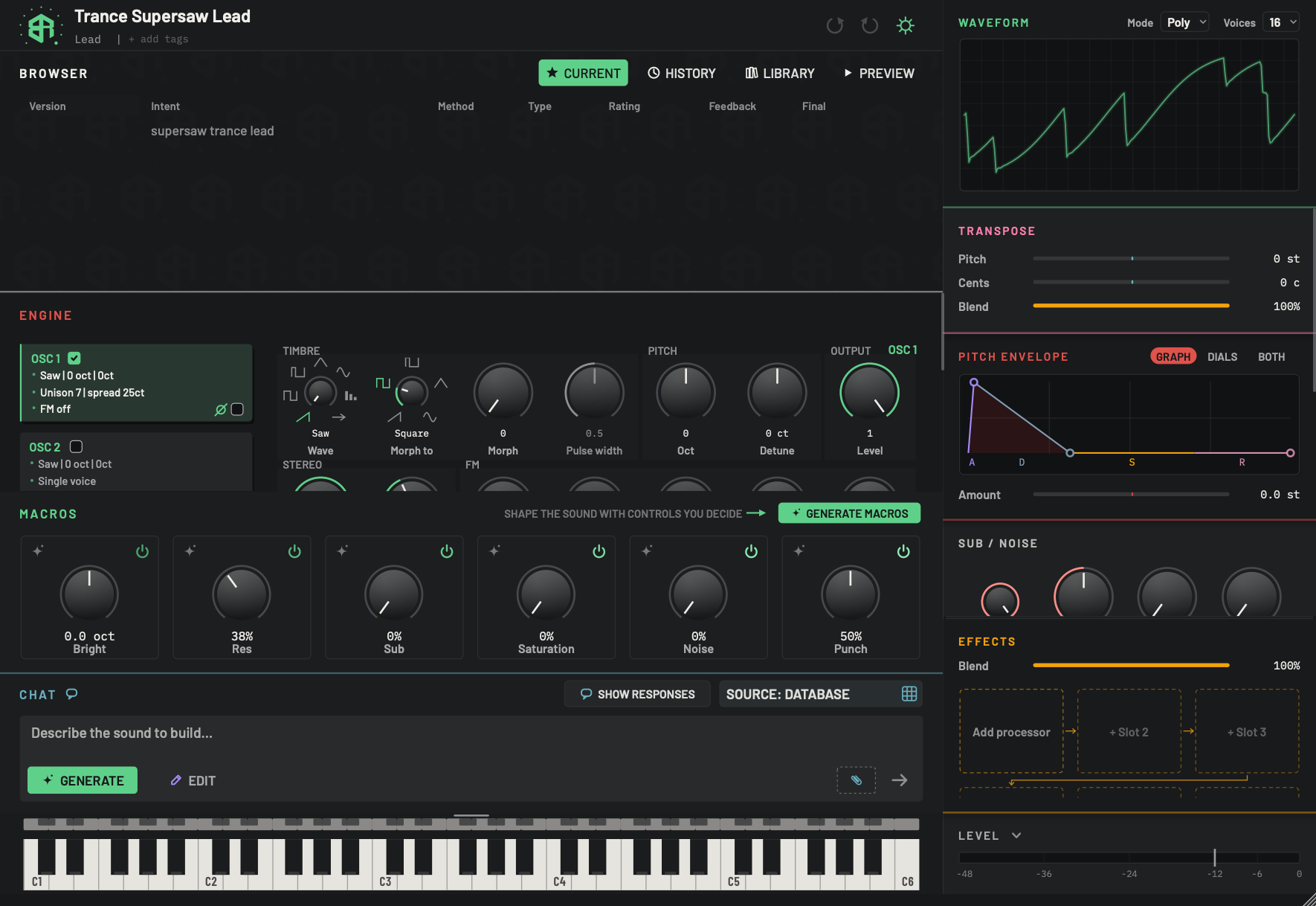
Under the waveform come three blocks that change the pitch and the shape of every note: Transpose, Pitch envelope and Volume envelope. Volume envelope sits further down the column, below Sub / noise.
Transpose
Transpose moves the whole synth up or down, and decides how much of the sound goes with it.
-
1Transpose titleKey
Click the title to fold the block. Folded, three small readouts show Pitch, Cents and Blend in a row, for example +3st / +0c / 100%. A readout turns pink when it is changing the sound. You can still drag a folded readout up or down to change it, and
Alt-click (Optionon a Mac) a readout to reset it. -
2PitchSlider
Moves the whole synth up or down in semitones. One semitone is one key on the keyboard. Drag along the track, or click where you want the value. Double-click to type a value.
- Options
-24 to +24 semitones, shown as 0 st. Zero is at the middle of the track, and the coloured part grows from there.
- Starts as
- 0
Hover for the tip The whole synth up or down, in semitones.
-
3CentsSlider
Fine tuning for the whole synth. One cent is a hundredth of a semitone, so this is for nudging the sound in tune with another instrument.
- Options
-100 to +100 cents, shown as 0 c.
- Starts as
- 0
Hover for the tip Fine tuning, a hundredth of a semitone at a time.
-
4BlendSlider
Sets how much of the sound takes the transpose. At the left you hear the sound at its own pitch. At the right you hear all of it moved by Pitch and Cents. In between you hear both together, which thickens the sound.
- Options
0 to 100%.
- Starts as
- 100%
Hover for the tip How much of the sound takes the transpose: left is the raw pitch, right is all of it (grains: the share of grains moved).
| Slider | Range | Starts at | What it does |
|---|---|---|---|
| Pitch | -24 to +24 semitones | 0 | Moves every note up or down by whole semitones. |
| Cents | -100 to +100 cents | 0 | Fine tuning. A hundred cents make one semitone. |
| Blend | 0 to 100% | 100% | How much of the sound takes the transpose. At 0% you hear the sound unmoved. At 100% you hear all of it moved. In between you hear both. |
Drag along a slider track, or click where you want the value. Double-click to type a value, and Alt-click (Option on a Mac) to reset it to the value the sound was designed with. How dials, sliders and keys behave has the full list of gestures.
If you drag the Transpose block into the wide main column, a picture appears beside the three sliders. It names the interval at the left, such as unison, minor third or 1 octave + fifth up, and gives the exact shift at the right, such as +7 st, with the cents added when they are half a cent or more. Under that is a scale from -24 to +24 semitones with a tick for each semitone and labels at -2 oct, -1 oct, 0, +1 oct and +2 oct. A marker shows where the whole synth now sits. It fades towards the plain sound as Blend falls. Below the scale a bar shows Blend, the plain sound at the left and the moved sound at the right. The picture only shows the shift. Use the sliders to change it.
Click the Transpose title to fold the block. Folded, it shows the three values in one line, for example +7st / +8c / 100%. A value is pink while it is changing the sound. You can drag a folded value up or down to change it.
Move the whole synth up a fifth, tune it a little sharp, then blend the raw sound back in.
-
1Set the Pitch
Drag the Pitch slider to the right until it reads 7 st. Every note now sounds seven semitones higher.
-
2Fine tune
Drag Cents a little to the right, or double-click it and type a number such as 8. The reading shows 8 c.
-
3Blend in the raw sound
Drag Blend to about half way. You now hear the sound at its own pitch and moved up together.
-
4Reset a slider
Hold
Alt(Optionon a Mac) and click a slider to put it back to its starting value.
Envelopes in one minute
Attack is how long the sound takes to arrive, decay how long it takes to settle, sustain the level it holds while a key is down, and release how long it takes to fade once the key goes up.
An envelope is a shape that plays out every time you press a key. The two envelopes here share the same four stages:
- Attack is how long the shape takes to rise from nothing to its peak after you press a key.
- Decay is how long it takes to fall from the peak to the held level.
- Sustain is the level it stays at for as long as you hold the key.
- Release is how long it takes to fade away after you let go of the key.
The volume envelope has a fifth control, Glide, in front of attack.
Choose what you see
Both envelope blocks have a switch on the title with three views: GRAPH, DIALS and BOTH. Each block remembers its own choice.
- Graph shows the drawn shape. You edit it by dragging its corners.
- Dials shows a row of dials, one for each control.
- Both shows the drawing above the dials.
Pitch envelope
The Pitch envelope makes the pitch of each note sweep when you press a key. It can add a punch to a bass drum sound, or a rising swoop to a lead.
-
1Pitch envelope titleKey
Click the title to fold the block. Folded, a small red drawing of the envelope sits on the title with three dots you can drag without opening the block: left and right changes the time of that stage, and the decay dot also changes the sustain level when you drag it up or down.
-
2Graph, dials or bothChoice
Chooses how the envelope is shown. Graph shows the drawing and the Amount slider. Dials shows five dials: Attack, Decay, Sustain, Release and Amount. Both shows the drawing above the five dials. The red key is the view in use.
- Options
Graph, Dials, Both.
- Starts as
- Graph
Each envelope block remembers its own choice.
-
3Envelope graphDisplay
The shape of the pitch sweep after you press a key, drawn left to right. The letters A, D, S and R under it name the stages. Each stage has its own colour. Time is drawn on a compressed scale so that short and long times both fit. Hover over it and the words DRAG THE CORNERS appear at the top right.
The corners are the handles. They edit the same values as the dials.
-
4Attack handleDial
The corner at the top left. Drag it left or right to change the attack time: how long the sweep takes to rise to its peak. The drawing rescales while you drag. One drag is one undo step.
-
5Decay handleDial
The corner where the slope ends and the flat part begins. Drag it left or right to change the decay time. Drag it up or down to change the sustain level, the height of the flat part. One drag changes both.
-
6Release handleDial
The corner at the far right. Drag it left or right to change the release time: how long the sweep takes to settle after you let go of the key.
-
7AmountSlider
How far the pitch sweeps, in semitones. With the stages at their usual settings, a negative value starts the note low and lets it rise to its true pitch, and a positive value starts it high and lets it fall. At zero there is no sweep at all and the envelope does nothing. The red part of the track shows how far from zero you are.
- Options
-48 to +48 semitones.
- Starts as
- 0
Right-click the slider to choose what the sweep moves: Pitch, OSC 2, OSC 3 or FM. Pitch moves the whole sound. OSC 2 and OSC 3 move only that oscillator. FM moves the strength of the FM sound.
Drag the corners
In graph view the drawing has three handles, one for each stage that has a time.
| Handle | Where | Drag left and right | Drag up and down |
|---|---|---|---|
| Attack | Top left corner | Changes the attack time | Nothing |
| Decay | Where the slope meets the flat part | Changes the decay time | Changes the sustain level |
| Release | Far right corner | Changes the release time | Nothing |
The drawing changes while you drag, and one drag is one undo step. Hover over the graph and the words DRAG THE CORNERS show at the top right. Time is drawn on a compressed scale, so that short and long times both fit.
The Amount slider
Amount is how far the pitch sweeps, from -48 to +48 semitones. It starts at 0, which means no sweep: the envelope does nothing until you move it. Right-click the slider to choose what the sweep moves: Pitch, OSC 2, OSC 3 or FM.
The dials
In dials view, or in both, the block shows five dials.
| Dial | Range | Starts at |
|---|---|---|
| Attack | 0.5 to 8000 ms | The shortest, no attack |
| Decay | 5 to 12000 ms | 150 ms |
| Sustain | 0 to 1 | 0 |
| Release | 5 to 12000 ms | 150 ms |
| Amount | -48 to +48 semitones | 0 |
When the block is folded, a small red drawing of the shape sits on the title with three dots. Drag a dot left and right to change a time, and the decay dot up and down to change the sustain.
Make each note start high and drop to its true pitch, like a kick drum or a laser.
-
1Choose a view
Click Graph, Dials or Both. This walkthrough uses Graph, so the drawing and the Amount slider show.
-
2Set the Amount
Drag Amount to the right, for example to 12 semitones. At zero there is no sweep. At 12 semitones each note starts an octave high and falls to its true pitch.
-
3Shape how fast it falls
Drag the decay corner left for a quick drop, or right for a slow slide. The drawing changes as you drag.
-
4Set what the note settles on
Drag the same corner up to keep part of the sweep while the key is held. Down to the baseline means the note ends at its true pitch.
-
5Choose what the sweep moves
Right-click Amount and choose Pitch, OSC 2, OSC 3 or FM.
Volume envelope
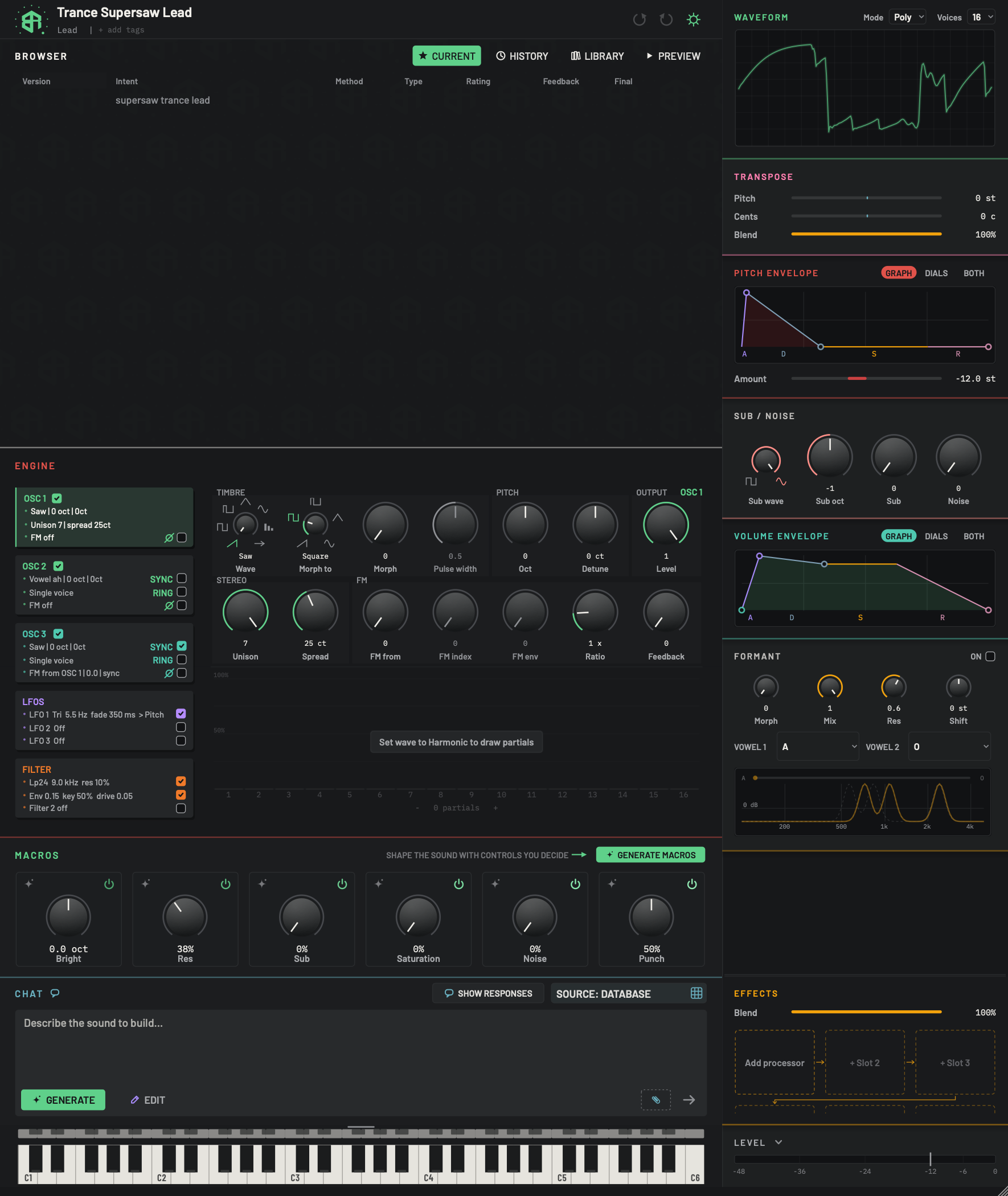
The Volume envelope shapes the loudness of every note. A slow attack gives a pad. A short decay with no sustain gives a pluck.
-
1Volume envelope titleKey
Click the title to fold the block. Folded, a small drawing of the envelope sits on the title with three dots you can drag without opening the block: the attack peak, the decay corner and the release end.
-
2Graph, dials or bothChoice
Chooses how the envelope is shown. Graph shows only the drawing. Dials shows five dials: Glide, Attack, Decay, Sustain and Release. Both shows the drawing above the five dials. The coloured key is the view in use.
- Options
Graph, Dials, Both.
- Starts as
- Graph
Each envelope block remembers its own choice.
-
3Envelope graphDisplay
The loudness of a note from the moment you press a key, drawn left to right. The letters A, D, S and R under it name the stages, and a G appears at the start when Glide is above zero. Time is drawn on a compressed scale so that short and long times both fit. Hover over it and the words DRAG THE CORNERS appear at the top right.
The corners are the handles. They edit the same values as the dials.
-
4Glide handleDial
The corner at the bottom left. Drag it to the right to add glide: the note slides in from the previous pitch over that time, drawn as a dotted line. Glide pushes the rest of the drawing to the right.
-
5Attack handleDial
The corner at the top. Drag it left or right to change the attack time: how long the note takes to reach full loudness. The drawing rescales while you drag. One drag is one undo step.
-
6Decay handleDial
The corner where the fall ends and the flat part begins. Drag it left or right to change the decay time. Drag it up or down to change the sustain level, the height of the flat part.
-
7Release handleDial
The corner at the far right. Drag it left or right to change the release time: how long the note takes to die away after you let go of the key.
Drag the corners
In graph view the drawing has four handles. They work like the pitch envelope's, with one more at the start.
| Handle | Where | Drag left and right | Drag up and down |
|---|---|---|---|
| Glide | Bottom left corner | Changes the glide time | Nothing |
| Attack | Top corner | Changes the attack time | Nothing |
| Decay | Where the fall meets the flat part | Changes the decay time | Changes the sustain level |
| Release | Far right corner | Changes the release time | Nothing |
Glide pushes the rest of the drawing to the right.
The dials
In dials view, or in both, the block shows five dials.
| Dial | Range | Starts at | What it does |
|---|---|---|---|
| Glide | 0 to 3000 ms | 0 ms | How long a note takes to slide from the one before. In Mono it glides between held notes. In Poly it glides on every note. |
| Attack | 0.5 to 8000 ms | 5 ms | How fast a note comes up. |
| Decay | 5 to 12000 ms | 200 ms | How fast a note falls to its held level. |
| Sustain | 0 to 1 | 0.8 | The level a held note settles at. |
| Release | 5 to 12000 ms | 300 ms | How long a note takes to die away. |
When the block is folded, a small drawing of the shape sits on the title with three dots for the attack peak, the decay corner and the release end. Drag them to change the shape without opening the block.
Turn a sharp note into a soft pad by changing the volume envelope.
-
1Show the graph
Click Graph or Both to see the drawn shape.
-
2Slow the attack
Drag the top corner to the right. The note now fades in instead of starting at once.
-
3Set the held level
Drag the next corner down to make the held note quieter than the peak, or up to keep it near full.
-
4Lengthen the release
Drag the far right corner to the right. The note now rings on after you let go of the key.
-
5Add glide
Drag the bottom left corner to the right to make notes slide into each other. In Mono it slides between held notes.