
Box Of Synths manualSettings
Agreements and confirmations
The agreements you are asked to accept, the first-run questions, and every "are you sure" card the app shows.
Box Of Synths asks before it does anything you could not easily take back, and before anything that costs money or shares your work. This page shows the four cards you will meet most, lists the rest, and explains how to bring back the warnings you switched off.
Cards appear over a dimmed copy of the synth. On a confirm card, Return takes the main button and
Esc cancels. Clicking outside a confirm card cancels it too. The agreements and first-run questions
are different: clicking outside them does nothing.
Terms of use
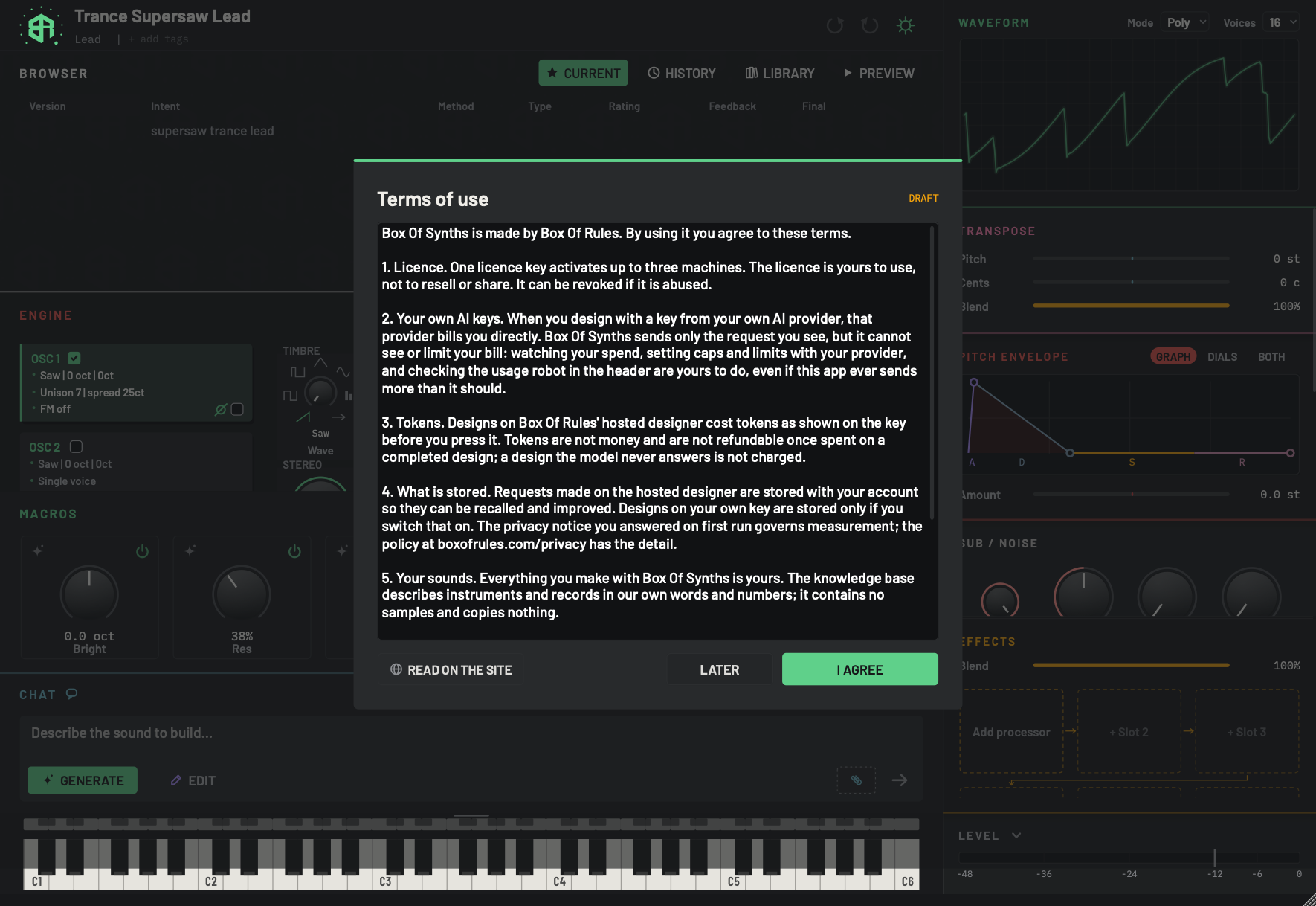
The terms card appears once, a moment after you answer the privacy question on first run. It is the agreement for using Box Of Synths.
-
1Terms of useDisplay
The title of the agreement card. It appears over a dimmed copy of the synth.
-
2Terms textArea
The terms in a scrolling box. Scroll to read all of them. The same text, with the privacy policy, is on our site.
-
3Read on the siteKey
Opens the full terms and the privacy policy on our site in your web browser. The card stays where it is.
-
4LaterKey
Closes the card without agreeing. You are not asked again on your own: the card only appears right after the first-run privacy question.
Clicking outside the card does nothing.
-
5I agreeKey
Records that you agree to the terms and closes the card.
- Read on the site opens the full terms and the privacy policy on our site, in your web browser.
- Later closes the card without agreeing. The card only appears right after the first-run privacy question, so it is not offered again on its own.
- I agree records your agreement and closes the card. It does not return.
-
1Read the terms
The card appears once, right after you answer the privacy question. Scroll the text to read it.
-
2Read more if you like
Click Read on the site to open the full terms and the privacy policy in your web browser.
-
3Agree or wait
Click I agree to record it and close the card. Later closes it without agreeing.
Designing on tokens
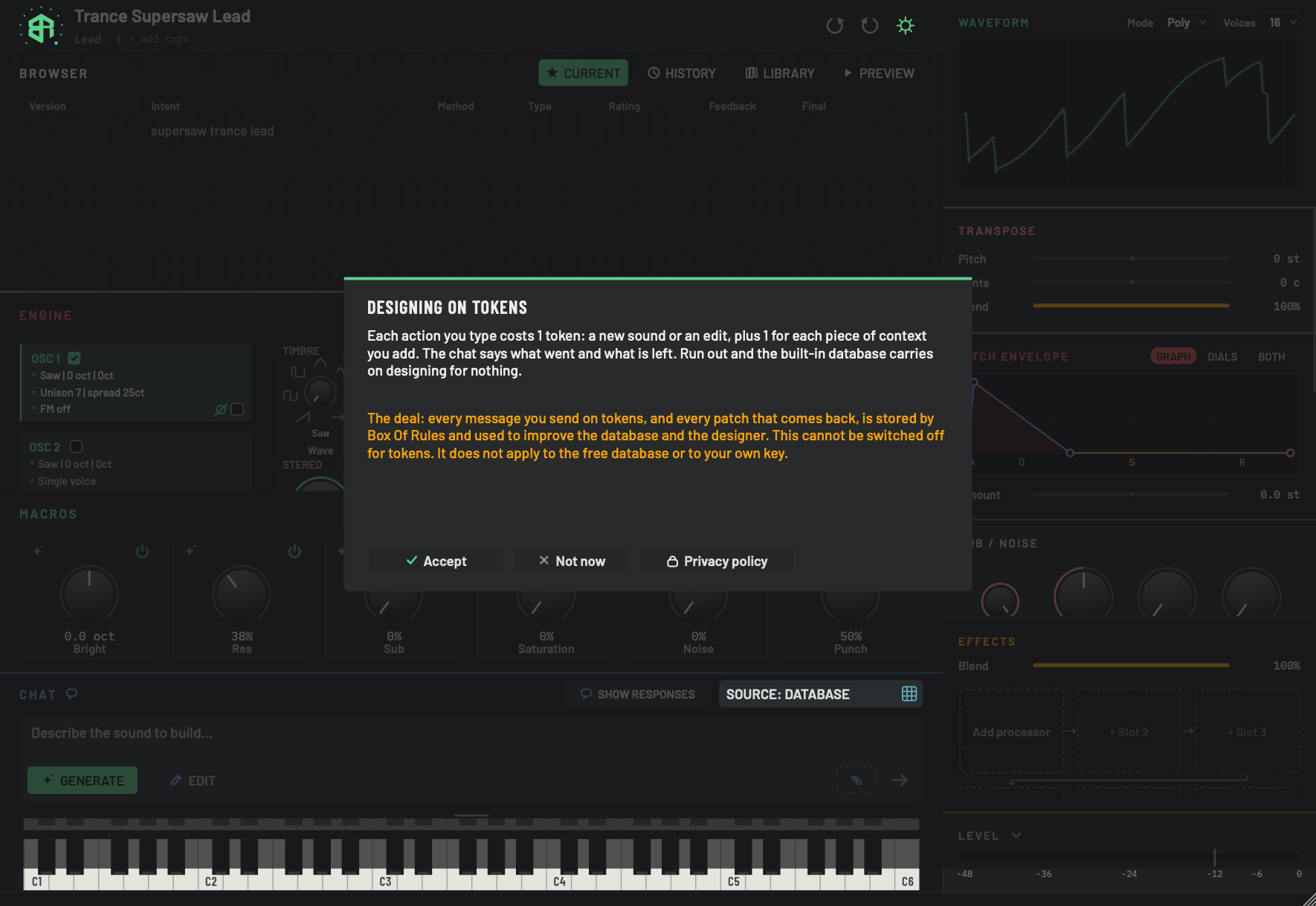
This card appears before your first design on tokens, and again if the agreement changes. It says what a design costs and what is stored.
-
1Designing on tokensDisplay
The title of the agreement. It shows before your first design on tokens, and again if the agreement changes.
-
2Cost paragraphDisplay
Says what a design costs: Each action you type costs 1 token: a new sound or an edit, plus 1 for each piece of context you add. The chat says what went and what is left. Run out and the built-in database carries on designing for nothing.
-
3Storage paragraphDisplay
The amber paragraph says what is stored: The deal: every message you send on tokens, and every patch that comes back, is stored by Box Of Rules and used to improve the database and the designer. This cannot be switched off for tokens. It does not apply to the free database or to your own key.
-
4AcceptKey
Agrees to the terms of designing on tokens. The card closes and your waiting request is sent.
-
5Not nowKey
Closes the card without agreeing. Nothing is sent. The built-in database and your own key still design.
-
6Privacy policyKey
Opens our privacy policy on boxofrules.com in your web browser.
The card says what a design costs:
Each action you type costs 1 token: a new sound or an edit, plus 1 for each piece of context you add. The chat says what went and what is left. Run out and the built-in database carries on designing for nothing.
and, in amber, what is stored:
The deal: every message you send on tokens, and every patch that comes back, is stored by Box Of Rules and used to improve the database and the designer. This cannot be switched off for tokens. It does not apply to the free database or to your own key.
- Accept agrees. The card closes and your waiting request is sent.
- Not now closes the card and sends nothing. The built-in database and your own key still design.
- Privacy policy opens our privacy policy in your web browser.
Settings: Account and privacy has the sign-in and the tokens balance.
Your keys, your bill
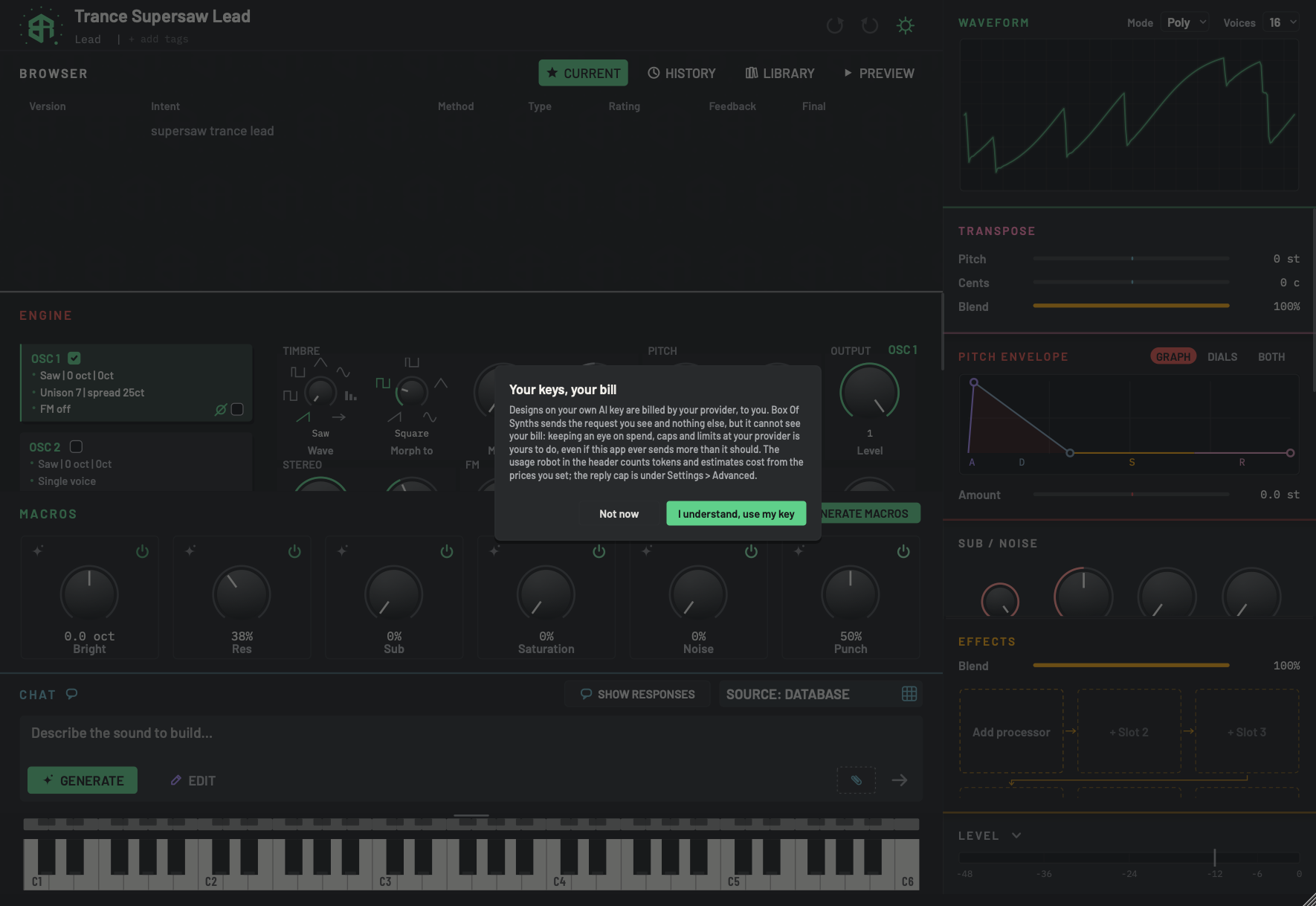
This card appears the first time you pick My own AI key or Local model, in Settings or in the first-run question. It is about who pays.
-
1Your keys, your billDisplay
The title of the agreement. It shows the first time you pick My own AI key or Local model.
-
2Agreement textDisplay
Says that your AI service bills you directly, that Box Of Synths sends the request you see and nothing else, and that watching your spend, caps and limits at your service is yours to do. It points to the usage robot in the header and to the reply cap under Settings, Advanced.
-
3Not nowKey
Closes the card and leaves your source as it was.
-
4I understand, use my keyKey
Agrees, switches to your own key or local model, and remembers that you agreed. The card does not return.
- I understand, use my key agrees, switches to your own key or local model, and remembers that you agreed.
- Not now closes the card and puts your source back as it was.
-
1Pick the source
In Settings, on the Designer tab, click My own AI key. The key turns amber and the line under it reads Your bill.
-
2Agree to the bill
The first time, a card called Your keys, your bill appears. Click I understand, use my key. Not now leaves your source as it was.
-
3Choose the service
Open the AI service list and pick the service you pay for. Each service remembers its own key, model and endpoint.
-
4Paste your key
Paste your key into Key, then click away or press
Return. It shows as dots and is saved at once. -
5List the models
Click Refresh. Listing models is free. The line under the Model box says how many came back.
-
6Pick a model
Open Model and pick one, or type a name. Leave it empty to use the default.
-
7Close Settings
Click Close or press
Esc. Your next Generate is designed by your own service and billed to you.
Create a new patch
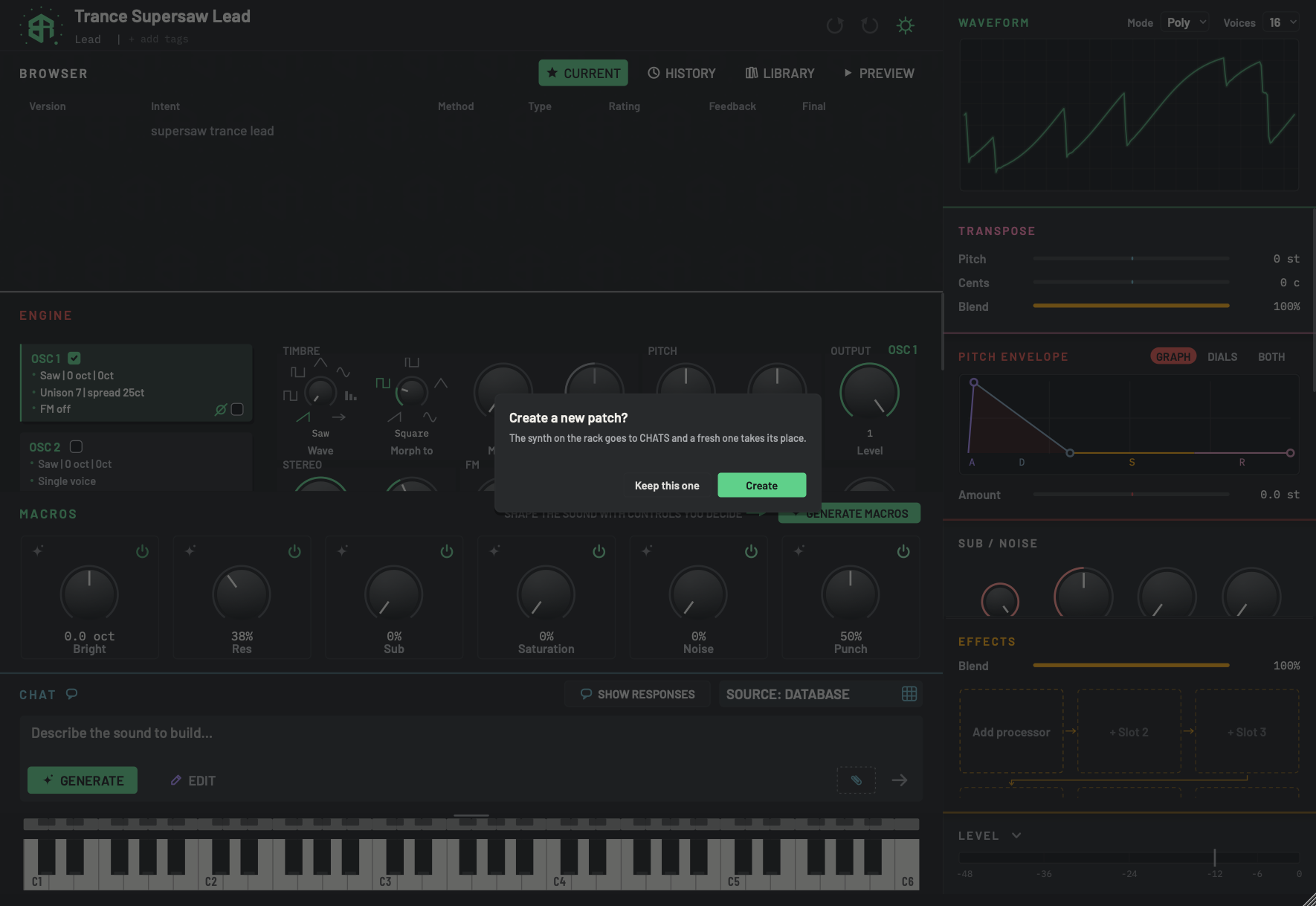
This card appears when you click the Box Of Synths mark in the header to start a new synth.
-
1Create a new patch?Display
The question. It appears when you click the Box Of Synths mark to start a new synth.
-
2MessageDisplay
The synth on the rack goes to CHATS and a fresh one takes its place. Nothing is lost: the current sound moves to your chats.
-
3Keep this oneKey
Closes the card and leaves things as they are.
Escdoes the same. -
4CreateKey
Moves the current synth to your chats and starts a fresh one.
Returndoes the same.If a design is still running, nothing happens: wait for it to finish first.
- Keep this one closes the card and changes nothing.
- Create sends the current synth to your chats and gives you a fresh one.
If a design is still running, nothing happens: wait for it to finish first.
-
1Click the mark
Click the Box Of Synths mark. A card asks Create a new patch?
-
2Decide
Keep this one closes the card and changes nothing.
-
3Create
Create sends the current synth to your chats and gives you a fresh one.
First-run questions
The first time you open the app, a short run of cards asks the questions the app needs answered. You meet each one once. Each stays until you press one of its keys.
| Card | What it says | Keys |
|---|---|---|
| Where your sounds live | Every preset, every generation and every chat is saved here, always. Keep this folder, or choose another one now. The folder path is shown under it. | Keep this folder, Choose another... (opens a chooser headed Where should your sounds live?). |
| Who designs your sounds? | Pick one to start. Box Of Synths designs on tokens with the whole database behind it; the built-in database designs offline for free; your own AI key or a local model uses your bill and your machine; an agent drives the synth over MCP. You can change this any time under the cog. | One key per source, each with its cost: Box Of Synths (tokens), Built-in database (free), My own AI key (your bill), Local model (free), Agent (free). Your own key and a local model first show Your keys, your bill. Tokens and Agent open the sign-in card, and Agent then leaves the source on the built-in database. Your own key and a local model open Settings on the Designer tab. |
| How much may we learn from your designs? | The privacy question, with three columns. See below. | Essential only, Improve Box Of Synths, Share everything, Privacy policy. None is chosen for you. |
| Terms of use | See above. | Read on the site, Later, I agree. |
The privacy question
The three columns say:
- Essential only: Licence, activation and the security log of calls through Box Of Rules. Always on. Nothing else leaves this machine.
- Improve Box Of Synths: Plus anonymous usage, saved versions and what you searched for. Nothing from your own AI keys. No personal data, no audio, no file names.
- Share everything: Plus the requests and designs you make on your own AI keys or agent, to train the designer. Never the keys themselves. Change it any time under the cog.
You change your answer later under Settings, Account. See Settings: Account and privacy.
Other confirmations
These cards and windows appear when you act. A card with a Do not ask again tick lets you switch it
off. Windows with a text box, such as rename and save, take Return for the main button and Esc to cancel.
Cards that ask "are you sure"
| Title | What it says | Buttons | When it appears |
|---|---|---|---|
| Switch synth? | Are you sure you want to switch? Undo can restore the current sound. With unsent work in the chat: Your unsubmitted text, drawing and context will be cleared. | Switch, Cancel, tick Do not ask again | You switch to another synth or chat. |
| Leave this new synth? | Your unsubmitted text, drawing and context will be cleared. | Leave, Cancel, tick Do not ask again | You leave the new-sound screen while it holds text, a drawing, context or a recording. With nothing on it, you leave without a card. |
| Randomise this sound? | This throws every dial in the ticked parts. The sound you have now stays in the history. On any source other than the built-in database it adds: Randomising here is instant and costs nothing; the designer would spend tokens on it. | Tick boxes Synthesis and Effects, then Randomise. On any source other than the built-in database also Ask the designer instead. | What you typed is your random trigger word. See Settings: Advanced. |
| Build it with the wizard? | The wizard lays the whole patch out as a table: randomise all of it or a section at a time, lock what you like, mark what you are not sure of and throw again at the end. Or go straight to the synth and turn the dials. | Wizard, Straight to the synth, and a tick to remember your choice | You start Raw dog it. See Starting a new sound. |
| Draw the partials? | This sets the oscillator's wave to Harmonic, so the bars shape its sound. The wave it has now is kept in the history. | Set to Harmonic, Cancel, tick Do not ask again | You start drawing the partial bars of an oscillator. |
| The same words again | You asked for exactly this recently. Spend N more token(s) on a fresh take? The site may word it differently. | Spend again, Cancel | You send a request on tokens that matches a recent one. Cancel keeps your tokens, and the earlier take stays in the history. Clicking outside does nothing. |
| Three takes on your own key | Each new sound will send three requests to your own AI provider, not one. Whatever that provider charges for them is yours to pay. Box Of Rules does not see or cap that spend. | Turn on, Cancel | You turn on Three takes of each new sound (three requests on your key) in Settings, on the Designer tab. The switch only goes on after Turn on. Clicking outside the card cancels. See Takes. |
| Delete followed by the chat's title, or Delete this chat? | The chat goes for good. The sounds it made stay in your library. | Delete, Cancel | You delete a chat in the History list. |
| Move this version? | It becomes v1.0 in a new synth and leaves this history. Undo restores it. | Move, Cancel | You move a version to a new synth from its menu. |
| Delete this version from history? | Its saved sound is kept, and Undo restores the history entry. | Delete, Cancel | You delete a version from a history. |
| Delete branch followed by the version label | Remove N version(s) from this history? Their saved sounds are kept, and Undo restores the branch. | Delete branch, Cancel | You delete a branch from a version's menu. |
| Flatten which scope? | Asks whether to keep the version as the root of its sub-branch, or to replace the full version. | The two scopes, then Cancel | You flatten a version that is not a branch root. |
| Flatten and the version label | Saved sound files are kept. Undo restores the previous sound and history. The card also says which sound is kept and how many other history versions are removed. | Flatten, Cancel | You confirm a flatten. |
Version history is covered in Browser: Current and Browser: History.
Windows with a text box, and one nudge
| Title | What it says | Buttons | When it appears |
|---|---|---|---|
| Tags for followed by the sound's name | Your own tags, separated by commas: | Keep, Cancel | You edit the tags of a saved sound in the Library. |
| Rename followed by the sound's name | What should it be called? | Rename, Cancel | You rename a saved sound in the Library. |
| Rename chat | A new name for this chat: | Rename, Cancel | You right-click a chat in the History list and choose Rename. |
| Save this rack | Rack name: | Save, Cancel | You press Cmd+S (Ctrl+S on Windows), or choose Save in the Library. |
| Save this row | Patch name: | Save, Cancel | You save a synth row from the Library menu. |
| Load from a URL | A preset page on boxofsynths.com, or a link to a patch or rack JSON: | Load, Cancel | You choose to load from a link in the Library. |
| New folder | A folder in your Synths folder. Sounds saved there, or moved there, show under it. | Create, Cancel | You make a folder in the Library. |
| Help improve the next sound | Use the green and red thumbs in CURRENT to say what worked. Your feedback helps improve the database and future generative results. Sharing still follows your privacy settings. | Got it, Not now | Once, after twenty designs with no feedback given. |
| You've used this a lot | Have you thought of supporting? It keeps the plugins coming. | Support, Not now, Don't show again | On every twentieth time you open the app, and only when your source is your own AI key or a local model. It does not appear once your account has paid. Clicking outside counts as Not now. |
Library actions are covered in Browser: Library.
Reset dialog warnings
Two of the cards above, Switch synth? and Leave this new synth?, have a Do not ask again tick. Once you tick it, the card stops appearing and the app goes straight ahead.
To get the cards back, open Settings, go to the Advanced tab and click Reset dialog warnings. The line under the keys says Dialog warnings restored. It brings back those two cards only. The ticks on Draw the partials? and Build it with the wizard? are not touched by it. See Settings: Advanced.