
Box Of Synths manualStart here
Your first sound
A guided first session: describe a sound, play it, turn a macro, ask for a change and find your versions.
This is a ten minute tour. You will type a few words, hear the sound the app makes, shape it and ask for a change. Everything here uses the built-in database, which is free. It costs no tokens and needs no account.
If the app asks who designs your sounds when it first starts, choose Built-in database. If you already changed the source, check that the chat reads SOURCE: DATABASE at its top right. See Sources, tokens and what a design costs.
Describe a sound and press Generate
Look at the Chat block near the bottom of the main column. Click the box and type a short description, such as warm analogue pad. You do not need technical words. Names of kinds of sound, feelings and styles all work.
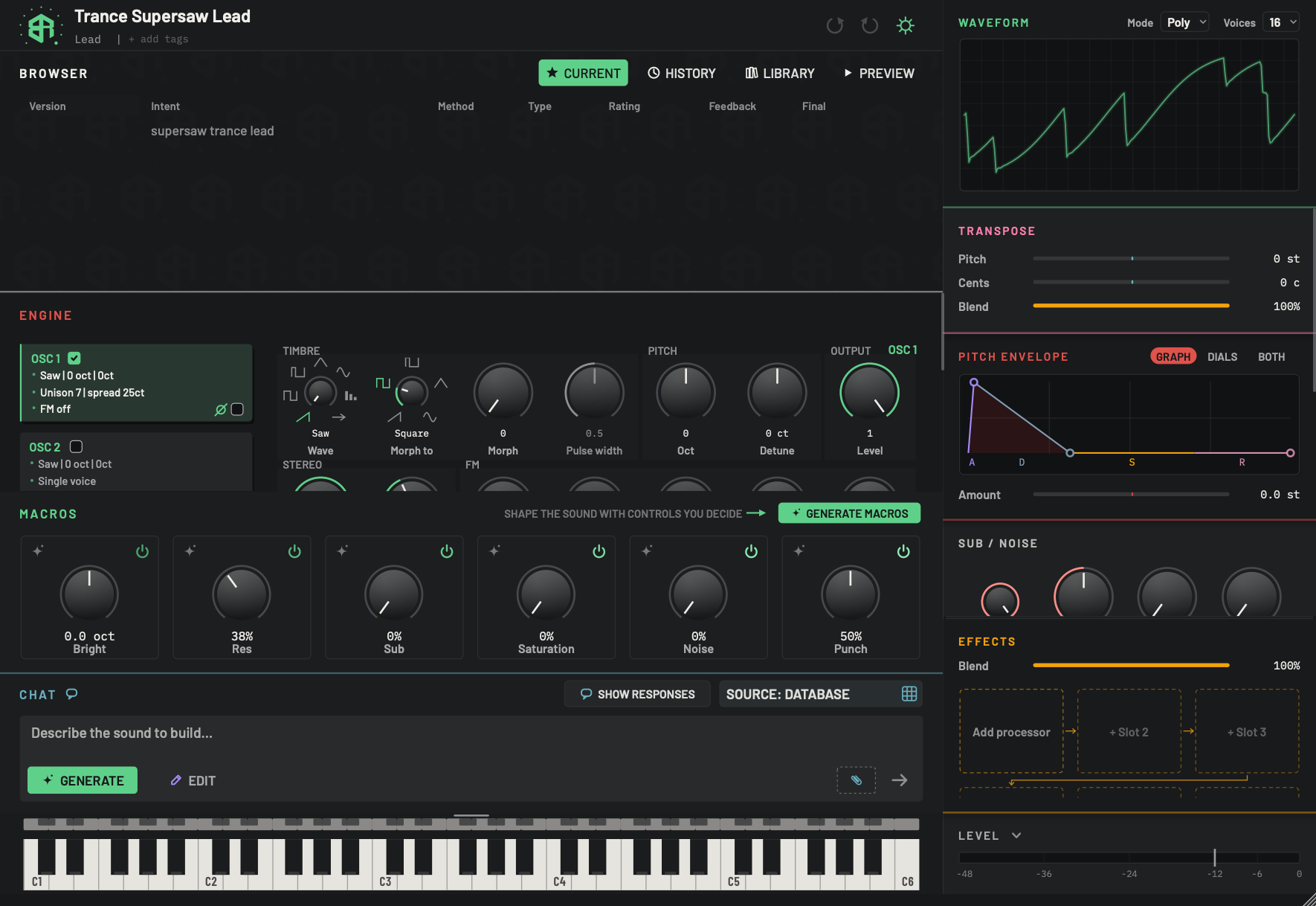
The chat block sits between the macros and the keyboard. Drag its top edge up or down to make the description box taller. It holds the words you type and the keys that send them.
-
1Chat top edgeArea
The line along the top of the block. Drag it up or down to make the chat taller or shorter. It will not go shorter than the words in the box need. The height is remembered.
-
2Chat headingDisplay
The title of the block. The Show responses key and the Source control sit at the right end of the same line.
-
3Show responsesSwitch
A key with a speech glyph. Click it to turn it on, and it lights. Click again to turn it off. When it is on, the designer's full written reply to each design is kept with the chat.
The reply does not appear in the Browser table, and the key does nothing when the source is Database.
- Starts as
- Off
The setting is remembered between sessions.
-
4SourceMenu
Says who designs your sounds and opens a menu to change it. Click it and pick a row. The change applies at once. The glyph at the right tells you which kind is active: a grid for the database, a coin for tokens, a spark for an AI service or a local model app.
The key reads SOURCE: and then the name of the source you have set up.
- Options
The menu lists eight rows, in order:
- Database: selects Built-in database.
- Tokens: selects Box Of Synths, paid with tokens.
- Claude: selects My own AI key with Claude as the AI service.
- OpenAI: selects My own AI key with OpenAI.
- OpenRouter: selects My own AI key with OpenRouter.
- Ollama: selects Local model with Ollama.
- LM Studio: selects Local model with LM Studio.
- Custom: selects My own AI key with Custom.
A tick marks the one in use.
- Starts as
- Database
Hovering shows a tip that ends with the words about designer settings. That wording is old: clicking opens this menu, not Settings. Full explanation on Sources, tokens and what a design costs.
-
5Description boxText box
Type what you want here. It starts as one line and grows as you type, up to five lines, then scrolls. Click anywhere on the card to put the cursor in the box. Press
Returnto send, orShiftandReturntogether to start a new line.With Generate lit, the grey words read Describe the sound to build…. With Edit lit they read What needs improving.
- Starts as
- Empty
-
6Generate or EditSwitch
Chooses what your words do. Generate (green) makes a new sound. Edit (violet) changes the sound you have. The lit one is the one the send arrow and
Returnuse.- Options
Generate: a new sound from your words.
Edit: a change to the sound on the synth.
- Starts as
- Generate
Edit is greyed out until a sound has been designed in this chat. It is also greyed while a design is running.
-
7Paperclip (context)Menu
Attaches extra context to your next request: a file, or an earlier version of this sound. Click it to open its menu. You can also drop one file straight onto it. Once something is attached, the key shows a count instead of the plain paperclip.
The menu holds Add PDF or text file..., Reference a version (only when this chat has versions) and one Remove line for each thing attached.
- Options
Up to 8 pieces of context. Files:
.pdf,.txt,.mdor.json, up to 5 MiB.
Context is for Tokens, your own AI key or a local model. It cannot be used with the built-in database.
-
8Send arrowKey
Sends your words in the lit mode, the same as
Return. It is grey until there are words to send and while a design is running.Its tip reads Submit this action.
Make sure Generate is the lit key, then press Return. The send arrow does the same. A dark sheet covers the window while the sound is made. It shows your words and a moving line. With the database this takes a moment.
When the sheet closes, the sound is on the synth. The Waveform shows its shape, the Engine and Macros have new settings, and the Browser has a first row, v1.0. See The screen at a glance for where everything sits.
Sometimes the database finds several sounds that could fit your words. Then the sheet does not close on a sound. A sheet called Choose a take opens, with up to four cards. Click Play on a card to hear it, then click Use this one on the take you like. If you cannot decide, use the first card, marked 1 best fit. The take you choose lands on the synth and the other takes are let go. It costs nothing. See Takes.
Play it
The keyboard sits at the bottom of the main column. If you only see a thin strip of small keys, click the strip to open the keyboard. Then click keys to hear the sound. Hold a key to hold the note. Drag across the keys to slide from one note to the next. You can also play with the letter keys on your computer once you have clicked a key. See The keyboard.
Turn a macro
Above the chat is a row of big dials called Macros. The designer built them for this sound. Each moves several settings at once, so a single turn can brighten the sound or make it heavier. Hold a note and drag one dial up and down. See Macros.
Ask for a change
After a sound lands, the chat switches itself to Edit. The key lights violet and the grey words in the box change to What needs improving.
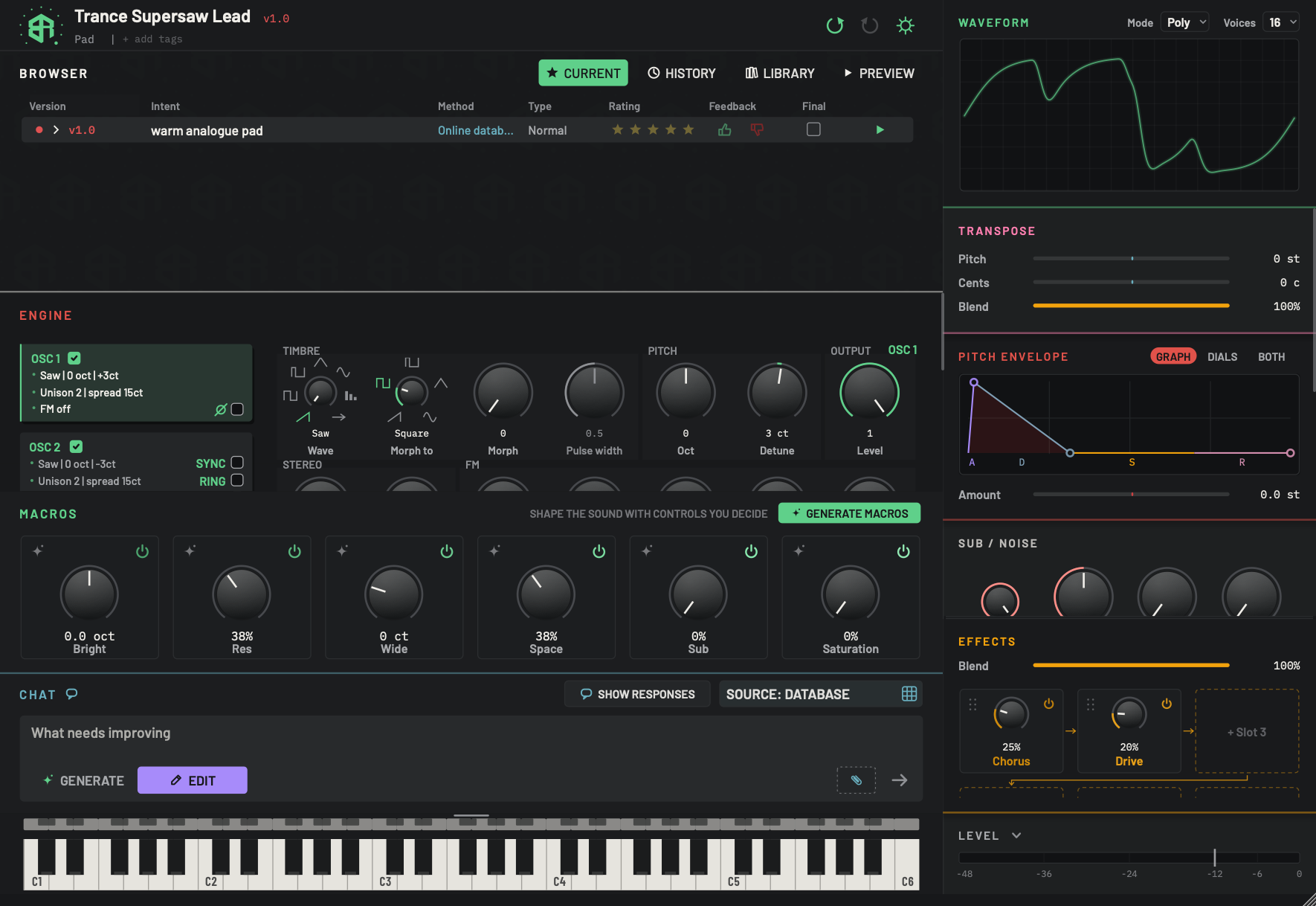
Once a sound has been designed, the chat switches itself to Edit. This picture shows what changed on the screen after the first design landed.
-
1Version labelDisplay
The version of the sound on the synth. A new design counts up the main number:
v1.0, thenv2.0. Small changes you make by hand sit under a design with a longer number, such asv1.1.0. -
2Undo keyKey
Lights up once there is something to undo. Click it, or press
Cmd+Z(Ctrl+Zon Windows), to go back one step, including back to the sound you had before a design. See The header.In a text box such as the description box, the same keys undo your typing instead.
-
3Version rowTable
The first version of the new sound. It shows the words you typed, how it was made, a star rating, thumbs, a Final box and a play key. Click the row to load that version again. See Browser: Current.
In this picture the Method column reads Online datab..., which means the online database made it.
-
4Macros for the new soundArea
A design also builds a fresh set of macros to suit the sound. Compare these with the macros before the design on The screen at a glance. See Macros.
-
5Effects for the new soundArea
The designer filled the first two effect slots here, with a chorus and a drive. See Effects.
-
6SourceMenu
Unchanged. It still says who designs your sounds. Full details in The chat and the composer.
-
7Description box in EditText box
The grey words now read What needs improving. Type what to change about the sound that is on the synth, such as darker, and press
Return. With the cursor in this box, the dials your words may move light up. Dials you have locked stay as they are.- Starts as
- Empty
-
8Generate or EditSwitch
Edit is now lit in violet, and Generate is dim. Click Generate if you want a new sound instead. A new sound replaces the one on the synth, and the old one is kept for you under History.
- Options
Generate: a new sound.
Edit: a change to this sound.
- Starts as
- Edit after a design lands
-
9Paperclip (context)Menu
Unchanged. See The chat and the composer. Now that this chat has a version, the menu also offers Reference a version.
-
10Send arrowKey
Unchanged. It sends your words as an edit while Edit is lit.
Type what you would change, such as darker, and press Return. The sheet appears again, and then the changed sound lands. Short plain words work best with the database: louder, darker, fatter, brighter, more reverb, less glide. If the app cannot tell how to change the sound from your words, it keeps your sound and says so. See The chat and the composer.
Find your versions
Every design is kept. Open the Browser and look at the Current tab. Each design has a row, newest at the top, with the words that asked for it. Click a row to load that version back onto the synth. Nothing is lost when you ask for a change, so it is safe to try things. See Browser: Current.
If you want a different sound altogether, choose Generate again and type a new description. Your old sound is kept for you under History. See Browser: History.
Walkthrough
A short first session with the built-in database, which is free. You will describe a sound, hear it, turn a macro, ask for a change and find the versions in the Browser. If the app asks who designs your sounds when it first starts, pick Built-in database.
-
1Describe the sound
Click the description box and type warm analogue pad. The grey words Describe the sound to build… disappear as you type.
-
2Press Generate
Make sure Generate is the lit key, then press
Returnor click the send arrow. A dark sheet covers the window while the sound is made. It shows your words and a moving line, and the database is quick. -
3See the new sound
The sheet closes and the sound is on the synth. The Waveform shows its shape, the dials in the Engine and Macros have moved, and the Browser has a first row,
v1.0. -
4Play it
If the keyboard is closed, click the thin strip of small keys to open it. Then click keys to hear the sound. Hold a key to hold the note, and drag across the keys to slide.
-
5Turn a macro
Hold a note, or play again, and drag one of the big macro dials. The sound changes as you turn, because each macro moves several settings at once.
-
6Ask for a change
The chat has switched itself to Edit, and the grey words now read What needs improving. Type darker and press
Return. The sheet appears again, then the changed sound lands. -
7Find the versions
Each design has a row in the Browser, newest at the top. Click an older row to load that version again. Nothing is lost.
Where to go next
- To start from nothing, from a drawing or from a sound file of your own, see Starting a new sound.
- To see what the chat can do, see The chat and the composer.
- To find out what other sources cost, see Sources, tokens and what a design costs.