
Box Of Synths manualSettings
Settings: Account and privacy
Sign in, see your tokens, choose how much you share, and find the site, terms and support links.
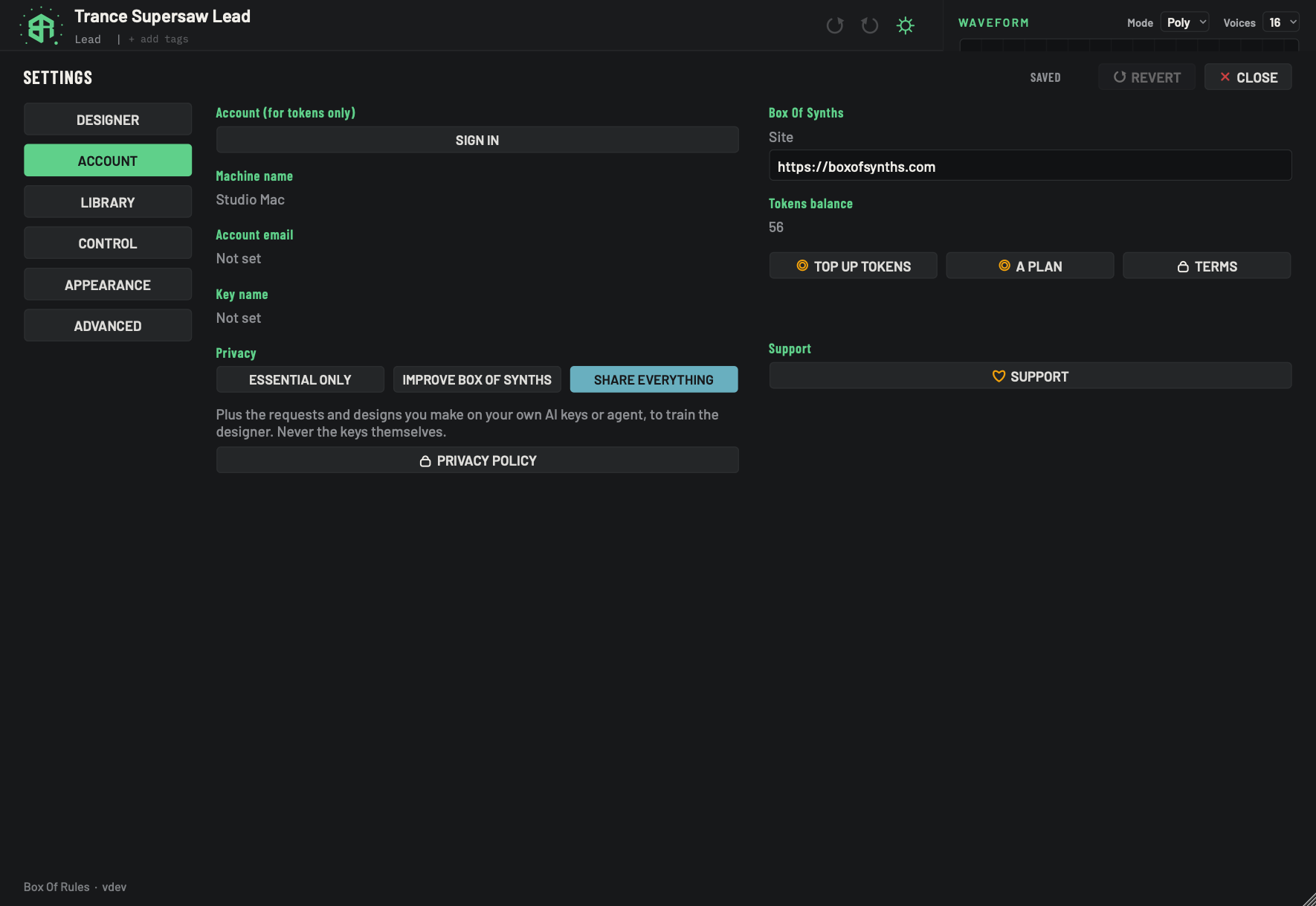
The Account tab is for the things tied to your Box Of Synths account: signing in, your tokens, how much you share with us, and links to the site. Only tokens need an account. Everything else works without one.
-
1Settings tabsTabs
The six pages of Settings. Account is the one lit green here. See Settings: Designer.
-
2Sign inKey
Opens the sign-in page on our site in your web browser, so this computer can be linked to your Box Of Synths account. Only tokens need an account. Everything else works without one.
The app shows a card headed Waiting for your browser with a code. Sign in on the page that opened and press Connect there. The card closes by itself when it is done.
-
3Machine nameDisplay
The name this computer goes by on your account. It starts as the computer's own name. You cannot type here.
-
4Account emailDisplay
The email of the account this computer is signed in to. It reads Not set until you sign in.
-
5Key nameDisplay
The name of the key that links this computer to your account. It reads Not set until you sign in.
-
6PrivacyChoice
Three keys, one choice: how much we may learn from your use. The key you click is saved at once. The lit one shows what you chose.
- Options
Essential only
Improve Box Of Synths
Share everything
You are asked this once, on first run. Nothing is lit before you answer. You can change your mind here at any time.
-
7Privacy captionStatus
A short line under the three keys that changes with the lit key and says what that choice sends. The page documents all three below.
The picture shows the Share everything line.
-
8Privacy policyKey
Opens our privacy policy on boxofrules.com in your web browser.
-
9SiteDisplay
The address of the Box Of Synths site this app talks to, where designs are stored and tokens live. It is locked: you cannot change it here.
-
10Tokens balanceDisplay
How many tokens your account has. It updates when you sign in and after each design on tokens.
-
11Top up tokensKey
Opens the tokens page on boxofsynths.com in your web browser, so you can buy more.
-
12A planKey
Opens the plans page on boxofsynths.com. A plan gives you the online database with no allowance, and keeps your library on our site.
-
13TermsKey
Opens the tokens agreement and the site's terms on boxofsynths.com in your web browser.
-
14SupportKey
Opens our support page on boxofrules.com in your web browser.
Sign in
Click Sign in. Your web browser opens our sign-in page, and the app shows a card headed Waiting for your browser. The card holds a large code, so you can match it to the page in your browser, and three keys.
| Key | What it does |
|---|---|
| Open the browser again | Opens the sign-in page again. |
| Copy the link | Copies the link, for a browser on another screen. The card says Link copied. |
| Cancel | Stops waiting and closes the card. You stay signed out. Tokens need an account; everything else works without one. |
Sign in on the page that opened, then press Connect there. The card fills itself in and closes by itself. There is nothing to copy back.
If something goes wrong, the line at the foot of the card tells you:
- Asking the site for a link... while the app asks for a link.
- Your browser has the page. Sign in there and press CONNECT. once the page is open.
- The site is not answering; try again in a moment. if our site does not reply.
- No connection to the site just now; still waiting. if your connection drops. The card keeps trying.
If you cancel on the web page, or the link has expired or was already used, the card simply closes. Click Sign in again for a fresh link.
When it works, Account email, Key name and Tokens balance fill in.
Sign in, step by step
-
1Pick the source
On the Designer tab click Box Of Synths. The key lights up and the line under it reads Tokens.
-
2Go to the Account tab
Click Account. This is where your account and balance live.
-
3Sign in
Click Sign in. Your web browser opens our sign-in page and the app shows a card with a code. Sign in there and press Connect. The card closes by itself.
-
4Check your balance
Tokens balance shows what you have. Click Top up tokens if you need more.
-
5Agree on your first design
The first time you design on tokens, Designing on tokens appears. Click Accept and your request is sent.
This machine
Three read-only rows sit under Sign in.
- Machine name is the name this computer goes by on your account. It starts as the computer's own name.
- Account email is the email of the account this computer is signed in to. It reads Not set until you sign in.
- Key name is the name of the key that links this computer to your account. It reads Not set until you sign in.
Privacy
Three keys, one choice. You are asked once on first run, and nothing is lit until you answer. You can change your mind here at any time. The key you click is saved at once, and the lit key shows what you chose. The line under the keys changes to match.
| Choice | The line you see | What it sends |
|---|---|---|
| Essential only | Licence, activation and the security log of calls through Box Of Rules. Nothing else leaves this machine. | Only what is needed to run the service and keep it safe. This is always on, whatever you pick. |
| Improve Box Of Synths | Plus anonymous usage, saved versions and what you searched for. Nothing from your own AI keys. | Everything above, plus anonymous usage, the versions you save, and what you search for. The first-run notice adds: no personal data, no audio, no file names. Nothing you do on your own AI keys is sent. |
| Share everything | Plus the requests and designs you make on your own AI keys or agent, to train the designer. Never the keys themselves. | Everything above, plus the requests and designs you make on your own AI keys or with an agent, to train the designer. Never the keys. |
Designs on tokens are different: the tokens agreement says they are stored, and that cannot be switched off for tokens. See Agreements and confirmations.
Privacy policy opens our privacy policy on boxofrules.com in your web browser.
Change what you share, step by step
-
1Open the Account tab
Open Settings and click Account.
-
2Pick a level
Click Essential only, Improve Box Of Synths or Share everything. It is saved at once and the lit key shows your choice.
-
3Read what it sends
The line under the keys changes to say what that level sends.
-
4Read the policy
Click Privacy policy to read the full policy on boxofrules.com in your web browser.
Box Of Synths, the site
The right-hand column is about our site.
- Site shows the address of the Box Of Synths site, where designs are stored and tokens live. It is locked: you cannot change it here.
- Tokens balance is how many tokens your account has. It updates when you sign in and after each design on tokens.
- Top up tokens opens the tokens page on boxofsynths.com in your web browser.
- A plan opens the plans page. A plan gives you the online database with no allowance, and keeps your library on our site. See Settings: Library and folders.
- Terms opens the tokens agreement and the site's terms in your web browser.
- Support opens our support page on boxofrules.com in your web browser.
The site status line
Under the three site keys there is a status line. It is empty until the site has been checked. It then reads:
- Up. Talking to followed by the site address, when the site answers.
- DOWN: followed by the reason, when it does not.
- Asking the site... while a check is running.
Check site in Settings: Advanced runs a check on demand, and the app checks now and then by itself. While the site is down, a red band under the header reads BOX OF SYNTHS IS DOWN, then the reason, then THE DATABASE STILL DESIGNS. The band goes when the site is back.
Loyalty card
A loyalty card gives you a stamp when you choose between takes of a new sound on tokens, and a free token when the card is full. It is not always running, so you may never see it.
Where it shows
The card is on this tab, in the right-hand column, under Tokens balance and the keys Top up tokens, A plan and Terms. It shows only while a card is running for your account, and only when you are signed in. If no card is running, there is nothing there, and nothing else on the tab moves. The app asks our site for the card each time you open Settings, so it can appear a moment after the tab opens.
| Part | What it shows |
|---|---|
| Loyalty card | The heading. |
| The stamp row | A row of circles, one for each stamp the card holds. Usually there are four. A filled circle is a stamp you have earned. An empty ring is a place still to fill. Beside the row, a count such as 2 / 4. |
| Feedback on your sounds earns stamps. Four stamps are a free token. | What the card is for. The card shows how many stamps make a token, and the usual number is four. |
| 3 tokens earned so far. | How many free tokens the card has given you. It reads 1 token earned so far. for one. |
| The card runs until a date | The day the card ends, for example The card runs until 3 December 2026. If the site gives no end date, this part is left out. |
What earns a stamp
One thing: choosing a take with Use this one on the Choose a take sheet, when the sound was designed on tokens. See Takes. Loading that version again later from the Browser tells our site again which take it was, and the answer can stamp the card too.
Nothing else stamps the card in the app. A thumb up or a thumb down does not. Choosing a take on the built-in database or on your own key does not either, because nothing is sent to our site for them.
Our site decides whether a choice earns a stamp, and how many. The app shows one stamp as A stamp for that, and shows any larger number as Two stamps for that. It does not show a limit on how many stamps you can earn in a day.
When you earn a stamp
A small card slides in under the header for about two and a half seconds, then goes by itself. It takes no clicks. It shows the places on the card with the new stamp coming down onto its place, the words A stamp for that or Two stamps for that, and the count, for example 3 / 4. The card in Settings moves on too.
When the card is full
When the last place is filled, the small card reads Card full: one free token, with every place filled, and a burst of colour appears on the synth. A full card is one free token on your account. In Settings, the count of tokens earned goes up by one and the card starts again.
See Sources, tokens and what a design costs for tokens, and Takes for the sheet that earns the stamps.