
Box Of Synths manualThe browser
Browser: History
Your chats are saved as you design. Search them, sort them, hear them, reopen one, rename it or delete it.
A chat is the conversation about one sound: the words you asked with, and the versions that came back. Every time you start a new sound, the sound you had before is kept as a chat. You do not save anything. The History tab lists them all, so a sound you made last week is never more than a click away.
For the versions inside the chat that is on the synth now, see Browser: Current. The other tabs are Library and Preview.
The list
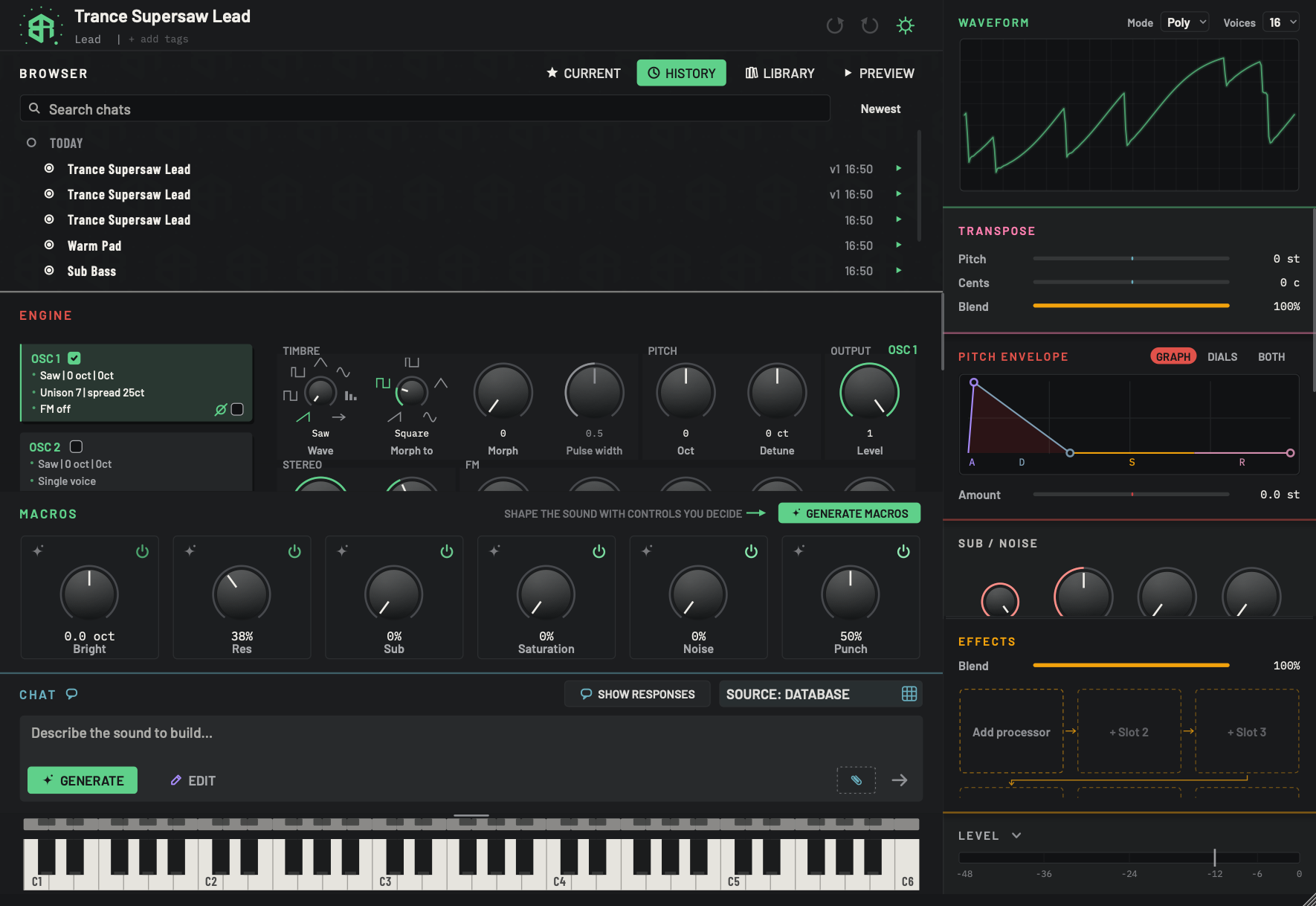
Every sound you have designed is kept as a chat. This tab lists them, newest first.
-
1History tab keyTabs
The lit key. It opens this page. Press
Cmd+Return(Ctrl+Returnon Windows) while the chat box is not in use to jump straight here with the cursor in the search box. -
2Search chatsText box
Type part of a chat's name, or any words from inside it, and the list narrows as you type. Words match the name, the first request, the text of the chat and its tags.
Start a word with
#to keep only chats with that tag, for example#warm. Other words then search inside those chats.Escclears the box.With no match the list reads Nothing matches and your words in quotes.
-
3Sort keyChoice
Changes the order of the list. Each click moves to the next one. Hover to read How the chats are ordered: newest first, oldest first, or by name.
- Options
Newest: the most recent first. Oldest: the oldest first. A to Z: by name, in one flat list.
- Starts as
- Newest
-
4Date groupDisplay
A heading for the day the chats below were last used. Newest and Oldest group the chats under Today, Yesterday, and then the day's name and date, such as Wednesday 12 November. A to Z has no headings.
-
5Chat dot and pencilKey
The dot at the left of each chat. Move the pointer over it and it turns into a pencil. Click the pencil to rename that chat in place. Hover to read Rename.
-
6Chat nameList
One chat per row. Click a name to open that chat: its last sound goes onto the synth, and the Browser returns to Current. Opening a chat is one undo step.
Double-click a name to rename it. Right-click it for Rename and Delete.
If the sound on the synth would be replaced, a card asks Switch synth? first. A chat with no name reads UNTITLED.
-
7Version and timeDisplay
At the right of each row. First the number of versions the chat holds, written like v1 or v5. Then FINAL if you ticked a version as final, then stars if you gave a rating, then the time the chat was last used. With A to Z the time is replaced by the date.
-
8Play keyKey
The small green triangle plays the last saved sound in that chat without opening it. It becomes a red square while it plays. Click it again to stop. Hover to read Preview this chat without loading it.
When you have no chats yet the list reads No chats yet. They are saved as you design.
Date groups
With Newest or Oldest, chats sit under headings for the day they were last used: Today, Yesterday, and then the weekday and date, such as Wednesday 12 November. Each chat is indented under its day. With A to Z there are no headings and the list is one flat run.
What a row shows
From the left: the dot, which turns into a pencil when the pointer is over it, then the chat's name, then at the right:
- The number of versions the chat holds, written like v1 or v5.
- FINAL, if you ticked a version as final in Browser: Current.
- Stars, if you rated a version.
- The time the chat was last used, such as 16:50. With A to Z this shows the date instead, written year, month, day.
- A small green play key.
A chat with no name reads UNTITLED.
Search
Click Search chats and type. The list narrows as you type.
- Words match the chat's name, the first request, the text inside the chat and its tags.
- Start a word with
#to keep only the chats that have that tag, for example#warm. Add other words and they search inside those chats only. Escclears the box.- If nothing matches, the list reads Nothing matches and your words in quotes.
Tags are set in the header: see The header.
Sort
The key at the right of the search box sets the order. Each click moves to the next one.
| Order | Shows |
|---|---|
| Newest | The most recently used first, under day headings. |
| Oldest | The oldest first, under day headings. |
| A to Z | By name, in one flat list. |
The list starts on Newest.
Open a chat
Click a chat's name. Its last sound goes onto the synth and the Browser returns to the Current tab, showing that chat's versions. Opening a chat is one step you can undo with the header's undo.
Before it replaces the sound on the synth, a card may ask Switch synth? Are you sure you want to switch? Undo can restore the current sound. If you have typed words or drawn something that is not sent yet, the card says Your unsubmitted text, drawing and context will be cleared. instead. Click Switch or Cancel. The card has a tick, Do not ask again.
While a design is running, a chat cannot be opened. Wait for it to finish.
Rename a chat

Double-click a chat, or click its pencil, and its name opens for editing in place.
-
1Rename fieldText box
The chat's name, open for editing. The caret is at the end and nothing is selected.
Returnkeeps the new name. Clicking away keeps it too.Escleaves the old name.If the chat is the one on the synth, the sound's name in the header changes with it.
There are three ways in:
- Double-click the chat's name.
- Click the pencil that the dot turns into. Hover to read Rename.
- Right-click the name and choose Rename. A box titled Rename chat asks A new name for this chat:, with Rename and Cancel.
The first two open a field over the row, with the caret at the end of the name and nothing selected. Return keeps the new name, clicking away keeps it too, and Esc leaves the old one. If the chat is the one on the synth, the name in the header changes with it.
Delete a chat
Right-click the chat and choose Delete. A card titled Delete and the chat's name, with a question mark, says The chat goes for good. The sounds it made stay in your library. Click Delete to remove it, or Cancel.
Hear a chat
The green play key at the right of a row plays the last saved sound of that chat without opening it. The synth stays as it is. The key turns into a red square while it plays, and a second click stops it. Hover to read Preview this chat without loading it. It plays once, with the options from Browser: Preview. One thing plays at a time.
A chat that has no saved sound has nothing to play.
A shortcut to this tab
Press Cmd+Return (Ctrl+Return on Windows) while the chat box is not in use. The Browser switches to History and the cursor goes into Search chats, ready to type. It does not send a design.
-
1Open History
Click History. Your chats are listed, newest first, under day headings.
-
2Search
Click Search chats and type a word from the name or from anything you asked. Type
#and a tag to keep only chats with that tag. -
3Change the order
Click the sort key to move between Newest, Oldest and A to Z.
-
4Hear it first
Click the small green triangle to hear a chat's last sound without opening it.
-
5Open it
Click the chat's name. Its last sound goes onto the synth and the Browser returns to Current.
-
6Rename it
Double-click a name instead, type a new one and press
Return.